|
Archive-name: pc-hardware-faq/laptops/compaq-aero
Posting-Frequency: 57 days
Last-modified: 2002/04/29
Version: 3.31
URL: http://www.zenspider.edu/~pwilk/aero/aero-faq.txt
Subject: Introduction
Compaq Contura Aero Frequently Asked Questions Version 3
Editors:
Philip Wilk (Version 3) Current
Ekkehard Rohwedder (Version 2.0)
Renee Roberts (Version 1.0)
To send submissions, corrections or deletions for this FAQ, please email
pwilk-faq@zenspider.com or post to the aero mailing list.
This document is to be freely distributed. Under _no_ circumstance should
a fee be charged for the procurement of this FAQ. It is the sole property
of everybody who has contributed (a whole bunch of way cool folks).
Subject: Short Contents
1 General
1.1 About this FAQ
1.2 Resources
1.3 Technical Data
1.4 User Opinions
1.5 Who's using an Aero
2 Hardware
2.1 Aero
2.2 Accessories
3 Software
3.1 Upgrades
3.2 Configuration
3.3 Operating Systems
Subject: Long Contents
1 General
1.1 About this FAQ
1.1.1 Where to find the FAQ
1.2 Resources
1.2.1 Internet
1.2.2 Mailing List
1.2.2.1 Unsubscribing to the mailing list
1.2.3 Companies that carry Aero parts and supplies
1.3 Technical Data
1.3.1 Exploded View
1.3.2 System Unit
1.3.3 Passive Matrix Monochrome Display
1.3.4 Passive Matrix Color Display
1.3.5 Stock Hard Drives
1.3.6 Internal Power Supply
1.3.7 Nickel Metal Hydride (NiMH) Battery Pack
1.3.8 AC Adapter
1.3.9 Convenience Base
1.3.10 External Diskette Drive
1.3.11 Video Controller
1.3.12 Part Numbers
1.4 User Opinions
1.4.1 Is the machine really that bad?
1.4.2 Opinions on Aero features (The Quick FAQs)
1.5 Who's using an Aero
2 Hardware
2.1 Aero
2.1.1 CPU
2.1.1.1 Is it upgradeable?
2.1.1.2 Is it FPU upgradeable?
2.1.2 Memory (RAM)
2.1.2.1 How do you upgrade?
2.1.2.3 How much are memory upgrades?
2.1.3 How to disassemble the Aero
2.1.3.1 The tale of a journey inside.
2.1.4 Hard Drive
2.1.4.1 Partitions
2.1.4.2 Noisy 84Mb hard drives
2.1.4.3 Upgrading the hard drive
2.1.4.4 Hard Drive installation
2.1.4.4.1 Prequel to the step-by-step tutorial
2.1.4.4.2 A step-by-step tutorial
2.1.4.5 Installing the old drive in your desktop.
2.1.4.6 Fixing the Master Boot Record
2.1.4.7 Aero harddrive upgrade list
2.1.4.8 External harddrive solutions
2.1.5 Screen
2.1.5.1 The pulsing backlight puzzle
2.1.5.2 The screen connection
2.1.5.3 What if my screen is unevenly backlit?
2.1.5.4 800x600x16 VGA mode
2.1.5.5 Special supported 256 color VGA modes
2.1.5.6 Special supported text modes?
2.1.5.7 Screen hinge problem (the darn "display clutch")
2.1.5.8 Screen Disassembly
2.1.5.9 Backlight Replacement
2.1.6 Keyboard
2.1.6.1 Aero keyboard diagrams
2.1.7 Trackball
2.1.7.1 Replacement Trackball
2.1.7.2 Cleaning Trackball
2.1.7.3 Ballistic Mouse driver?
2.1.7.4 Trackball and left-handedness?
2.1.8 Battery and Power Brick
2.1.8.1 Replacing the Battery
2.1.8.2 Conditioning and the Memory effect in NiMH batteries
2.1.8.2.1 Conditioning the Battery without a conditioner
2.1.8.3 Battery Warning
2.1.8.4 Batteries discharging too quickly when suspended
2.1.8.5 Super-fast recharge? Charge indicators?
2.1.8.6 Battery Monitoring
2.1.8.7 Battery Loose?
2.1.8.8 Please explain the aero battery
2.1.8.9 Recharging in the auto
2.1.8.10 Power Brick
2.1.9 Ports
2.1.9.1 Is the printer port an EPP port?
2.1.9.2 Mouse on serial port
2.1.9.3 PS/2 Mouse port
2.1.9.4 Serial Port (16550AF UART)
2.1.9.5 Port Expander (the other port)
2.1.10 Speaker
2.1.11 CMOS (ROM)
2.1.11.1 Replacing the CMOS Battery
2.1.11.2 CMOS and ROM errors
2.1.12 The Year 2000 (Y2K)
2.2 Accessories
2.2.1 Floppy Drive
2.2.1.1 Floppy Drive and BIOS support
2.2.1.2 Connecting with out powering down
2.2.1.3 Aero does not recognize floppy drive
2.2.1.4 Problems reading/formatting disks
2.2.1.5 Do you need a floppy?
2.2.1.6 You still do not think you need a floppy?
2.2.1.7 Repairing the Floppy Drive
2.2.2 PCMCIA
2.2.2.1 Should I install the new V1.25 PCMCIA driver disk?
2.2.2.2 Compaq-approved cards
2.2.2.3 PCMCIA type III cards?
2.2.2.4 PCMCIA modems (& FAX/Modems), reviews
2.2.2.5 PCMCIA FAX/Modems and Suspend/Resume
2.2.2.6 External Monitor
2.2.2.7 Sound cards
2.2.2.8 Ethernet cards
2.2.2.9 Storage Devices and Multiple function cards
2.2.3 Parallel Port devices
2.2.3.1 Sound
2.2.3.2 Storage Devices
2.2.5 Ethernet Adapters
2.2.6 Expanders
2.2.6.1 Can I make my own expander?
2.2.6.2 Mobile Port Expander
2.2.6.3 Convenience Base
2.2.7 Power Adapters
2.2.8 Case
2.2.9 SCSI
2.2.10 Other things
3 Software
3.1 Upgrades
3.1.1 Service Files
3.1.1.2 PCMCIA Drivers and Utilities
3.1.1.3 Enhanced Parallel Port (EPP) Drivers
3.1.1.4 Windows Stuff
3.1.1.5 Utilities
3.1.1.6 Diagnostics and Portable Setup
3.1.1.7 Mouse Drivers
3.1.2 Softpaqs
3.1.2.1 Rundown on Softpaq installation procedure
3.1.2.2 ROMPaq versions
3.1.2.3 Install a Softpaq without using the floppy drive?
3.1.2.4 Determining the BIOS date
3.2 Configuration (see also appropriate operating system)
3.2.1 Tabular Rasa (clean slate)
3.2.2 Power-Management
3.2.2.1 Problems when Power-up from standby
3.2.2.2 PCMCIA modems and Suspend/Resume crashing
3.2.2.3 Forcing hibernation
3.2.2.4 Spin down disk/disable powersaver when on AC power
3.2.2.5 Is there a disk sleep hotkey?
3.2.2.7 Windows vs. power management and the date problem
3.2.3 Networking/Linking
3.2.3.1 Lap2Desk and WinLink
3.2.3.2 WinLink problems
3.2.3.3 Network File System (NFS)
3.2.4 Diagnostics Partition
3.3 Operating Systems
3.3.1 MS-DOS
3.3.1.1 Standard CONFIG.SYS & AUTOEXEC.BAT
3.3.1.2 What is in CONFIG.SYS & AUTOEXEC.BAT?
3.3.1.3 Memory managers
3.3.1.4 Disk compression
3.3.2 Windows 3.1
3.3.2.1 Problems with WinFax Lite
3.3.2.2 Windows Video driver
3.3.2.3 Problems with Windows Speaker Driver
3.3.2.4 PCMCIA Stuff
3.3.2.5 Problems with Modems/Serial Devices
3.3.2.6 32 bit disk access or no?
3.3.2.7 Windows for Workgroups
3.3.2.8 Speaker Driver
3.3.3 Windows95
3.3.3.1 The path to '95 by copying setup to the aero
3.3.3.2 The path to '95 by installing via Winlink (Lap2desk)
3.3.3.3 Win95 upgrade inventory
3.3.3.4 PCMCIA, the floppy drive, and getting it to work
3.3.3.5 Networking
3.3.3.6 Running Windows 95 and Windows 3.x
3.3.3.7 Repartitioning
3.3.3.8 Contura Aero, EPP, and Parallel Port Zip Drive
3.3.3.9 Common Problems
3.3.3.10 Internal Speaker Driver
3.3.3.11 Hibernate, Suspend, Power Management, and ilk
3.3.4 Windows 98
3.3.5 Windows NT
3.3.6 Linux
3.3.6.1 Linux and the Aero
3.3.6.2 Recommended Kernel
3.3.6.3 Conserving memory
3.3.6.4 Installation without Floppy
3.3.6.5 X-configuration for color
3.3.6.6 X-configuration for mono
3.3.6.7 HD configs, Windows, and other musings
3.3.6.8 Parallel Port Things
3.3.6.9 Monkey Distribution
3.3.7 Other UNIX
3.3.8 OS/2
3.3.8.1 Can I run OS/2on the Aero?
3.3.8.2 OS/2 Installation Problems
3.3.8.3 OS/2 Warp in 4MB RAM?
3.3.8.4 Aero floppy under Warp?
3.3.8.5 PCMCIA supported under OS/2?
3.4 Original Compaq Software Disks
Subject: 1 General
Subject: 1.1 About this FAQ
This FAQ was compiled due to requests for various information that can
best be answered with a FAQ. It may help to reduce bandwidth for common
questions and problems relating to the Compaq Aero(tm). The authors are
not affiliated with Compaq Computer Corp, or any affiliate of theirs. We
own Compaq Aeros, and wish to help others with their questions regarding
the Aero. We hope to update this FAQ on a regular basis, but there are no
guarantees.
This FAQ is actually a collaborative effort from many individuals on
aero-l whose questions and answers were incorporated. Although
digestifying lots of posts results in a less authoritative style for the
FAQ, I believe it makes for a more spellbinding reading (e.g. watching
over somebody's shoulder as they disassemble the Aero and upgrade the
hard disk). Also, often there is more than one possible answer, or the
answer is not known (perhaps you know it?).
Undoubtedly there are still many bugs, errors, or obscure things in this
FAQ. You are welcome to send us your contributions/corrections or
suggestions. The usual disclaimer applies: the authors and contributors
disavow any responsibility for the information contained in this
document. If following the FAQ makes your Aero go up in smoke, do not
blame us (but, if it makes for good reading, tell us about it. Heck, tell
us about it even when it was not caused by the FAQ). You have been warned!
- Ekkehard Rohwedder
There are some stylistic differences between Ekkehard Rohwedder's FAQ
and mine. I have chosen to site my references by including some of the
mail header of the original posting (Date and From) when ever possible.
These entries are preceded by a [C] indicating the following is a
comment. Ekkehard Rohwedder used a [Q] and [A] format, with a big list
of all the contributers at the end. There are still some entries of the
old format left in the FAQ with incomplete attributions. I apologize if
any contributors have not been referenced in a proper fashion, and I
also apologize if I include an email address that was not intended to be
distributed. I will seek to fix such problems quickly as they arise, but
as of yet, nobody has complained.
- Philip Wilk
Subject: 1.1.1 Where to find the FAQ
You can find the FAQ at:
http://www.zenspider.com/~pwilk/aero_stuff.html
Because we are an official FAQ (ie news.answers and comp.answers), You
can also find the FAQ at any Usenet FAQ archive such as
<ftp://rtfm.mit.edu>. It should be archived under:
pc-hardware-faq/laptops/compaq-aero
and at www.faq.org archive at the following URL:
http://www.faqs.org/faqs/pc-hardware-faq/laptops/compaq-aero
I have created the FAQ in a consistant format that should be easily
digested into HTML. Infact, some people have done this to most public faqs
that are distributed on usenet. If you want the faq broken up in a
multi-part HTML document, point your browser at:
http://www.landfield.com/faqs/pc-hardware-faq/laptops/compaq-aero/preamble.html
Subject: 1.2 Resources
This is a specialized FAQ for the Compaq Contura Aero. There might be
some general information to be found that is applicable to other hardware.
For information on laptops in general, see
http://www.enteract.com/~epbrown for the Laptop FAQ.
Subject: 1.2.1 Internet
For additional information, please consult the following:
(thanks for the update Ulrich Hansen)
WWW Sites:
<http://home.att.net/~epbrown01/> - Home of the laptop FAQ for
the comp.sys.laptops newsgroup
MANUFACTURER
<http://www.compaq.com> - the Compaq WWW site.
<http://www.compaq.com/productinfo/notebooks/aero.pg.html>
Compaq's support page for the out of production aero that includes
part numbers and other support items.
<http://www7.compaq.com/forum?CPQ004@197.jz8tdahKri1^0@.ee7e98f!lang=English>
Compaq's support forum for the out of production aero.
NON-BUSINESS AERO SITES
<http://www.zenspider.com/~pwilk/aero_stuff.html> - Philip Wilk's
WWW page on the Aero with links to many avaliable resources.
<http://www.stud.uni-karlsruhe.de/%7Eukgh/aero/aero.htm> - A
Little Aero Page.
<http://www.geocities.com/broadway/3369/mhome/aero.html>
- Ruel's Compaq Contura Aero Page
<http://conturaaero.tripod.com/> - Contura Aero Land
LINUX/UNIX AND AERO
<http://website.lineone.net/~brichardson/linux/4mb_laptops/4mb_Laptops.html>
information on running Linux on laptops with only 4mb of memory.
<http://www.cns.nyu.edu/~masmith/aero/>
Matt's Compaq Contura Aero Linux Page
<http://www.xmission.com/~bgeer/laptop_aero.html>
Robert Geer: Installing Linux on a Compaq Contura Aero 4/33C Laptop
<http://www.alvestrand.no/linux/aero-faq.html>
Ali Albayrak/Harald.T.Alvestrand: Frequently asked Linux-specific
questions about the Compaq Contura Aero
<http://www.home.unix-ag.org/nils/compaq425c.html>
Getting XFree for Linux to run on the Aero
<http://www.lonsteins.com/unix/linux/linux_laptops_cpqaero.html>
Experiences of installing UNIX on an aero
OS/2 AND OTHERS
<http://www.netlib.org/utk/people/ReedWade/aero_os2.html>
Compaq Aero OS/2 Warp Installation Notes
<http://www.netlib.org/utk/people/ReedWade/aero_oss.html>
Operating System Round Up
TOPICAL USENET NEWSGROUPS:
<news:comp.sys.laptops>, <news:comp.os.linux>,
<news:comp.os.ms-windows>, <news:comp.os.ms-dos>, and
<news:comp.os.os2>.
If you post to these groups, put the word "aero" somewhere in the
subject line so that it is easy for other aero owners to search
for topical posts. Avoid cross-posting.
You can also access the Aero Mailing List via newsgroup at
<news://news.aisb.org/aisb.lists.aero>.
FTP SITES:
<ftp://ftp.compaq.com>.
<ftp://cs.utk.edu/pub/aero/> Archives of the old aero mailing
list.
[C] From: "Martin Ramsch"
Subject: Re: Website list
Date: Thu, 22 Nov 2001 21:07:36 +0100
"Ulrich Hansen" schrieb im Newsbeitrag
> I also have five dead links included: "The Compaq Press Releases". If
> anybody has already downloaded and archieved the contents, I would be happy
> to get them as email attachment.
[...]
There is a fantastic WWW archive at
http://www.archive.org/
which aims at archiving the complete web -- and does an
astonishing good job ...!
> NOT AVAILABLE ANY MORE!!!!!!!!!!!!!!!!!
>
> Compaq Press Releases Feb. 7, 1994 "Compaq Introduces World's First 'No
> Compromise' Affordable Subnotebook PC" June 1, 1994
> http://www.compaq.com/newsroom/pr/1994/pr070294a.html
>
> "Compaq Lowers Prices On Portables, Desktops And Servers"
> http://www.compaq.com/newsroom/pr/1994/pr010694a.html
>
> Aug. 15, 1994 "Compaq Offers Comprehensive Price Reductions On Most
> Prolinea, Deskpro And Contura Models"
> http://www.compaq.com/newsroom/pr/1994/pr150894a.html
>
> Oct. 14, 1994 "Compaq Contura Aero and Presario Products Win Design &
> Engineering Awards" Dec. 22, 1994
> http://www.compaq.com/newsroom/pr/1994/pr141094a.html
>
> Compaq to Exhibit Presario and Contura Aero Products at CES "
> http://www.compaq.com/newsroom/pr/1994/pr221294a.html
All five pages are still available there at:
http://web.archive.org/web/20010405060539/http://www.compaq.com/newsroom/pr/1994/pr070294a.html
http://web.archive.org/web/20010405055659/http://www.compaq.com/newsroom/pr/1994/pr010694a.html
http://web.archive.org/web/20010405061752/http://www.compaq.com/newsroom/pr/1994/pr150894a.html
http://web.archive.org/web/20010405061925/http://www.compaq.com/newsroom/pr/1994/pr141094a.html
http://web.archive.org/web/20010405062350/http://www.compaq.com/newsroom/pr/1994/pr221294a.html
Subject: 1.2.2 Mailing List
To receive the lastest info on the aero mailing list, please send mail to
majordomo@aisb.org with "info aero" as the body of the email message.
You can also access the mailing list as a unsenet newsgroup:
<news://news.aisb.org/aisb.lists.aero>.
The help returned should look something like (but for the most current
and up-to-date information, request the inforrmation yourself):
>>>> info aero
Welcome to the AERO mailing list, the mailing list for people
interested in the Compaq Contura Aero subnotebook computers.
To send something to the members of the list, mail it
to "AERO@AISB.ORG".
To subscribe to the list, unsubscribe from the list, or to
change your address, send a request to MAJORDOMO@AISB.ORG.
This is handled by a Majordomo list server. A message with
just the word "HELP" in its body will provide instructions on
how to edit your subscription information.
(If you sent your subscribe message to AERO@AISB.ORG, it may
have been redistributed to the whole list. So please use the
MAJORDOMO address to request administrative changes.)
Daily digests are now available. To get these, subscribe to the
"AERO-DIGEST" list instead of the "AERO" list.
There is an archive of the list available upon request.
Another useful source of Aero info is
http://www.zenspider.com/~pwilk/aero_stuff.html
When posting questions or informative messages to the list it is
often important to indicate what operating system you are using.
The Aero list includes people running Windows 3.1, Windows 95,
OS/2, Linux and others.
Doug DeJulio
Doug DeJuio's Aero is doing duty as the list server for this list:
Christian Perrier wrote:
>
> Am I misunderstanding or do you really said that the aero mailing list
> listserver is run on your aero?
Exactly correct. This has been true for quite a while now (a few years).
> If so, I'd interested in details about your setup...
It's running Debian Linux, and using a LinkSys PCMCIA ethernet card to
connect to a T1. It's got 12M of RAM and about 500M of disk, and it
just sits in a corner all day providing services. It provides:
* mailing list server for this list
* web server (http://www.aisb.org/)
* IMAP/POP and SMTP servers for my friends and family
* user accounts with shell access for my friends and family
* anonymous FTP (some Aero-related stuff) at ftp.aisb.org
Running Linux, the Aero is fully up to the task of providing all those
services, even with just 12M/500M (though sorting and updating a mail
folder with >1500 messages in Pine can be pretty slow).
A little while back I basically destroyed my battery (it only holds a
charge for about 10 minutes now), so it's on AC power. Also, someone
bumped into it in the machine room, and the battery door cover broke,
and it has since gone missing. Also, someone bumped into the ethernet
card, and the transciever is now basically only attached with bubble gum
and string.
Doug DeJulio
Subject: 1.2.2.1 Unsubscribing to the mailing list
You should have gotten this information when you subscribed, and you
should have saved it for future reference. To unsubscribe, write to
majordomo@aisb.org and in the body of the message put "unsubscribe aero"
or "unsubscribe aero-digest" and that should get you off the list. If that
does not work, get the help file by putting "help" in the body of the
message to majordomo.
Subject: 1.2.3 Companies that carry Aero parts and supplies
The aero has been discontinued for some time now. It has been increasingly
more and more difficult to find parts and supplies, but they are certainly
out there. If you do find them, you oftem find them at quite a bargain.
[C] i have found nice 4000 mAH batteries here
http://www.sabahoceanic.com/nbcompaq.html
for $63.30 + $5 shipping. its much better than 2400mAH battery for $99 i
have seen at Fry's and in Micro Center
[C] as of January 2001, for memory
Impediment Incorporated
541 Plain Street
Marshfield, MA 02050-2713
(781) 834-3800
FAX:834-3666
part number:
KTC-AERO/16
16MB MODULE AERO
[C] http://www.buycomp.com , DR-31 battery for $75
[C] http://www.easyhosting.com/pcoutlet/main.html
[C] From: Evelyn Lee
Date: Fri, 16 Oct 1998 13:02:09 -0700
Reliable Computer Parts, Inc in Springfield, Virginia;
also found on the internet at www.rcp.com. They have a great purchase
program called replacement price, purchase price, and zapback price.
The replacement price is the price including exchanging your broken
item, the purchase is straight purchase, and the zapback is a
competitive price that you tell them about and they will try to meet to
be competitive. Phone: (800) 569-5300. If you know your part number,
this is a great way to go.
[C] Subject: On-line Auctions
Date: 29 Oct 1998
Do a search for Aero and/or Compaq at: http://www.ebay.com
[C] Subject: Xtend Hypercharger/Conditioner
Date: 29 October 1998
http://www.xmpi.com/html/product_faq.html
http://www.xmpi.com/html/compaq_hc.html
[C] Date: 1996
Compaq Direct 1-800-888-6079.
Compaq Works 1-800-318-6919.
J&R Music World 1-800-221-8180
[C] Subject: Excellent service at PC Service - pass it on...
Date: Thu, 25 Jun 1998 08:53:43 -0500
From: "Brockwell, Stephen E."
I have to pass on this info about the excellent service I received from
PC Service. ( http://www.pcservice.com )
Called them after noon on Monday this week and ordered a clutch hinge
for my Aero. Price with shipping about $33 and was told that it would
probably be at my house by Friday. It was delivered at 10 AM Tuesday
(less than 24 hours). I live in Elgin OK and the part was sent from Ft
Worth TX.... about 180 miles away. Longer distances may mean longer
delivery times.(your mileage may vary, etc) After putting the part in
and making my Aero live again, I called PC Service at: 1-800-340-2667 to
tell them about the good job they did and to pass on the thanks to the
most senior supervisor I could get. They seemed to be astounded that
anyone would call to talk about good service but they deserved it.
A satisfied customer......
ed. note: Date: 2 April 1999, It seems that many people are very
satisfied with the folks at PC Service. As of now, they still have the
aero clutch in stock.
[C] WARNING, DO NOT DO BUISINESS WITH THESE PEOPLE!
Date: Sep 1996
Subject: Re: Looking for an Aero
>Barnett's Cptr Whse(NY,NY) has a package deal -
I bought my aero from these bastards, and the whole business was a nightmare.
I would strongly advise no member of the list to deal with this company-they
are the most dishonest, rude bunch you will meet. It's not just me either:
comp.sys.laptops has nothing good to say about them.
Go somewhere else.
Subject: 1.3 Technical Data
The specifications below are from Compaq Computer Corp WWW Page
http://www.compaq.com (unless noted differently)
TECHNICAL SPECIFICATIONS -- Publication Date: April 1995 Source Document:
Product Bulletin Document Number: 024A/0395
Subject: 1.3.1 Exploded View
See <http://www.zenspider.com/~pwilk/aero_stuff.html> for diagrams.
Subject: 1.3.2 System Unit
Dimensions (Height x Width x Depth):
Contura Aero 4/25 1.5 x 10.25 x 7.5 inches
(3.8 x 26 x 19 cm)
Contura Aero 4/33c 1.7 x 10.25 x 7.5 inches
(4.3 x 26 x 19 cm)
Weight (Contura Aero 4/25):
Model 170 standard battery 3.5 lb (1.63 kg)
Model 170 extended life battery 4.0 lb (1.81 kg)
Weight (Contura Aero 4/33C):
Model 170 4.2 lb (1.9 kg)
Model 250
Power Requirements 10.8 V
Temperature Range:
Operating 50oF to 104oF (10oC to 40oC)
Nonoperating -4oF to 140oF (-20oC to 60oC)
Relative Humidity (noncondensing):
Operating 10% to 90%
Nonoperating 5% to 95%
Shock:
Operating 10G, 11 ms, half sine
Nonoperating 60G, 11 ms, half sine
Vibration:
Operating 0.25G, 5 - 500 Hz 1/2 octave/min
sweep 1 hour duration
Nonoperating 1G, 5 - 500 Hz, 1 hour duration
Maximum Altitude (unpressurized):
Operating 10,000 ft (3,658 m)
Nonoperating 30,000 ft (12,192 m)
Subject: 1.3.3 Passive Matrix Monochrome Display
Dimensions (Height x Width) 4.82 x 6.42 inches
(12.24 x 16.32 cm)
Diagonal Size 8.03 inches (20.4 cm)
Mounting Internal
Display Type MSTN-Backlit LCD
Gray Scales 16 inch 640 x 480
64 inch 320 x 200
Brightness/Contrast Adjustable through keyboard
Maximum Pixel Resolution 640 x 480
Character Display 80 x 25
Horizontal Frequency 31.2 KHz (CRT mode); 32 KHz (LCD mode)
Vertical Frequency 125 Hz (60 VGA/70 CGA)
Display Inverter Board:
Operating Voltage (Backlight) +5.1 V, +9 V, +18.7 V
Operating Output Voltage 310 Vrms
Maximum Input Power 1.8 W
Maximum Output Power 1.25 Wrms
Subject: 1.3.4 Passive Matrix Color Display
Dimensions (Height x Width) 4.74 x 6.32 inches
(12.05 x 16.1 cm)
Diagonal Size 7.75 inch (19.69 cm)
Mounting Internal
Display Type CSTN-Backlit LCD
Color Resolution 256 colors - low resolution
(320 x 200)
16 colors - high resolution
(640 x 480)
Brightness/Contrast Adjustable through keyboard
Maximum Pixel Resolution 640 x 480
Character Display 80 x 25
Horizontal Frequency 31.2 KHz (CRT mode) 32 KHz (LCD mode)
Vertical Frequency 125 Hz (70 VGA/70 CGA)
Display Inverter Board:
Operating Voltage (Backlight) +26 V, +34 V, +38 V
Maximum Input Power 2.8 W
Maximum Output Power (Backlight) 2.0 Wrms
Subject: 1.3.5 Stock Hard Drives
Hard drive specifications may vary slightly depending on vendor.
170 MB 250 MB
=================================
Formatted Capacity Per Drive 171.6 MB 256.0 MB
Drives Supported One One
Drive Height (with drive frame) 0.5 inch 0.5 inch
(12.7 mm) (12.7 mm)
Drive Size 2.5 x 0.5 inches 2.5 x 0.5 inches
(6.35 x 1.27 cm) (6.35 x 1.27 cm)
Drive Type 65 65
Transfer Rate:
Media 14.3 - 22.1 Mbits/sec 35.9 Mbits/sec
Interface 4 MB/sec 4 MB/sec
Seek Times (including settling):
Track-to-Track 7 ms 5.0 ms
Average 20 ms 17 ms
Maximum 28 ms 24.0 ms
Physical Configuration:
Cylinders 1440 1704
Heads 4 4
Sectors/Track 48 - 72 92 - 54
Bytes Per Sector 512 512
Logical Configuration:
Cylinders 873 723
Head 16 11
Sectors/Track 24 63
Bytes Per Sector 512 512
NOTE 1: Hard drive specifications may vary slightly depending on vendor.
[C] Date: Wed, 21 May 1997 16:51:19 -0700
From: Pavel Svitek
Quantum ProDrive 40/80AT Configuration Guide
CMOS Values
Capacity 40MB 80MB
Cylinders 965 965
Heads 5 10
Sectors 17 17
Write Precomp 65535 65535
Landing Zone 965 965
Note on Write Pre-compensation:
The Quantum ProDrive series drive does not require write pre-compensation,
your CMOS setting should be set to reflect that this feature is not
enabled. If the setting of 'none' is not present, the value 65535 is a
number that the BIOS will accept to disable this feature.
Related Documentation:
Jumper definitions
Quantum IDE disk drives have multiple jumper setting options and are used
to set specific drive features. The most common settings are used to define
the drive as the primary or secondary drive on the IDE cable. [Master /
Slave] Quantum IDE drives have additional jumper settings used for optional
features found on the drive. Listed below are the various jumper options
that may be found on Quantum IDE drives and the corresponding feature that
they enable.
DS Jumper - Drive Select
Used to identify the drive as the primary [MASTER] drive in a single or
dual drive configuration. This is the factory default setting.
SP Jumper - Slave Present
Used only when the second [SLAVE] drive in a two drive configuration does
not support DASP. DASP (Drive active / drive 1 present) is a CAM (Common
Access Method) defined signal that indicates the presence of a second
drive, DASP is used during power on initialization and after a reset. Prior
to this definition, products were introduced which did not utilize this
method to detect the presence of a second drive. The SP jumper is used on
the MASTER drive, with the DS jumper, when the second drive does not
support DASP.
CS Jumper - Cable Select
Only used in systems that support the cable select feature. Cable Select
allows for each IDE disk drive to be jumped the same and the position on
the cable determines the ID. This requires a special cable and both drives
on the interface would have to support this feature.
PK Jumper - Park [Spare]
This jumper does not enable any feature. It is used, instead, to provide a
spare location to any jumper removed from the drive during a configuration
change.
Jumper Settings
Single Drive: DS only
Master Drive: DS only
Slave Drive: No jumpers
__________________
| |
| |
| |
| |
| |
| ss |
| ds |
|________________|
Subject: 1.3.6 Internal Power Supply
Input Requirements:
Input Voltage 10.8 - 17.5 VDC
Standby 10.8 - 17.5 VDC
Power Output:
Steady State 10 W
Peak 17 W
VDC Output V01 (+5) V02 (+12) 60 0 mA V03 (+40)
Nominal Voltage 5.10 V 12.0 V 43.0 V
Continuous Current 1.25 A 60.0 mA 40.0 mA
Peak Current 3.0A 60.0 mA 40.0 mA
Regulation Tolerance +/- 3% +/- 5% +/- 5%
Subject: 1.3.7 Nickel Metal Hydride (NiMH) Battery Pack
Dimensions (Height x Width x Depth):
Standard .725 x 2.04 x 5.37 inches
(1.84 x 5.18 x 13.64 cm)
Extended Life .725 x 2.04 x 8.07 inches
(1.84 x 5.18 x 20.5 cm)
Weight:
Standard .696 lb (.316 kg)
Extended Life 1.09 lb (.494 kg)
Power Supply:
Nominal Voltage 10.8
Capacity 1500 mAh (standard)
2300 mAh (extended life)
Battery Life (NOTE 2):
Contura Aero 4/25 2.5 to 4 hours (standard)
Contura Aero 4/33 C 2.5 to 4 hours
Environmental Requirements:
Operating 50oF to 104oF (10oC to 40oC)
Nonoperating -4oF to 122oF (-20oC to 50oC)
NOTE 2: Battery life is based on an estimated typical use pattern of an
average user. Battery life will vary based on the configuration
of the computer and the usage pattern of the individual user. To
maximize battery life, Compaq recommends that power conservation
be set to high.
Subject: 1.3.8 AC Adapter
Dimensions (Height x
Width x Depth) 1.1 x 2.24 x 2.4 inches
(2.79 x 11.68 x 6.1 cm)
Weight (without cords) 6 oz (0.227 kg)
Voltage 17.5 - 20 volts, 1.4 amps
Power:
Minimum 17
Maximum 20
Minimum Charge Time 1.0 hour
Subject: 1.3.9 Convenience Base
Dimensions (Height x
Width x Depth) 2.63 x 12.4 x 12.0 inches
(6.67 x 31.6 x 30.5 cm)
Weight 2.9 lb (1.32 kg)
Environmental Requirements:
Operating 50oF to 104oF (10oC to 40oC)
Nonoperating -7.6oF to 140oF (-20oC to 60oC)
Relative Humidity (noncondensing):
Operating 10% to 90%
Nonoperating 5% to 95%
Shock:
Operating 10 g, 11 ms, half sine
Nonoperating 60 g, 11 ms, half sine
Vibration:
Operating 0.25 g, 5 - 500 Hz/octave/min sweep
Nonoperating 1.00 g, 5 - 500 Hz/octave/min sweep
Maximum Unpressurized Altitude:
Operating 10,000 ft (3,658 m)
Nonoperating 40,000 ft (15,750 m)
Subject: 1.3.10 External Diskette Drive
Dimensions (H x W x D):
Disk Drive 1.10 x 4.25 x 5.87 inches
(2.8 x 10.8 x 14.9 cm)
PCMCIA Interface Card .19 x 2.13 x 4.37 inches
(48 x 5.4 x 11.1 cm)
Diskette Size 3.5 inch (8.89 cm)
Weight 12.2 oz (340 g)
LED Indicator Green
Capacity Per Diskette 1.44 MB (720 KB)
I/O Space Configurations:
Primary 3FX
Secondary 37X
PCMCIA Interface Card Type II
Read/Write Heads 2
Voltage Requirement +5 Vdc
Environmental Requirements:
Operating 41oF to 113oF (5oC to 45oC)
Nonoperating -7.6oF to 140oF (-22oC to 60oC)
Relative Humidity (noncondensing):
Operating 10% to 90%
Nonoperating 5% to 90%
Shock:
Operating 8 G, 11 ms, half sine
Nonoperating 100 G, 11 ms, half sine
Vibration:
Operating 1.0 G, 5 - 500 Hz/octave/min sweep
Nonoperating 1.5 G, 5 - 500 Hz/octave/min sweep
Acoustic Noise 33 dBA
Maximum Unpressurized Altitude:
Operating 9,850 ft (3,077 m)
Nonoperating 50,000 ft (12,308m)
NOTE 1: Hard drive specifications may vary slightly depending on vendor.
2: Battery life is based on an estimated typical use pattern of an
average user. Battery life will vary based on the configuration
of the computer and the usage pattern of the individual user. To
maximize battery life, Compaq recommends that power conservation
be set to high.
Subject: 1.3.11 Video Controller
[C] Date: Tue, 17 Feb 1998 14:41:48 +0100
From: Markus Gebhard
I have looked for something in the FAQ and happened to find the chapter:
Video Controller
It is from Christian Rausch and I do not know when this informations
have been written down. But this informations are all pretty much out of
date, for we know much more about the Aero's graphics. It is all written
down at http://kakadu.rz.uni-passau.de/~gebhar03/aero/video.htm
Here is the peace of information most related to 1.3.11:
The 4/33c ueses a SPC8106F0b, not a SPC8108. It has 512k of RAM but the
model F0b of this chip is not able to access the upper 256k. The F0c
revision is able to do this but there is no Aero in the world with this
chip revision.
I think it would be a good idea to add a link to the video part from my
page at this place and to delete the last part of the text in 1.3.11,
for it only will cause confusion.
[C] From: Christian.Rausch
Date: 1996?
according to compaq:
http://www.compaq.com/productinfo/notebooks/video_specs/videospecs.htm
the Aero uses a SMOS 8108 LCD controller from SMOS/Epson.
Description
The SPC8108FOC is a versatile VGA graphics controller capable of
driving liquid crystal displays and analog CRT monitors. The
controller integrates all LCD interface, sequencing and gray shading
logic into one small form factor 144 pin package. With the addition of
an industry standard '477 type RAMDAC, the SPC8108FOC will also drive
a VGA fixed frequency or multifrequency monitor.
The target products for this device are price and power sensitive 80 x
86 microprocessor based subnotebooks or other specialized LCD systems
where a high quality 16 or 64 gray shade VGA image on a 320 x 200 to
640 x 480 LCD panel display are the major design criteria.
I do not know if this really is the controller inside the Aero, since
I haven't opened my Aero 4/25 yet (has anybody else looked at the LCD
controller's label ? Please, tell us what's written on it! Has
anybody seen the above mentioned '477 RAMDAC?).
The product brief above tells that the SPC8108 is a MONOCHROME LCD
controller, but according to Compaq it's also used on color Aeros! So,
maybe SMOS built a special version for Compaq, or Compaq uses some
tricks to use the SPC8108 for the color LCD screen.
If the Aero's controller is the SPC8108 above, or at least similar to
the SPC8108, then we're not lucky, because it seems to be restricted
to 256k video RAM, which is not enough for 640x480x256(colors).
The other 256k are used, according to Compaq, for the 'pop-up feature when
coming out of stand-by' and seem to be inaccessible by the LCD
controller.
Subject: 1.3.12 Part Numbers
Data taken from CompaqDocument Number: 107315-025, Volume 1, January 1996
If two numbers are given, the first is an assembly part number, and the
second is a replacement part number. You probably want the second if you
are fixing your aero.
System Boards Assembly Spare Part System
4/25 System * 003209-002 197241-001 4/25
4/33C System * 003489-001 199222-001 4/33C
* Without PCMCIA eject rails.
Memory Boards Assembly Spare Part Option
4 MB Expansion 003296-002 190565-001 190532-001
8 MB Expansion 003308-001 190596-001 190597-001
Misc. Internal Assembly Spare Part System
Backlight Inv, mono 003215-001 190522-001 4/25
Display Panel, mono -- 190624-001 4/25
Backlight Inv, color 003492-001 199223-001 4/33C
Display Panel, color -- 199232-001 4/33C
Trackball Assembly -- 197286-001 4/25, 4/33C
Trackball, Matte* -- * --
Display Clutch 190638-001 185099-001 4/25
Display Clutch 190638-002 199336-001 4/33
* A Trackball (Matte), retainer ring, and/or trackball cleaning kit
may be obtained directly by U.S. customers by calling 1-800-841-2761.
In Canada, call 1-800-952-7689.
Misc. External Spare Part System
AC Adapter 190621-001 4/25, 4/33C
Automobile Adapter 190551-001 4/25, 4/33C
Convenience Base Unit 190568-001 4/25, 4/33C
Mobile Port Expander 197364-001 4/25, 4/33C
NiMH Extended Life Battery Pack 190626-001 4/25, 4/33C
NiMH Standard Battery Pack (w/spacer) 190697-001 4/25
Battery Spacer 197317-001 4/25, 4/33C
Trackball Cleaning Kit * 184115-001 All
* A Trackball (Matte), retainer ring, and/or trackball cleaning kit
may be obtained directly by U.S. customers by calling 1-800-841-2761.
In Canada, call 1-800-952-7689.
Hard Drives Drive Type Min ROM Spare Part System
84 MB 65 System 190660-001 4/25, 4/33C
170 MB 65 System 190661-001* 4/25
170 MB 65 System 199275-001 4/33C
250 MB 65 System 199233-001 4/25, 4/33C
* Currently restricted to 4/25 for FCC approval.
Modems Assembly Spare Part System
SpeedPaq 144/P PCMCIA 198112-001 194131-001 All
PCMCIA 14.4 Data + Fax * 149776-001 194097-001 All
PCMCIA 2400/9600 Data + Fax 149775-001 194098-001 All
SpeedPaq 192 PCMCIA Fax Modem 004234 187123-001 All
192 PCMCIA Fax Modem 004329 188512-001 All
288 PCMCIA Fax Modem 004467 189661-001 All
* Obsolete. Replaced by 187123-001. Must also order 187145-001 (modem
adapter kit).
External Diskette Spare Part System
PCMCIA External 1.44 MB Diskette 190563-001 4/25, 4/33C
Cables Used With Spare Part System
Display Cable Mono display 197238-001 4/25
Display Cable Color display 199258-001 4/33C
Communication Cable WinLink 197318-001 4/25, 4/33C
Trackball/Speaker Cable -- 197312-001 4/25, 4/33C
ROM Information Spare Part
ROMPaq 181088-001
Power Supply/Battery Spare Part
Power Supply 190521-001
Clock Battery 117099-001
and as mentioned in various posts to the list:
replacement battery cover and Memory upgrade door 197239-001 (Gallivan)
you can also take a look at Gebhard Markus's page of parts:
http://kakadu.rz.uni-passau.de/~gebhar03/aero/parts/parts.htm
Subject: 1.4 User Opinions
[C] From: filipe.gama@ip.pt (Filipe Gama)
Subject: What to do with my Aero?
Date: 29 Oct 2001 16:03:40 -0500
"John C. Sanders" wrote:
> I have a Compaq Contura Aero with a screen problem or, to put it more
> precisely, a screen cable problem.
Hi John
You can easely fix the aero.
Mine had that problem some months ago and now is working ok
My 486/33 colour aero has a 1gb drive, 20 Mb of ram, a IR door and a
56K modem. Throught the IR door I can connect to a Siemens 25 GSM mobile
phone and access the web at the astonished speed of 9600 baud ;-))
Now I m testing a GPS device connected to the aero (an old Garmin 45 )
and so far so good. (It shows me where I am and with a map of Lisbon in
the screen - where I live, it is almost as good as a "In car Navigator")
Bye
Filipe Gama
Lisbon
Portugal
Subject: 1.4.1 Is the machine really that bad?
[C] Date: Wed, 26 May 1999 04:36:13 -0500
I finished painting my Aero last night, and I just now got
her back together.
http://www.cybertron.com/~timethy/pics/aero1.jpg 32 kb
http://www.cybertron.com/~timethy/pics/aero2.jpg 39 kb
She's flourescent pink green orange and yellow. :)
--Timmy
[C] Date: Wed, 7 Apr 1999 17:50:10 +0200
From: Stefan `Sec` Zehl
Subject: Ode to aero.
Hi,
I just got this fuzzy feeling about my aero, and thought i'd write it
down.
I like my aero very much. I bought it a couple of years ago, it was
mostly a coincidence. A freind of mine had one, and I immedeatly liked
its small size. 8M ram and a 386 seemd quite good back then. At first it
ran windows, and did that quite well. I never did big things with it,
just write a few text, the occasional small C program (using djgcc, if
anyone cares :) and playing a game every now an then. I had to lend it
to other people (including my mother) quite a bit, which wrote bigger
texts, while sitting outside in the green grass (albeit the display is
not very well readable in the sunlight). Then when I was converted to
'the Unix side' i didn't use it for about a year. Finally though, I
installed FreeBSD on it, and it got used a little more again. Taking
notes during lectures (this was where my 4M ram module got flakey and
triggered spontaneous reboots - i then bought a new 16M one)
And one or another small game. Actually I got X running (in the well
known modes) after some fiddling around, but am not very satisfied with
this. I prefer to use the console now. After some fiddling around I even
got it to spin its harddisk down on inactivity (unix does like to access
the disk every now and then). Then my Akkus (still the same from the
original buy) still last 2-3 hours, which is enough for the odd use
without an power outlet.
Now that I have an Palm III to take small notes, plan my schedule and
play a quick game, my aero didn't get unused, no. It merely got more
Äinteresting' tasks. So it served my leased line, and acted as a router
for more than a week, when no computer was at hand (including the time
to set up) where it proved to be as reliable as any other server.
Actually this happend more than once, since it's just convinient :)
I can act as an DNS server, irc, web and ftp-server on small meetings
where we connect severeal laptops together. Possibly even connect all of
them to the internet via a GSM modem, and NAT (although i didn't yet do
this). Also it is a reliable Backup device for my pilot when I'm away.
All in all, I must say, that the aero was an worthy companion all the
years, and definitly made life easier. I have to admit, that it's
lifetime is definitly coming to an and (compaq even started to recycle
the name %-). Of course I will not trash it now, as it still does good
things, but I don't think I will put much more time in upgrades or
fixing things. Nowerdays, i'd just like to be able to run X without big
problems, maybe even play an mp3 file while traveling around, and all in
all be a bit faster.
Ah, btw. I didn't upgrade my harddisk from it's original 150 (not sure
now) Megs, and didn't yet break my clutch (*knocking on wood*) but the
display cable starts getting loose, as it flickers quite abit every now
and then.
Fare wall all aeronauts, for this is truely a great computer.
CU,
Sec
--
Failure is not an option. It comes bundled with your Microsoft product.
[C] Yeah, it's so bad that I just bought my second one! :-) No, honestly, I
LOVE this thing. It's just that the couple of recent problem threads on this
list represent real problems.
Nobody posts: "Ooooo! I love the battery life" or "Wow - Check that great
keyboard layout" or "Only 4 pounds - How did I ever live with that old,
heavier, laptop" or "Man, was this a great price for such a nice system" or
"Isn't it great to have an integrated trackball instead of one of them
lame-brained dongle-pointer-dealies that are forever falling off or getting
caught on stuff or rubbing on the side of the chair you're sitting in?" See,
nobody complains when everything's coming their way. Relax - it's a GREAT
computer.
Subject: 1.4.2 Opinions on Aero features (The Quick FAQs)
[Q] How much battery life can I expect (main use word processing). How
long to recharge? Is there a separate power brick and recharger?
[A] Up to 4 hours maximum and 1 hour to recharge. You don't need a separate
recharger but you can buy one if you wish to recharge two batteries at once.
[A] I get two to three hours runtime on my 4/33 color machine using
Windows. Recharge time is about 1.5 hours; but that's also using the
"extended" battery which ships with the color Aeros. Of course, recharge
time is longer if you're using the machine; but you can use it while the
battery is recharging. The AC adapter is not your usual "wall-wart" brick.
It's a block about 4.5" x 2.25" x 1.2" with an 18" cable to the plug which
goes into the Aero. The other end has a socket for the line cord that
plugs into the wall. This unit serves as both the battery charger and the
AC adapter. Extras are available for $29 or so; I bought a second one so I
can have one at work and one at home. Note that the battery must be
recharged while within the Aero. The optional Convenience Base has a
spot for recharging a second battery; without this you'd have to put a
spare battery into the Aero to recharge it.
[Q] What do you think about the ergonomic factors (e.g., screen size,
keyboard layout, trackball, etc?)
[A] Keyboard is great and silent. Screen size 8" is more than enough for
640x480 resolution screen. Think about it: on desktops people are using a
15" screen with 1024x780.
[A] I like them. Screen size is just fine for me. The DOS text-mode font
seems fine; better than some laptops I've seen. I like the keyboard more
than any other subnote I've used, and the trackball is fine. However,
these are all very subjective things and what works for me may not work
for you.
Subject: 1.5 Who's using an Aero
[C] Date: Sat, 8 Sep 2001 12:07:18 +1200 (NZST)
From: Donald Gordon
Subject: Aero sighting (for section 1.5 of the FAQ)
I just noticed the "Who's using an Aero" section of the Aero FAQ and
thought I would add my NZ$0.02:
There was an ad on NZ television (some time ago now) for the online yellow
pages; it featured what looked like a copy of the yellow pages with a
laptop inside that looked suspiciously like an Aero. There was a nice
closeup of the purple powerbutton too.
Cheers
don
[C] From: "Daniel Gentleman (ns)"
Date: Fri, 21 Nov 1997 16:30:53 -0600
There is a kind of computer cart sold at Wal-Mart that has a Contura
Aero sitting on it on the little picture of it on the box.
[C] Date: Thu, 17 Apr 1997 21:45:15 -0600
Reply-To: adavie
Subject: Media appearances of Aero
I noticed that one of the characters of Fox's "Living Single" show (the
character played by Queen Latifah) uses an Aero. I think this is my
first television sighting (other than the Aero commercials) of our
little friend, but i don't watch much t.v. outside of the Simpsons...
Has the Aero appeared in any movies or other t.v. shows?
[C] From: mccann
Date: Fri, 18 Apr 1997 09:08:05 -0400
It's hardly Hollywood, but I have noticed that the facilities engineers
use Aeros in the modern office building where I work. It looks like they
plug them into something to take environmental readings (office air
quality, humidity, temperature).
Subject: 2 Hardware
Subject: 2.1 Aero
The aero has an ISA bus.
[C] From: JLSmith42
Date: Thu, 1 Oct 1998 23:32:40 EDT
Subject: Beverage Spill Repair (was: seeking innards of aero)
> I caffeinated my aero with a cup of coffee and it did a nice ZZZZZZ!!!
> and stopped functioning. I'm believe I blew out the power supply and the
> hard drive and the pcmcia network card in the slot. If I replace the
> motherboard and the hard drive, will the machine function again?
> i.e. Do you think I irreparably damaged the display as well?
i had an experience similar to this with coca-cola
instead of coffee. it spilled all over the inside; i ended up taking the
machine apart for draining, cleaning, and drying. i'm still using it, and
have noticed no probelms whatsoever from the incident. perhaps i was just
lucky!!
try testing your suspect parts ( if you have that capability ) just to be
sure they are dead. mount your HD in another computer to see if it
accepts power. ( the stock HD seems to be well sealed from external
influence. but i suppose that all HD's are ;) ) same with your network
card. Unless your display took a direct hit, it should probably be fine.
good luck. just my 2 bits -- jls
Leo Smith
[C] Date: Fri, 02 May 1997 20:59:32 +0200
From: Arnaud Hubert
Subject: Aero's serial number
Hi fellow Aeronauts,
I finally got back my Aero 10 days after taking it to maintenance for
having broken of the pins of the PCMCIA connector (I inserted the PCMCIA
SCSI card upside down, God I'm stupid).
The guy there explained to me what the serial number means:
Mine is 7435HMR40135:
7 is the factory unit.
4 is the year ('94).
35 is the week of manufacturing (the 35th of 94).
The rest is meaningless.
Subject: 2.1.1 CPU
Intel inside!
Subject: 2.1.1.1 Is it upgradeable?
From: Gordy Gale
Date: Mon, 07 Dec 1998 15:00:21 -0800
>>We can't even buy the parts necessary to perform this upgrade and even
>>if we could it has been deemed IMPOSSIBLE.
>>
>>Sincerely,
>>Ryan Mitchell
>>Purchasing Manager
>>Corporate Upgrades, Inc.
[message edited slightly for brevity]
[C] Date: Mon, 5 Oct 1998 09:44:21 -0700 (PDT)
To: Quinton Jones Jr
From: "Douglas J. Hirsch, Maximum Upgrades"
RE: AMD DX5-133 (a.k.a. AMD5x86P75) running at 133MHz
This upgrade chip works with most Intel 486/33 chips, but there are a few
exceptions. Some SX/33 chips were made in a 196 pin package that is not
compatable with the 208 pin AMD upgrade (Gateway Handbook and Compaq Aero
use these chips).
Douglas Hirsch
Internet Support
Maximum Upgrades
web: http://www.maxup.com
Subject: 2.1.1.2 Is it FPU upgradeable?
[C] I am using Q386 3.65, a math accelerator and coprocessor emulator for
386SX and higher machines. (Copyright Quickware) It works nice. (e.g. with
Mathematica) You should be able to find it on any SIMTEL mirror in the
directory mathcopr. The name of the newest version seems to be
q87_371.zip. I do not think that there is any possibility to plug in a
real coprocessor.
[C] Date: Fri, 17 Jul 1998 09:34:20 -0600 (MDT)
From: bgeer
I am using a fpu emulator for DOS/Win3/Win95 which can be found at:
http://www.delorie.com/djgpp
(see below for details)
DJGPP is a port of the Gnu toolset to M$ OS. It is free. It includes
gcc & g++ compilers, ar, make, gdb debugger, bash, grep, less (more,
only different:-), diff, df, du, & all the vastly more useful tools us
Unix'ophiles have come to know & love. Specifically for DOS/MSWin it
includes cwsdpmi (DPMI services) & go32 which enables all programs
compiled w/ gcc & g++ to execute in 32-bit mode on DOS, Win3, Win95,
WinNT.
I use this toolset on my Aero & have absolutely no problems with it.
My most notable project is developing access functions to drill into
Clipper databases for improved data query. With very very few
#ifdef's the exact same code compiles & runs on DOS/MSWin & Linux.
I've found that my programs run 5 to 10 times faster on Win95 in a
bash window than in a DOS prompt window.
> How about giving us a clue as to where to look on that site?
> Or maybe even, (dare I ask?) a filename or a closer URL?? :^)
Oh, where's your sense of adventure?!?!?
[Just kidding...]
Ok:
djdev201.zip contains bin/emu387.dxe & bin/go32-v2.exe
djlsr201.zip contains [sources]
csdpmi3b.zip contains bin/cwsdpmi.exe
Newer versions may be available - I downloaded this over a year ago!
Yes, there's lots of stuff there...but it adds up to a mere 63Mbytes
of stuff if you grab everything including sources & all of emacs.
Last time I installed a Borland or Microsoft C++ compiler it added up
to more disk space & didn't provide cross-platform compatibility.
Subject: 2.1.2 Memory (RAM)
Subject: 2.1.2.1 How do you upgrade?
Both the online help and the printed docs tell you how to do it. The Aero
can be expanded to 8, 12, or 20 meg of RAM. Going to 20 meg requires a 16
meg module, Compaq doesn't sell one. In any case, third party memory seems
to be a lot cheaper than Compaq memory, and I've seen nothing in the docs
which claims that using 3rd party memory affects the warranty in any way.
Note that there's only space for one memory module. If you buy a 4M module
(for 8M total), and later want to go to 12 or 20 meg, you must replace the
4M module.
[C] Date: Thu, 01 May 1997 10:55:04 -0800
From: "Gerry M."
Subject: Re: Memory port cover
The memory slot cover does not usually break!!! It looks like it's going to
when you try to pry it with a screw driver but it shouldn't. Take your time
and do it slowly. Its supposed to be make from very flexible plastic at
least thats what the Compaq rep told me. I managed to open the slot by
using a wide flat head screw driver and a coin. You twist the screw driver
slowly assisted by the coin. Refer to the diagram below...
-----------------
| |
| |
Screw Driver---> || <== |
here | |
| |
--------\/-------
Coin Here
[C] Date: Sat, 10 Jul 1999 11:51:55 -0700
From: Gordy Gale
Subject: Re: Upgrade to Win95 (Addendum)
Philip,
According to the 3 Compaq Telephone tech guys I spoke with, the System
ROMPAQs that are available, SP1487 (old), SP1992 (latest), are COMPLETE
system flash ROMS. They said that there was no other way to do it. No
such thing as a partial ROM flash, as you are essentially reprogramming
the BIOS, just like on a desktop motherboard. Just to be sure, I asked
the specific question, "Should I run SP1487 first and then run SP1992?"
The tech said "NO, SP1992 is all you need to run as it is the latest
version".
[C] From: Philip Wilk
Date: Thu, 5 Sep 1996 16:24:04 -0700 (PDT)
Subject: sp1992 warning
See note above. The following is probably incorrect, it must have been due
to something else.
I almost had a cardiac arrest last night. I purchased my 16Mb memory module
and installed it but my aero only recognized 16Mb. So I proceeded to install
sp1992 not noticing that it was a *patch* for sp1487. I was running a 6/94
bios (hey, if its not broke don't fix it). Sp1992 got rather confused,
attempted to install itself and then crashed. When I rebooted, it kept on
getting memory configuration errors. *Moment of panic*. My aero will not
start up. I kept on choosing the save-config option and after a couple times
through of recognizing/not recognizing the 20Mb of memory; it finally
booted. I quickly installed the full ROM upgrade sp1487 and since then have
not had any problems. *whew*
Subject: 2.1.2.3 How much are memory upgrades?
[C] Date: Mon, 26 May 1997 12:53:23 -0700 (PDT)
From: Elizabeth Yip
I upgraded the memory to 20M ($119 at Components Direct (888)426-6799,
Sales Rep.: Nicholas).
[C] Date: Thu, 27 Feb 1997 09:32:46 -0800
From: "Randy, Evelyn & Mark"
I just ordered a 16M memory module from Impediment Incorporated, 541
Plain St., Marshfiedl, MA 02050-2713. Kathleen Leu at
kathy@impediment.com is the person that handles portable memory sales.
She quoted $75 for an 8M module (PN: KTC-AERO8) and $135 for a 16M
module (PN: KTC-AERO16). S&H came to $10.
There's another outfit in El Segundo, CA called En Pointe Tech. Call
Gentry Richardson ar (310) 725-5248 for ordering. Their quotes were as
follows: 4M $65, 8M $85, 16M $135.
Another source is Ariston Technologies - (714) 846-7676, 16892 Bolsa
Chica Street, Suite 204, Huntington Beach, California. Their quotes: 4M
$52, 8M $84, 16M $149.
Memory Plus, Inc.46 East Main Street Westboro, MA 01581 TO ORDER, CALL:
(800)388-7587 or (508)366-2240 FAX: (508)366-7344 Internet Address:
parts@memoryplus.com. Their latest quotes: $60, $90, and $169 resp.
McGlen Micro, Inc. 17748 Skypark Circle Suite 252 Irvine, CA 92614, USA
Sales, Customer Support: (714)851-8078 (800)899-8849 Fax: (714)851-0251
Their quotes: $52, $84, and $149
Found these folks by search engine on computer memory and calling.
There's lots more available.
Evelyn
[C] From: <mccann
Date: Thu, 19 Sep 1996 17:49:51 -0400
FYI, I just bought a 16mb RAM module over the phone from
Southland Micro <http://www.southlandmicro.com/>.
The price was $128 plus $9.50 shipping (it's to be delivered
Monday, so I can't speak to quality; others on this list say
they work, though). Not bad, considering Southland was
quoting $150 last week.
Southland's number is 1-800-255-4200, and I spoke to Kay
(who handles new accounts).
The 16mb RAM part number is: SMC 16MB-AERO. They also sell
8mb and 4mb, I think.
Best,
Andy
[C] From ("Sylvain Soulieres"), on 8/19/96
For those of you who are looking for a cheap 16 MB RAM upgrade module for
their Compaq Aero, I just ordered one from "Southland Micro Systems". I
should receive it by the end of the week... At that time, I will post a
final status on the module...
Note that their WEB site specified a price of U$ 215 for the module (P/N
"SMC 16MB-AERO"), but I just talked to Nadia from sales (phone extension
160), and their current price is U$ 150 + shipping + insurance charges !!!
Here are the coordinates :
Vendor : Southland Micro Systems
Location : Irvine, California 92618
Web site : www.southlandmicro.com
Phone : (800) 255-4200 or (714) 380-1958
You should also note that they offer an unconditionnal lifetime warranty on
their modules.
[C] Sylvain had no problem with his memory from Southland, so I went and
bought me 16 Mb for the same price. Works great! - Philip Wilk
[C] From: <Paynecd
Date: Sat, 13 Jul 1996 22:43:06 -0400
If anyone is looking for 16MB memory upgrades for their Aero, WorldWide
Memory is selling a Transcend version for $205. I installed it and it works
fine. Comes with a lifetime warranty. Phone number is 800-666-6117. They
advertise in the back of Computer Shopper.
Subject: 2.1.3 How to disassemble the Aero
BE CAREFUL, boys and girls. If you get frustrated, STOP! Go do something else
for a while and then come back to it. One little slip-up will result in very
costly repair bills. Warning aside, there is nothing magical inside consumer
electronics. Everything is very modular and replacible if you can find the
part. Have fun, and don't break anything. - Philip
Subject: 2.1.3.1 The tale of a journey inside
Note: this was the first story ever on an Aero disassembly. We now know
better and will not disassemble that one screw in the back that holds the
Aero display together.
[ this one is a bit wordy; but I felt it should go out to everyone on the
list rather than languish on an ftp site -- lrj ]
Just for the record, this was all in a dream. It is not true. I would
never do something as silly as opening up my Aero 4/33c, because that
would void the warranty or let the smoke out or something. Would I do
that? Of course not! cough If anyone were to consider opening up their
machine, remember that if you break anything it's YOUR fault. This is NOT
a trivial thing like opening up a desktop's case. If you're not (a)
willing to accept the consequences of something breaking and (b) confident
in your ability, then STOP HERE. Do not continue.
AT ALL TIMES REMEMBER TO GO SLOW. IF SOMETHING ISN'T WORKING OUT, RELAX;
EXAMINE IT AND THINK ABOUT HOW IT OUGHT TO GO. IT'S ALWAYS BETTER TO TAKE
YOUR TIME THAN TO BREAK SOMETHING.
As a first step, shut down windows and turn off the power. I mean the
actual Fn+StandbyButton power-off sequence. Remove the battery. Find a
nice flat table and put something soft on it; make sure you follow proper
electrostatic discharge procedures. I reccommend a wrist-strap.
Remove all the screws from the bottom of the case, and the two from the
back of the right-hand side. (the two on the right-side back anchor that
side of the display, so be ready for it to become a little floppy :) THERE
ARE NO HIDDEN SCREWS. Happily, Compaq did not hide any under stickers or
anything. I used a flat-blade screwdriver, but the appropriate Torx driver
would be best.
Now you have to remove the plastic from the top; the stuff surrounding
the keyboard. It's a snap-down setup, and to disengage the clips you have
to push in on the top half while sorta pulling out on the bottom, while
lifting the top. Yah, one of those three-hand jobs.
ALSO: the speaker is one of those 3/4" piezo thingies that lives in front
of the trackball. Make sure it doesn't get smooshed or jammed into
something when you're popping the case.
There's one clip right next to where the battery cover goes, on the front
side of the machine. It's a good one to examine and get a feel for how it
works. The next one is in the middle of the front, right where the display
locks down.
The nasty one is on the right side between the back and the trackball
buttons. I finally got it by having the display up at 90 degrees, with the
whole machine sitting on it's left side. I inserted the corner of a credit
card between the top/bottom case halves from the back to put lifting
pressure on the clip as I pressed/pulled/etc. BE GENTLE HERE THOUGH,
there's definite breakage potential if you just force it.
Next, there are a set a small tabs which hold the back of the top down.
You can see the line running under the display. Just kind of gently lift,
wiggle, lever, etc. 'til they pop out.
Now for the real fun; seperating the "top" from the display. I haven't
figured a good way to do it; as you lift the top over the hinges, it hits
the bottom of the display. Carefully applied flexing and bending (never
too much) was the only way I got the thing off of there. Just be careful
and look it over a bit.
At this point, your machine should still work. I figured I'd try mine
out, so I plugged in the AC adapter and powered it up. :) I of course
powered it down and unplugged it before continueing. :)
Next thing is to remove the keyboard. You'll find one screw in the middle
below the spacebar and three smaller ones across the top. That's it.
Remove 'em, tip the back of the keybd up and push backwards 'til it
disengages from the metal tab in the bottom right (closest to you). Watch
the two ribbon cables under it.
To disengage the cables, lay the keybd upside down over the battery
compartment. You'll see a couple slider things on the two cable slots on
the motherboard. Pull the sliders towards you; now the cables will come
out easily and you can set the keybd aside.
In order to remove the hard disk, you must first pull out the flat cable
running across the drive, which goes to the trackball and buttons. Small
needlenose pliers are good for this if you're very gentle and go slowly.
One the cable's off, slide the hard disk to the right until it disengages
from the connector. Tilt the back upwards 'til it clears the motherboard
and lift it out. Voila! :) You could take the "carrier" off the existing
drive and put it on another 2.5" drive if you wished.
Reassembling the machine is pretty much the reverse of what I've
described. When reinstalling the hard drive, make sure that one "tab" on
the carrier lines up with the screwhole so it'll get locked down when you
put the screws back in. When you put the keyboard back on, make sure to
engage that metal tab at the bottom-right.
I would suggest checking the machine out before putting the plastic lid
back on; after the keybd's back on, plug it in/turn it on and make sure
everything still works. Then turn it of, put the top back on, and button
it up.
In summary, it looks like the hard drive is user-replaceable if you have
the confidence and ability to go in there and do it. It is probably not
something which Joe Consumer should try. I've broken a lot of plastic tabs
over the years as I learned how to finesse these things. :)
Put it this way; when it comes time to put in a 400-500M disk sometime
next year, I will be talking to the local service shop (which sells
Compaq) to see how much it'd cost to have them do the work. I am not sure
that I won't break a plastic tab or something next time.
Remember, this is all a dream. Nothing here is true. cough
Subject: 2.1.4 Hard Drive
Subject: 2.1.4.1 Partitions
for information on recreating the diagnostics partition, see the section
of the FAQ that deals with the diagnostics softpack from COMPAQ.
[Q] Does anyone have any information on the little (2mb) partition which the
Aero boots from if you hold down the 'F10' key to run setup during boot? Is
there a FAT filesystem hidden there somewhere?
[A] The machine actually comes with two DOS partitions: the main one that you
see, and a tiny (2M) one which runs the setup utilities. You almost certainly
want to keep the latter around forever. As for the main DOS partition, it
contains lots of otherwise unavailable documentation about how your machine
works, and some setup utilities that do things that the setup partition can't
do.
In particular, the utility to control whether the PCMCIA slot remains powered
during suspend seems only to be available in Windows, and at least a few of us
configured our machine to leave power on in the slot and are now regretting
that choice (because it uses up power during suspend).
[A] it has DOS 6.2 on it, and it has
config.sys/autoexec.bat files that run the setup program for the aero. You
install it by using the setup program, which you can transfer onto a 1.44MB
disk if you have the PCMCIA floppy drive. That's what I've done, seeing as I
don't run DOS or Windows but would like to be able to setup my machine without
a 2MB partition sitting on my drive doing nothing 99.99% of the time ...
Subject: 2.1.4.2 Noisy 84Mb hard drives
[Q] My 4/25's 84mb hard drive is very noisy when it reads and writes, but works
just fine. A friend of mine has a 4/25 with the 170mb drive, and it seems to
work like a whisper. Does anyone know if this is just a characteristic of the
84mb drive?
[A] Unfortunately yes. I claimed Compaq for that and they replaced my HD to
another 84MB and the new one was even worse.
Subject: 2.1.4.3 Upgrading the hard drive
[C] date: 2001
from: Rick
First let me say that there is a lot more that I don't know about the Aero than
what I do. I have picked up a large number of these units and have
five of the 4/25 and two of the 4/33 working at this point. All of these units
have accepted the Toshiba MK1926FCV 814MB hard drives without partitioning.
[C] from Ingo Ralf Blum
date: March 2001
I'm not Javier, however I had a UDMA-66 harddisk running well. The Aero doesn't
support UDMA, but the hard disks are compatible with earlyer standards, and so
they operate at PIO mode, which the Aero supports. Make sure you have the Compaq
setup disk available to tell the Aero the new harddisk size. The size of mine
was not automatically detected and I had to manually set the
cylinder/tracks/head values by hand. Have them at your hands. In some cases they
are printed on the harddisk, but sometimes you'll have to look at the
appropriate internet pages of your harddisk vendor.
Regards Ingo
[C] from Ingo Ralf Blum
date: March 2001
> What size (gigas) is your hard drive?
It's 12 MB. When you ask, if the Aero can handle such drives, that depends on
which operating system you are using.
Usually there are the following dependencies.
Windows 95 -> BIOS -> harddisk
Linux -> harddisk
So you see Linux directly accesses the hraddrive and so supports all current
hard disk sizes. Windows 95 relies on the BIOS, and the Aero BIOS supports only
8 GB. This doesnÄt mean, that you can't use larger disk on Windows 95, but
Windows only sees the lower part
of the drive.
Lets assume a 12 GB drive.
################++++++++
where each character is 512 KB. The # specifies the part which win 95 can see,
the rest is only accessable by other os which use direct acces, e.g. Linux.
So you can partition as follows.
wwllllllllllllllllllllll
where Windows has a partition in a lower part and linux in the upper. Contary
this doesn't work:
wwwwwwwwwwwwwwwwwwwwllll.
> What do you mean with earlier standars?
There are different operation modes of harddrives, PIO (programmed input
output), where the processor transfers the data, and DMA (direct memory access),
where the disk controller transfers the data (The terminology may not be 100 %
correct). These operation modes were introduced in the following order:
PIO 1
PIO 2
PIO 3
PIO 4
... perhaps the thats not fully correct
UDMA 33
UDMA 66
UDMA 100
The current drives are usually UDMA 66 or 100, mine is UDAM 66
If a controller operates only e.g. on PIO2 and you have a UDAM 100 drive, both
parties agree to the largest common protocol, which results in a PIO 2
operation. I think (however I do not know for sure) that all the older PIO modes
are also covered by the newest UDAM standards, so every drive should work.
> Does this mean that aero can manage an actually 6 gigas hard drive?
6 GB is no problem. As you can see 6 GB is well below 8GB so you can use it with
no restriction both in Windows 95 and Linux.
> And at last, you refer to a rompaq to set up the new disk, no?
Yes and no, I referred to a setup disk for the Aero. I can't remeber the fixpack
number, but it is named "Compaq Setup & Diagnostics". I is the same software as
usually installed on the harddisk, which you can execute by pressing DEL when
booting (I think it was DEL, but I have removed it, so that's a guess), but when
you install a new harddisk, there is usually nothing installed.
> (Somebody talked about don't touch the parameters and let the aero define them
by itsel, also if they're wrong, so the hard drive will work fine ?:)
That depends. Last month I replaced the 12 GB drive in the Aero with the old 170
MB, because I had to capture some video on my desktop and needed a drive. After
rebooting the Aero displayed "Bad system disk, press F1". This was, because the
hard disk layout was NOT automatically detected, and NO it was not an empty
clock-bios-backup-battery. So what I had to do was to go to Compaq's homepage,
find the disk layout (heads, cylinders, tracks), boot the Aero from floppy with
the setup disk and enter the values.
So be sure to have the disk layout of your current and old drive at your hands,
as well as a setup disk.
Another problem you should be aware of (Its not a really problem, howver it can
be annoying)
ATA drives don't distinguish heads, cylinders and tracks. They number the blocks
on the disk straightforward. However the BIOS does not and needs to map the CHT
values to block numbers. Unfortunately there are different mapping modes called
"NORMAL" and "LBA". If you have a desktop computer you can see these word
domwhere in your BIOS setup, where you can change them.
Here is the pitfall. When you format a drive in LBA mode, you can't read it in
NORMAL mode. Of course the data is still on the disk, but the block numbers map
to different positions, and so you'll likely get a "no system disk" error, when
booting. So make sure to always use the same mode. (In fact the mode is not the
problem, but the layout. Changing from LBA to NORMAL or the other way round
simply changes
the CHS values, so e.g. in one you have 8 sectors, 8 cylinders and 8 heads, and
in the other you have 2 cylinders, 2 heads and 128 sectors.
Both drives have the same size, but not the same layout.
If you format and install on your desktop and then put the drive into the Aero,
make sure you enter the values from your desktio into the Aero setup, if the
Aero doesn't detect the drive.
Formatting large drives > 8GB:
DOS fdisk (=Windows fdisk) relies on the BIOS to format drives, so you can't
format such drives on the Aero using the BIOS. Either install Linux first (or
use a Linux install disk, where a Linux partitioning program is on) or format
the disk in your desktop (which usually has a newer BIOS which supports larger
disks than 8 GB). Since noth methods don't know your Aero BIOS setting you'll
have to write down the CHS settings for your drive, for the case you have to
enter them into the Aero BIOS.
Nothing is more annoying than to have your computer in pieces and then find,
that you need some data which is on your pc's harddisk or in the internet.
[C] from Edgard ONO
date: March 2001
Yeh! I've just installed a Fujitsu MHD2032AT disk (3.2 gigas) in the litle
Aero! now it is a big boy!
Somebody told that Fujitsu discs were a little bit problematic to fit in the
aero because of the drills of the cady. He was right! but I had already
ordered de disk ;) But it wasn't a mission impossible! I just used car
painter tape (Sorry for the literal translation), to make the "paper
Spacers" that evite the disk from moving off its place.
Thanks everybody for the advices about bios, and setup floppys (Uf!). The
setup program just detected the disk, size, cylinders... and if I tried to
modify them, they reset to 0 (Oh my God what a fright!). So I reset and
didn't touch the parameters (That were right by themselves), and it worked.
After I used the W95 instalation disk to format the drive. I must say I've
just left 500 megs to windoze, and the rest for LINUX (I said the AERO is
now a big boy, no? :)
What a dream! Is a little dificult to know when it writes (Because it is
less sonour than the original quantum daytona). It wakes up faster. Tomorrow
I'll install de OS, so one day of thees I'll measure the performance of the
drive, ok?
Bye Aeronauts of XXI Century!
[C] Date: Dec 23, 1998
Modern harddrives are much faster that the factory installed 84mb and
170mb drives that were shipped with the aero. They are also much more
reliable, hours-of-operation-wise. Two good reasons to upgrade, in
addition to the obviuos gain in storage space. The increase in disk
access time can make the aero run much faster.
If you are installing a large harddrive, you will also want to upgrade
the system ROM to SP1992 so that the Aero can recognize the larger
drives. If you do not, you will have to use some interleaving software to
access the larger harddrive.
[C] Date: Fri, 25 Jun 1999 16:22:42 -0400 (EDT)
From: bfeitell
Subject: Re: Upgrade HD without floppy
It can be done. The suspend/maintenance partition may be a problem and
since you don't have a floppy that will be necessary. You can install an
operating system byu using a 2.5 -> 3.5 adapter and set up the drive in a
desktop computer. The carriers are listed in the aero faq and also are
now available from www.computersurplusoutlet.com.
[Q]From: DOUGLAS KOCHER
Subject: fdisk and Partition Magic only see the first 500 MB or so.
Aeronauts--Help, please, with this one. Many of you have reported installing
drives of various manufacturers greater than 540 MB, even > 1G, _without_
having to resort to Disk Mangler to overcome that barrier.
I had a Toshiba MK 1924FCV 540 MB that I needed to replace as it was full.
This is a _dog_ of a drive, so I was eager to do so.
I have it replaced with a Maxtor MobileMax 1.35G drive, but guess what?
Even with the latest Compaq bios, and even though the bios sees all 1.35G,
both fdisk and Partition Magic only see the first 500 MB or so.
What gives? BTW, the diagnostic partition installed perfectly. The drive,
based on its interactions with the diag. partition, is much quicker and
quieter than the Toshiba it replaced.
[A] From: John David Steffes
Subject: RE: fdisk and Partition Magic only see the first 500 MB or so.
Date: Mon, 17 Feb 1997 12:23:39 -0500
First wipe all fdisk stuff off. NO Diag Partition no MSDOS/windows Partition
NOTHING!. Then Boot with first Diag disk in. and set the drive up under the
setup there is a disk icon under that there is advanced under that there is
another tab which specifies which operating system. Click if DOS/WINDOWS
click Other. Then exit and let the machine reboot. Then go back and reset
the tab to DOS/WINDOWS this feature is what turn on LBA translation which is
what ONTRACK Overlay manager does. I also want you to know you must be on the
latest and greatest BIOS and DIAG utilities other wise things may not work.
JDS
PS Just a suggestion I am not liable for anything that may go wrong from
following these directions.
-- Ed. Note: For those of you who wonder why you can not get much more than
500 Mb of HD on your Aero: The BIOS when running DOS or windows 3.x can
only recognize 1024 cylinders. This usually works out to about 502 or 512 Mb
depending on the rest of the hard drive parameters. You can get around this
by using either a special driver or a utility. If your hard drive needs this,
then one then contact the distributor or you can use the previously described
method for gaining full access. It is interesting to note that LINUX is not
limited in this way. - Philip
-- Ed. Note: The harddrive can be no thicker than 12.7 mm. - Philip
[A] I would like to share my success in swapping out the original 170 MB disk
for a 353 MB disk in my 4/33C. I just carefully took the Aero apart (take care
with the clip on the right side), pulled the Seagate ST9190AG drive from its
carrier, put in the new one, and put it all back together (and fixed a slightly
erratic graphics cable along the way). I was mighty impressed with the
technology in there.
Now for the setup. I had made a floppy version of the Setup and Diags
partitions ahead of time and proceeded to use these to set up the
cylinders/heads/sectors and run a full diags sweep of the disk. I made three
partitions on the new drive -- 50M for DOS, 30 MB for shared swap and the
remaining 273 MB for Linux. I didn't make the diags partition; I'll just use
the floppies again if I ever need something from the there again some day.
So, it can be done. I was a little hesitant at first after calling Laptop
Solutions in Houston because they tried to tell me the BIOS wouldn't support
different sized drives without their proprietary changes. Well, maybe there are
cases where their changes are needed but I've not found them yet.
The drive is a Toshiba 1824FCV (682 cyl, 16 heads, 63 sectors); I just
reprogrammed the drive type 65 entries with these values. Only down side is
that it seems to spin up a bit slower than the old drive. But I'm convinced the
battery life is better, at least a little. The noise is distinctly different
too; maybe a little lower pitched but still as loud.
Warranty? Well, yes, compaq tech support told me what I did voids the
warranty.He said my only option, if I need service, is to put back the old
drive and tryto convince them the problem is not related to the change. I'm not
worried about it but it might be a factor for some.
[A] I can second Elwood's story. I have had the Toshiba disk in my Aero for
about 2 weeks now. Its great to have 330 MB of disk. Also, I think Elwood is
correct, in that the battery lasts longer with the Toshiba disk. Seems to draw
less power.
The difficulties I had in doing the exchange were much the same as Elwood
related. Namely the clip on the right hand side next to the mouse buttons. In
addition, I could not get the cable unplugged that feeds the trackball, mouse
buttons and speaker. So, it was easy enough to unscrew the track ball assembly.
The speaker, buttons and trackball could then be lifted out of the way while
still plugged in. Also, Ali, your instructions to me on not removing the lower
screw supporting the screen were correct. It is not necessary and helps keep
the assembly stable while trying to pry the cover off!
The Toshiba drive cost about $400 with tax. I bought it from Micro Sense in San
Diego, CA. (Micro Sense's Phone number is 1-800-544-4252.) They were very
helpful in telling me that the drive would work in the Aero without any BIOS
mods. They also told me I could put in a bigger capacity drive, but I would
need some BIOS mods to do that.
[Q] After saving the automatically recognized drive parameters, how did you get
FDISK to run on the PCMCIA FDD? I thought the PCMCIA drive needed drivers
loaded before it was recognized or is that something that's built into the BIOS
already?
[A] Yes. The FDD runs out of the BIOS. You can boot from it with nothing on the
hard disk. This assumes you have a current COMPAQ BIOS too. Very old ones did
not support the FDD correctly.
A word of warning. When I took apart the case it took me 2 1/2 hours. I was
very careful. I stopped twice during the process because of frustration.
However, once the top of the machine is off, then removing the old disk is not
a big deal. You move the drive holder from one driver to the other. Push the
new drive into place on the connector.
You can then power up the machine and test it to make sure the disk works.
(Have a boot floppy with FDISK.) If you have done it correctly, you will see
lots of disk space. Putting the cover on only took 10 minutes. The hard part is
prying the cover over the screen support rods. Also, do NOT remove the bottom
screw as seen from the back of the Aero which supports the screen. The screen
is really loose if you do this and as Ali told me, you can tear the flexible
cable that goes to the screen!
As has been said before, this is not for the faint of heart. If you take your
time, walk away from it if you get frustrated, and do not force anything very
hard you should be OK. The most difficult part is the clip near the mouse
buttons. If you do not have the original case disassembly instructions, I can
resend them.
[Q] Which brand(s) and model(s) can replace the 84Mb and 170Mb drive in the
Aero 4/25...anyone know if the drives are higher than the drives sitting in the
4/33c or is the height difference merely the colour screen as opposed to the
mono screen?
[A] Correct. The height difference is in the screen and not in the base. The
Toshiba MK1824FCV was an exact fit at 12.5mm. The Toshiba has 335MB on it. It
should also work in the 4/33c. The drive in the color model is the same size as
in mono. They're both 2,5" slim IDEs.
[C] From: "Steve Sims"
Date: Mon, 29 Jul 1996 06:44:30 -0400
> From: Erik A Hansen
>
> Anyone deal with Drive Outlet Center?
> They have Toshiba notebook drives:
> 540MB TOHDDNB540 $199
> 810MB TOHDDNB810 $239
I've dealt with them on some SCSI stuff. They we somebody I'd buy again
from.
Subject: 2.1.4.4 Hard Drive Installation
Subject: 2.1.4.4.1 Prequel to the step-by-step tutorial
[C] Date: Sun, 15 Nov 1998 13:10:21 -0800
From: Jon Ong
Took me about an hour to install the Toshiba MK2104MAV HDD.
I think a better job could have been done explaining where the top
keyboard tabs are, rather than using credit card to hold case apart I
recommend using 3 x 5 card and just tearing paper out as you press tabs
back one by one. Tabs are at the 4 lateral corners, one directly below
space bar in front, and one behind each side of the screen. Also, in
the step where screws are removed from the case, we're asked to remove a
5th screw in the R. bottom case...this is actually the R. upper case if
you want to lift keyboard cover off.
[C] Date: Sun, 16 Mar 1997 19:09:12 -0600 (CST)
From: DOUGLAS KOCHER
Subject: Installing MobileMax: A How-To
It looks like a number of aeronauts are about to embark on installing a Maxtor
MobileMax 1.3G drive in their Aeros. I have had one in mine for about two
months; here are my installation tips:
++++++++++++++++++++++++++++++++++++++++++++++++++++++++++++++++++++++++++++
DISCLAIMER: I'm not responsible for the consequences of your following these
suggestions. They worked for me, but I have changed out many a notebook
hard drive. If you think what follows is beyond your skill level, get someone
to do it for you. And regardless, ANY disassembly of the Aero presents even
an experienced person many opportunities to ruin the computer inadvertently.
In addition, the following procedure will surely void any warranty you have
on your Aero.
++++++++++++++++++++++++++++++++++++++++++++++++++++++++++++++++++++++++++++
Make sure you ground yourself when dismantling the Aero, and especially when
touching the hard drive. Wear a wrist strap that is grounded, or repeatedly
touch a well-grounded object during dismantling and reassembly.
1. Make sure you have the latest ROM upgrade installed on your Aero. Check
the Aero FAQ for where to get it if you're not sure.
2. Be sure you have Compaq Setup Disk 1, SP2054, and Compaq Diagnostics Disk
2, SP2373. These versions appear necessary to allow all 1.3G of the disk to be
seen during fdisk and format (there may be an earlier version that works, but I
_know_ these do. Check the Aero FAQ for locations if you don't have them.
Make sure the disks work by running them before proceeding further.
3. Familiarize yourself with the disassembly procedure outlined in the FAQ for
replacing the HD. DISCONNECT ALL EXTERNAL POWER AND REMOVE BATTERY BEFORE
PROCEEDING.
- note: The harddrive replacement tutorial should be the section
following this primer. (Subject: 2.1.4.4.2 A step-by-step
tutorial) - PW
4. Do _not_ remove the lower of the two screws on back of the Aero next to the
external power supply jack. As the FAQ notes, it isn't necessary and will
greatly increase the chances you'll damage the video ribbon cable or other
parts of the display.
5. I recommend removing the bezel surrounding the screen, as it makes removal
of the upper case half of the Aero much easier. See the FAQ for details on how
to do this. Work slowly and carefully, and don't force anything. Then, remove
the upper case half--again, see the FAQ (as there is no point in my repeating
all of that here).
6. Once the upper case half is removed, unscrew the small screws securing the
keyboard, and fold it over toward you. Do not disconnect the keyboard as it
isn't necessary. Be very careful not to stress the keyboard ribbon cable.
Just let the keyboard lie flat in front of the Aero.
7. Remove the long screw securing the drive carrier to the Aero. Do not try
to disconnect the ribbon cable which runs across the top of the drive and then
makes a right angle turn towards the trackball. It is very easy to damage.
Instead, unscrew the trackball housing. Before lifting the assembly up, pay
particular notice to how the purple trackball buttons fit in the side casing,
as you'll need to put them back exactly that way. Now, lift the trackball
assembly, purple button assembly, and ribbon cable, all attached together,
and lay them over on the left side of the Aero. The drive can now be
accessed for easy removal.
8. Carefully grasp the drive and pull it straight back, then lift it by the
back, up and out. MAKE SURE YOU ARE GROUNDED. DO NOT TOUCH THE UNDERSIDE OF
THE DRIVE OR ANY OF ITS CONNECTORS. Handle the drive by its sides only.
9. Notice how the drive carrier is screwed to the old drive. Unscrew it and
attach it in the same way to the MobileMax. GROUND YOURSELF WHEN TOUCHING
THE MOBILEMAX; HANDLE IT ONLY BY ITS SIDES. Put the old drive in the
MobileMax's static bag for safekeeping. Check with DALCO for inexpensive
adapters to let you use your old 2.5" drive in a desktop (see the FAQ for
parts numbers and phone).
10. Place the MobileMax with carrier properly attached in the Aero, and slide
it firmly forward until it stops. Replace the long carrier screw.
Reassemble the trackball/purple buttons asssembly. Be sure those buttons
go back in the right way, or you'll mash their connector when you replace the
upper case half.
11. Check to make sure the keyboard cable did not pull out of its connectors,
and that the video cable is also firmly attached. Place the keyboard back
in its location and attach the small screws. Do not replace the upper case
half and bezel until you see if the drive works--otherwise you'll just have to
tear into it all over again.
12. Insert the floppy drive card into the PCMCIA slot.
13. Put Setup Disk 1 into the drive (SP2054).
14. Apply external power (DON'T use the battery--it could fail during this
critical setup) and turn on the Aero. It will boot from the Setup floppy
if you have properly copied to the disk. You should hear the MobileMax power
up. It has a strange, two-stage spinup that sounds something like a car
shifting up through gears (at least, after it is installed properly).
15. Follow the directions on the screen.
NOTE: After you fdisk and format the drive, you will not have 1.3G, but
something less (1280MB or therabouts). This is NORMAL; you're not being
cheated by Maxtor--it has to do with how formatted disk space is calculated.
So many people freak out when they see the "missing" MB's. Don't worry!
If you find that you cannot get fdisk to recognize more than 500 MB or so, it
is almost certainly because (a) you do not have the latest ROM upgrade and/or
(b) you don't have the proper Setup/Diagnostic disks. Get the right ones and
things should work.
16. Replace the upper case half and screen bezel, and enjoy that fast little
drive.
Finally, you don't need Disk Mangler or any other dynamic disk overlay program
to use the full capacity of this drive. It just isn't needed, and will add
many complications. Don't use it! The Aero's latest ROM bios fully supports
the capacity of this drive.
Douglas Kocher
Subject: 2.1.4.4.2 A step-by-step tutorial
Date: Thu, 6 Apr 95 00:27:44 EDT
From: Bill Flynn
with modifications by Philip Wilk
I just upgraded my Aero 4/33c's hard drive from 170mb to 720mb. This process
was remarkably simple. The new drive is an IBM DBOA2720, 12mm 13ms. It was $699
from Micro Sense, CA (800)544-4252. I run Linux and the X Window system on this
and maintain a small dos partition for maintenance tasks not accesible to
PC-UNIX (essentially, a 640k PROM ;-<). I summarize the process below.
These is a procedure that I followed to replace my drive. Use at your own risk.
Replacing your own hardware may likely interfere with your Compaq warranty. I
can not be responsible for any damages incurred should you set out on this
course.
Before removing drive
1. Go into Compaq setup by pressing F10 on bootup when the cursor goes to
the upper right corner of the screen.
2. Select the option to "Create a Diagnostics Diskette". From here feed the
required diskettes and then feel safe that you will be able to restore
this neat little setup partition. NOTE: The setup partition must be the
fist partition on the hard drive so it must be installed before making any
other partitions!
3. Go into "Computer Setup", then into "Storage", then "Configure Fixed Disk
Drives". Write down the all information under "Fixed Disk Drive
Information".
4. Back up any data you need to secondary media ;*)
Drive installation
1. I strongly suggest using a grounding strap. These should be available
from local electronics or hobby shops, if you dont have on already.
2. Carefully disassemble the Aero. There are 4 screws on the bottom, and two
in the rear. All the screws to be removed are black.
!!!!Note!!!!
Date: Tue, 18 Jun 1996 17:05:05 -0500 (CDT)
From: Peter Barrette
I would like to make a correction in the HDD replacement instructions.
Step 2 has the user removing both of the rear screws. Only removal of the
top screw is neccessary while removing both can create difficulty in
handling the screen.
3. There is a "shell" surrounding the keyboard which snaps apart in the
front. Be careful not to scratch the case if prying this with a sharp
object. This peice is somewhat difficult to remove from the hinges of the
display. BE CAREFUL with the ribbon connecting the LCD display to the
internal assembly.
4. The system board and hard drive are located under the keyboard. Unscrew
this again being careful with the ribbon cables connecting the keyboard to
the system board. The keyboard can be laid toward the front, out of the
way.
5. The hard drive can now be accessed. It slides away from the system board(
to the right). Once disconnected, it can be lifted out. Lift it out front
first or the screws on the back may put too much pressure on one of the
circuit boards. There is a vertical tab on the disk mount which has to
clear the ridge across the front of the aluminum system board mount.
6. My IBM drive came with one jumper installed. Without this jumper, the
system didn't recognize the drive at all. I left it off as the 170mb
Segate had pins in the same position non-jumpered. I suspect this has to
do with the IDE master/slave stuff. (my drive expertise is more with SCSI
drives on UNIX workstations and servers).
7. If you are using the IBM DBOA2720, it's drive parameters should be on the
drive label. Mine are as follows: Type: 65
Cylinders: 1400
Heads: 16
Sectors: 63
ECC: 4
Capacity resulting from above = 722.0 MBytes
1400cyls * 16heads * 63sectors/track * 512k blocks = 722534400bytes
8. Switch the drive bracket to the new drive.
9. The installation is the reverse of removal keeping in mind the following
points:
AGAIN, BE CAREFUL WITH THE RIBBON CABLES. Be sure they are all fully seated in
the sockets. When I put mine back together, the display cable was not fully
seated and upon power on, the screen went blue with BRIGHT yellow lines. I then
reseated the cable and when the system came up, the yellow lines were etched
into the display. Fortunately, these gradually went away by the next day. The
display was only up for about 5 seconds like this. I suspect much more may have
fried it so again, please be careful.
Use caution reassembling the "shell" surrounding the keyboard.
The first time the system is booted, it will notice the drive and ask for
confirmation before updating the CMOS drive parameters. Allow this.
Reinstalling setup Boot system the first time from the "setup" diskette. It
will notice that the new hard disk has no diagnostics partition, and suggest
that you create one. Select the option to do so.
Good Luck.
Subject: 2.1.4.5 Installing the old drive in your desktop
[C] Date: Sun, 15 Nov 1998 13:08:27 -0800
From: bgeer
>And where can I get the hardware to mount a 2.5"
>disk in a 3.5" bay with the adapter to let me hook it up to a standard IDE
>cable?
Check the mailorder outfit http://www.compgeeks.com - they've had them
for $8 for quite awhile. I believe they include a cable or adaptor,
not sure tho.
[C] From: "Bennett Feitell"
Subject: 2.5"-3.5" HDD Adapter
Date: Fri, 17 Oct 1997 14:46:09 -0400
Dear Aero Fanatics,
Just ordered an adapter from Roadwarrior http://www.roadwarrior.com
The item does not appear on their pages and most staff do not know about it.
The part number is: BRKT0001, at last check they have quite a few left in
stock. This is the second I have ordered (orig in Feb. '96) and the product
roadwarrior carries provides for mounting in a 3.5" bay and does not block
the jumper pins like the item mentioned in the aero faq. Hope this info is
useful to someone. Roadwarrior's # is 1-800-274-4277.
Portable enhancement products also carries an adapter that is not listed on
their web pages http://www.portables.com Tel: 800-737-7693 or 714-418-0113
I have not seen this one and I don't know if it interferes with the jumper
pins.
Regards,
Bennett Feitell
p.s. check out http://www.pcprogress.com/notebookdrive.htm
I just got a Toshiba 1401MAV 1.4GB drive. Works great!
[C] Date: Mon, 02 Jun 1997 12:51:51 +0200
From: Markus Gebhard
The 2,5"-drive connector has 44pins, this is 4 more than the AT-Bus. They
can be connected by using an adaptor.
I first thought they were counted one row down and the other row up, but
as I found out the standard way is like this:
1 o o 2
3 o o 4
. . . .
. . . .
39 o o 40
so the pin table has to be:
44pin: 40pin:
1 - 40 1 - 40
41, 42 +5V (red)
43 GND (black)
44 N.C. / Jumper??
[C] Phil--I wrote the little part in the FAQ. I don't know the pinouts, but
there are really cheap alternatives to what was in the FAQ available now:
DALCO 1-800-445-5342
48760 2.5 adapter cable w/PS connector $9.50
48755 2.5 hard drive adapter w/PS connector 5.75
50960 2.5 drive ribbon cable 4.85
If your time is worth anything, these prices should discourage you from
making your own cable!
48760 is 48755 with a 12" standard IDE cable. 48755 is just the
adapter, to which you would attach an ordinary IDE ribbon cable leading from
your 3.5" drive to the adapter.
Yes, PS means a power supply connector (the kind that would plug into a
standard computer power supply lead. Only two wires are attached, of course
(for +5V plus neg.).
Doug Kocher
[C] From: Douglas Kocher
An adapter for attaching a 2.5" notebook hard drive to a regular desktop's
IDE cable is available for $14.95 + COD charges from DD&TT Enterprise, Inc.,
5680 Rickenbacker Rd., Bell, CA 90201. Their phone number is 213-780-0099.
They will not ship on charge cards, only CODs, which adds about another
$9.00 to the overall price via UPS.
The part # is DT-1958.
The adapter includes an aluminum carrier that allows you to screw the 2.5"
drive onto the carrier, which will then fit into a regular 3.5" drive bay.
My adapter worked flawlessly on an 84MB Quantum HD that I took out of my
Compaq Aero when I upgraded to a 540 MB HD.
NOTE: this adapter also plugs into the right four pins on the 2.5" drive,
which may pose a problem if the drive needs to be jumpered (you can add jumper
pins to the DT-1958 if you don't mind soldering--look closely at the diagram
that accompanies the adapter).
Another source for an adapter, which does not cover the right four pins and
thus allows you to use existing jumpers on the 2.5" drive if needed, is sold
by:
PS Solutions, Inc.
1800 N. Glenville Dr.
Richardson, TX 75081
214-783-6996
214-783-6997 (fax)
I paid $15.00 per adapter for two, plus $3.76 shipping. The part number is
PCB 2.5-3.5-I
Unlike the DT-1958, no carrier is provided for the 2.5" drive to fit in a
3.5" bay.
Subject: 2.1.4.6 Fixing the Master Boot Record
From: Philip Wilk
Date: 30 June 1996
So you diddled with your master boot record huh? A good way to futz things
up is to use LILO followed by another program that tries to "fix" things.
The problem is that your second program will get awefully confused by LILO
and to punish you for straying from the Microsoft Path by making your
computer unbootable.
To fix things, type "fdisk /MBR" from DOS, where MBR stands for master boot
record. This will fix everything, or at least it did for me. Thank you Ryan
Davis for letting me know about this. -Philip
Subject: 2.1.4.7 Christian's Aero harddrive upgrade list
The current list can be found at:
http://www.zenspider.com/~pwilk/aero/aerohard.txt
Aero harddisk upgrade list Ver. 2.7: (April 23, 2002)
All email addresses have been obfuscated by changing the "@" to "-at-".
This list is intended as an aid for Compaq Aero users who want to upgrade
their harddisks in choosing the right one (of course, without any
guarantees). Note that only 2.5 '' IDE or EIDE harddisks with heights of
less than 12.7 mm fit into the Aero. Read also
http://www.zenspider.com/~pwilk/aero/aero-faq.txt
on the Aero page of Philip Wilk
http://www.zenspider.com/~pwilk/aero_stuff.html
before upgrading your Aero. It helped me a lot.
Please send any comments on (hopefully) successful (or unsuccessful)
harddisk upgrades to Christian Rausch (Christian.Rausch-at-epost.de).
I will add them to this list as soon as possible.
If you have time, then please check the performance of your harddisk
with cthdben.exe from the German c't magazine. It can be obtained via ftp
ftp://ftp.ix.de/pub/ct/pci/cthdben.zip
and reports the weighted average and the minimum/maximum transfer rate
of your harddisk. Note that you should use plain MSDOS (no emm386 loaded,
no smartdrv or other caches loaded) and your disk should be as
unfragmented as possible to get meaningful results.
It would be best to run this program right after installation of your new
disk. Please tell me the min/max and avg transfer rates of your disk then.
I will add them to this list also.
NEW: The cthdben harddisk benchmark program is now also available from
http://www.uni-passau.de/~gebhard/aero/ftp/cthdben.zip
together with an English translation from Markus Gebhard!
This hint is added by suggestion of
Jean-Luc Chevillard <chevilla-at-linguist.jussieu.fr>:
DO NOT FIDDLE AROUND WITH THE HARDDRIVE PARAMETERS (cylinders, heads, sectors)
THAT ARE REPORTED BY THE SETUP DISK (e.g., v.1.12, Rev.B, generated from
SP2054.EXE), EVEN IF THEY LOOK STRANGE (e.g., a cylinder count of 1). DO NOT
ENTER THE HARDDRIVE PARAMETERS WRITTEN ON YOUR HARDDISK OR FROM YOUR
HARDDISK MANUAL, IF YOU HAVE ONE. JUST ACCEPT THE REPORTED VALUES!
Best regards,
Christian
Remark from Christian on Ver. 2.5, June 16, 2000:
This list is maintained over a long time now (see "History" below), and most
of the disks in this list are not available any more
(so the prices in this list have become obsolete, too)
I have not removed these entries, not only because of historical reasons, but
because some of you Aero users may still upgrade your Aeros with one of these
disks (e.g., when bought at a flea market for a few dollars).
But beware, it could be that some of the email addresses in the entries below
do not exist any more! So, if you are afraid of running into trouble while
upgrading your Aero with one of the disks below, please check the existence
of the email address of the Aero user in the corresponding entry, so that you
are not alone when you really run into trouble!
History:
--------
V2.7, 4/23/2002: Toshiba MK6015MAP (HDD2146) 6.007GB HDD
Hitachi DK239A-65 6.49 GB
V2.6, 10/29/2001: Toshiba MK-4309MAT (HDD2134) added
V2.5, 6/16/2000: Fujitsu MHK 2060 added
V2.4, 1/08/1998: Toshiba MK1401 transfer rates added
V2.3, 9/30/1997: hint added
V2.2, 9/23/1997: HITACHI DK223A-11 added
Seagate ST92130AG added
V2.0, 8/19/1997: Toshiba MK1401 added
V1.9, 6/09/1997: Quantum Europa 540A added
V1.8, 5/07/1997: Quantum Europa 540AT added
V1.7, 4/25/1997: comment added
V1.6, 4/21/1997: Toshiba MK2103MAV added
V1.5, 4/03/1997: Toshiba MK1002MAV added
V1.4, 4/01/1997: comments + data transfer rates added
V1.3, 2/24/1997: Quantum GLS85A
Quantum Daytona 256
Toshiba MK1824FCV
IBM DBOA2720
Toshiba MK1926FCV
Western Digital WDAL2540
IBM DMCA 21440
Conner 340 MB
Seagate 170 MB
Toshiba MK1001MAV
Toshiba MK1002MAV
Toshiba MK1301MAV
Quantum GLS85A, 84 MB
(Compaq's original Aero 4/25 drive)
cthdben transfer rate:
weighted average = 623 kb/sec,
max. 1058 kB/sec
(measured by Christian Rausch <crausch-at-physik.tu-muenchen.de>)
Quantum Daytona 256, 721 cyl., 11 heads, 63 sectors
(Compaq's original 4/33c harddrive)
cthdben transfer rate:
weighted average = 873.7 kB/sec,
max. 1420.3 kB/sec
(measured by Markus Gebhard <gebhard-at-fmi.uni-passau.de>)
Toshiba MK1824FCV, 353 MB, 682 cyls., 16 heads, 63 sectors
(remarks see aero.faq)
IBM DBOA2720, 720 MB, 12mm, 13ms, 1400 cyls., 16 heads, 63 sectors
(upgraded by Bill Flynn <billf-at-gandalf.engr.sgi.com>,
Peter Barrette <barrette-at-blue.weeg.uiowa.edu>, see aero.faq and
Bob Geer <bgeer-at-xmission.com>)
Remark:
According to Bill and Bob, this drive needs a master/slave jumper:
the master jumper goes on the pin-pair nearest controller connection pins.
Toshiba MK1926FCV, 814 MB
(upgraded by Philip Lim <plim-at-uclink.berkeley.edu>
and Bob Dyas <dyas-at-ukraine.corp.mot.com>)
Western Digital WDAL2540, 540 MB
(upgraded by Kevin Stock <KStock-at-auspex.com>)
cthdben transfer rate:
weighted average = 602.2 kb/sec,
max. 887.8 kB/sec
(measured by Kevin Stock <KStock-at-auspex.com>)
IBM DMCA 21440, 1.44 GB, 12.5mm, 700 cyls., 64 heads, 63 sectors
(upgraded by Denis Cheong <dcheong-at-student.ecel.uwa.edu.au>
and Markus Gebhard <gebhard-at-fmi.uni-passau.de>)
cthdben transfer rate:
min. 38.9 kb/sec,
weighted average = 1062.6 kb/sec,
max. 1804.5 kB/sec.
(measured by Markus Gebhard <gebhard-at-fmi.uni-passau.de>)
Conner 340 MB
(upgraded by Denis Cheong <dcheong-at-student.ecel.uwa.edu.au>)
Seagate 170 MB
(upgraded by Denis Cheong <dcheong-at-student.ecel.uwa.edu.au>)
Toshiba MK1001MAV, 1 GB, 2098 cyls., 16 heads, 63 sectors
(upgraded by Christian Rausch <crausch-at-physik.tu-muenchen.de>)
cthdben transfer rate:
weighted average = 1055.4 kb/sec,
max. 1666.7 kB/sec
(measured by Christian Rausch <crausch-at-physik.tu-muenchen.de>)
Toshiba MK1002MAV, 1083 MB
(upgraded by Werner Kuehnert <kue-at-zerberus.hai.siemens.co.at>)
Toshiba MK1301MAV, 1.3 GB, 2633 cyls., 16 heads, 63 sectors
(upgraded by Thomas Ott <Thomas.Ott-at-rz.ruhr-uni-bochum.de>
and Guillo Kleinlein <geklein%pegasus-at-unser.com.ar>)
cthdben transfer rate:
weighted average = 995.5 kb/sec,
max. 1652.7 kB/sec.
(measured by Thomas Ott <Thomas.Ott-at-rz.ruhr-uni-bochum.de>)
Toshiba MK1003MAV, 1083 MB, 2098 cyls., 16 heads, 63 sectors
(upgraded by Dieter Collischon <collisch-at-ld3330tn.esa.nbg.scn.de>)
cthdben transfer rate:
weighted average = 1118,3 kB/sec,
max. 1803.3 kB/sec.
(measured by Dieter Collischon <collisch-at-ld3330tn.esa.nbg.scn.de>)
Toshiba MK2103MAV, 2.1 GB
(upgraded by Javier Hernandez <fjherna-at-ctv.es>)
cthdben transfer rate:
min = 40.8 kB/sec
weighted average = 998.2 kB/sec
max = 1617.3 kB/sec
(measured by Javier Hernandez <fjherna-at-ctv.es>)
Quantum Europa 540AT, 518 MB
(upgraded by Peter Barrette <pbarrette-at-hotmail.com>
or <ia91166-at-medicare1.iasd.usa.com>)
cthdben transfer rate:
min = 32.3 kB/sec
weighted average = 885.4 kB/sec
max = 1541.6 kB/sec
(measured by Peter Barrette <pbarrette-at-hotmail.com>
or <ia91166-at-medicare1.iasd.usa.com>)
QUANTUM EUROPA540A, 540 MB, 12.5 mm, 14 ms, 3800 rpm, 85 KB Cache
cyl/hd/sec:1179/15/60, BIOS translation: 588/30/60
PWR: Standby 0.5 W, Idle 1.1 W, Read 2.3 W
(upgraded by Karl-Heinz Wietzke <wietzke-at-physik.uni-paderborn.de>)
cthdben transfer rate:
min 34.4 kb/sec
weighted average = 1074.5 kb/sec
max. 1712.1 kb/sec
(measured at the end of the first 240 MB Partition)
(measured by Karl- Heinz Wietzke
<wietzke-at-physik.uni-paderborn.de>)
Toshiba MK1401, 1.4GB (succeeder of MK1301)
(upgraded by Marc Barrera, <CPTBarrera-at-aol.com> and
Trent Douthat, <Trent.Douthat-at-transamerica.com>)
cthdben transfer rate:
Minimum: 43.2 kB/s
Weighted average: 1079.1 kB/s
Maximum: 1768.2 kB/s
(measured by Trent Douthat, <Trent.Douthat-at-transamerica.com>, he
says that 100MB of his disk were already occupied before the test,
but he defragmented the disk before running cthdben)
Hitachi dk211a-54, 540 mb, 1047 cyl, 16 heads, 63 sectors
(upgraded by jack f.h. wolff, <jackflash-at-t-online.de>)
price: 235.- DM
cthdben transfer rate:
min.= 26,6 kB/sec
weighted average= 764,1 kB/sec
max.= 1296,4 kB/sec
(measured by jack f.h. wolff, <jackflash-at-t-online.de>)
HITACHI DK223A-11, 1079.7 Mb,
(upgraded by Emilio Brambilla, <emilio-at-netsys.it>)
cthdben 3.0 transfer rate:
weighted average= 1044,9 kB/sec
max.= 1813,6 kB/sec
(measured by Emilio Brambilla, <emilio-at-netsys.it>)
Remark from Emilio:
(note that on my aero the old original 255 Mb Quantum Daytona scores only
769,1 and 1193.1, a lot less than Markus 873.7/1420.3)
(PS new HITACHI HD is very silent too!!!)
Seagate ST92130AG, 2.0 Gb,
(upgraded by <manheiw-at-HK.Super.NET>)
cthdben transfer rate:
min.= 34.4 KB/s
weighted average= 1172.7 KB/s
max.= 1914.1 KB/s
(measured by <manheiw-at-HK.Super.NET>)
Remarks from <manheiw-at-HK.Super.NET>:
(I use the Seagate disk manager ver 7.1 to partition the St92130AG with
the resulting disk space:
Partition Status Type Mbytes System
C: 1 A Pri DOS 2047 FAT 16
2 Ext DOS 8
DOS formated c: results in 2,146,631,680 bytes
d: 8,200,192 bytes
The cost?
That's exactly HKD $2000 (which is approximately: USD $256.41) with
installation cost! (of course not by Compaq..)
)
Fujitsu MHK-2060, 6 Gb,
(upgraded by Steve Houchard, <stevehou-at-mynah.eecs.umich.edu>)
price: 135 US$ + shipping, bought online from www.teamexcess.com
cthdben transfer rate:
min.= 74.8 KB/s
weighted average= 1421.9 KB/s
max.= 2176.2 KB/s
(measured by Steve Houchard, <stevehou-at-mynah.eecs.umich.edu>)
Remarks from Steve Houchard <stevehou-at-mynah.eecs.umich.edu>:
(
Even though this drive has increased the battery life and speed of my
aero, I unfortunately can't recommend it to anyone since the drive's
screw holes don't match up with the aero's caddy holes :(
>From what I've seen, other fujitsu drives have their holes on the bottom
as well so won't work well in an aero.
)
Toshiba MK-4309MAT (HDD2134)
4,3 GB HDD 8.5mm (slimline),
15 Heads, 8,944 Cylinders, 63 Sectors
upgraded by Ulrich Hansen (uhansen-at-mainz-online.de)
cthdben transfer rate:
min. 46.5 kb/sec,
weighted average = 1390.2 kb/sec,
max. 2149.6 kB/sec.
measured by Ulrich Hansen.
I had to drill two new holes into the caddy to fix the hdd. It is a very
calm drive.
Toshiba MK6015MAP (HDD2146) 6.007GB HDD
(upgraded by Ulrich Hansen, <uhansen-at-mainz-online.de
<mailto:uhansen-at-mainz-online.de>>
cthdben transfer rate:
Minimum: 79.7 kB/s
Weighted average: 1203.2 kB/s
Maximum: 1886.9 kB/s
Information by the manufacturer provided at:
<http://www.toshiba.com/taissdd/products/features/MK6015-Over.shtml>
(Had to drill two holes into the caddy to fix the disk)
Hitachi DK239A-65 6.49 GB
(upgraded by Ulrich Hansen, <uhansen-at-mainz-online.de>
cthdben transfer rate:
Minimum: 66.8 kB/s
Weighted average: 1210.3 kB/s
Maximum: 1883.2 kB/s
Information by the manufacturer provided at:
<http://www.hitachi.com/opstore/discont_prod/02dis_hdd/025dis_hdd/01dk20AA
seriesdis/halp-ZZZJ0JYT3IC.html>
(Had to drill two holes into the caddy to fix the disk)
------------------------------
2.1.4.8 External harddrive solutions
[C] Philip Wilk, 06-Feb-97
There are several companies out there that sell kits to convert 2.5" or
3.5" harddrives into external harddrives. This can be either by PCMCIA or
Parallel. I think the best best company is H45 Techonologies, this is the
one I use. They can be found at http://www.h45.com/ or 1-800-220-6346. You
can also order from PC-Connection. Right now the parallel kit is $98 and
the PCMCIA kit is $98, but the the PCMCIA kit requires an additional $100
PCMCIA card from this company. They have drivers for Win 3.1 and Win 95,
and possibly others.
Subject: 2.1.5 Screen
The Compaq aero sports 512kb of display memory and a Tseng chipset, but the
aero reserves half of this memory for Other Stuff. This leave you with only
256kb of display RAM for display purposes. What is this Other Stuff? Hmmm,
I am not sure but I think it has to do with those little pop up windows you
get when you use the Fn key. Some people think it has to do with standby.
- Philip
Subject: 2.1.5.1 The pulsing backlight puzzle
[Q] Has anyone noticed that, when running on AC with a fully charged battery
pack inside, the backlight gets noticeably brighter and dimmer at three second
intervals for about a minute every hour or so? I've got a 4/33C with the
extended life NiMH battery, and thought it might have something to do with the
battery being "topped off" when already full. The symptoms disappear when
running on AC without the battery pack, with the battery alone, or while the
battery is charging.
[A] I have the same problem and I do like you when it appears, I disconnect the
power supply or put away the battery.
[A] I experienced the problem under the MS-DOS 6.2 which came with the system.
I was watching it for a while last night; 70 pulses, each lasting about 1
second, for a period of 4 minutes, every hour--like clockwork. Business Depot
exchanged the unit today.
Subject: 2.1.5.2 The screen connection
[C] Date: Sun, 7 Feb 1999 22:01:29 EST
Subject: Re: Screen or screen cable problem
From: Greg Stewart
> I've read a few incidents on aeros that suddenly have bright or
> colorful verticles lines that run up and down the screen. I never
> paid much attention to those post, but this AM, I turned on my aero
> and I got these verticles lines going up and down the scrreen.
> Tonight I opened up the aero and could see nothing wrong. I initially
> thought it was a problem with the connector from the screen to the
> mother board. Loosen and reconnected. Same thing. Tried it a few
> times. Same thing.
> However, if i move the cable out (flex it towards me), the screen
> clears up. I think I may have a hairline crackin the cable.
In my experience with 3 Aeros, this is a sign that the solder joints on
the screen connector [on the mother board] have broken. If you have a
very fine soldering tip and are a very good solderer, you can remove the
motherboard and resolder these connections. This will resolve the
problem.
It may also be a cable, but on all of my Aeros, resoldering fixed this
problem.
[C]Date: Sun, 15 Nov 1998 13:10:42 -0800
From: "C. Leath"
Subject: reattaching the screen cable properly
I had my clutch break on me, and then when replacing the clutch, my screen
cable became detached from its socket near the keyboard. I reattached it
with success, but later I began to have connection problems (the screen
would get lines and static in it).
In attempting to improve the connection, I ended up tearing the cable,
which I am now replacing.
I have learned that I was reattaching the cable in the wrong way.
I am not sure if the proper way is noted in the clutch and screen
connection sections of the aero faq, but it might be good to add this note
in a prominent place in relevant sections because I did not notice
warnings about reattaching the screen cable when I read the faq.
The proper way to reattach the screen cable is (I think):
After removing the plastic cover that sits around the keyboard, unscrew
the keyboard so it can moved out of the way in order for you to have
easier access to the socket.
Then, there is a little grey plastic piece with a slit in it sitting over
the socket. Take this off the socket and slide the cable through the slit.
Then stick the cable in the socket and slide the grey plastic piece down
until it snaps in place. The cable should be snugly attached to the socket
now.
The grey plastic piece is essentially a little wedge which presses the
contacts on the cable close to the contacts on the socket, and also holds
the socket in place.
[C] Date: Sat, 05 Dec 1998 10:28:47 -0500
From: Andy Kunz
Subject: Re: How do I keep the Aero Display Cable Plugged IN?
At 01:01 PM 12/4/98 -0800, you wrote:
>My Aero 4/33C Display cable keeps coming loose. Opening/closing the lid
>flexes the cable and loosens the latch on the display cable connector.
>I can reseat it. Seems to be tight, but eventually works loose again.
>The top of the case is so flexible that it won't do any good to wedge
>something in there to hold the latch down. I thought about trying
>to stuff some hot-melt glue between the bottom of the aluminum
>plate under the keyboard and the top of the connector, but it's
>rather far away to get much leverage. Maybe I could epoxy an extension
>on the underside of the keyboard to hold down the latch.
>
>Any ideas on keeping the connector closed?
>Thanks, miker
Mike,
The connector is actually a slide/friction thing. It's possible to put it
together and have it ALMOST right.
Next time you have it apart, look closely at the two little tabs on either
side of the plastic. Use those to pull half the connector away from the
circuit board. BE CAREFUL - it only moves about 1mm.
Then slide the cable in. When the cable is all the way down, push those
two little tabs toward the circuit board and you should be able to see that
the cable is now crimped, sort of, and shouldn't slide away.
FWIW, I've had my Aero almost since they came out with it, and have never
had a problem with the connector IF I had put it together right.
[C] Date: Wed, 9 Dec 1998 12:43:54 GMT
From: Stewart Rendall
Subject: Re: How do I keep the Aero Display Cable Plugged IN?
>> When I replaced the hard drive, there was a piece left over.
>> Small bent metal piece that I thought was a shield part where
>> the keyboard cable attached. I couldn't figger exactly where it
>> went, so I left it out. Is this the part we're talking about?
>
>Yes, it is! I did exactly the same thing when I first changed my HD.
>I hope you kept the piece, as if you put it back in everything will be
>fine.
>
>steve pells
That solves my mystery of what to do with the little metal clip. I
thought it was there as some sort of shielding clip to maintain
continuity between hard disk and the chassis.
I did notice my Aero cable was on the loose side. Next time I have to
take mine apart I'll put the clip back where it is supposed to go.
Stewart
[C] Date: Wed, 16 Sep 1998 21:55:26 -0700
From: Jon Ong
Subject: Flickering 4/33c screen...
> From: "Denis Hall"
> My 4/33c is now 4 years old, and has developed a problem with the
> screen flickering at startup and periodically thereafter. If I give
> the Aero a light "tap" while it's sitting there, the screen usually
> flickers.
> I have recently opened up my Aero to check and see if the screen
> ribbon cable might have a problem. I couldn't see anything obvious,
> and also checked out to see if the clutch was failing (it wasn't).
> Does my problem sound like a bad LCD?
> Or, is it more likely a bad connection to the screen?
Denis: I had the same problem, so I took screen casing down and tightened
up the clutch screws and it was better....for about a month and
I've noticed screen casing loosening up again, did you try tightening the
screws? I've got a feeling it's got something to do with too much flex in
the screen casing affecting connections in LCD, just a guess.
Jon
[C] From: <GStew@aol>
Date: Thu, 15 Aug 1996 08:34:39 -0400
... try pressing firmly on the ramp on the
case just above the F3 and F4 keys. If this causes the display to light, then
the contacts on the cable from the screen to the motherboard are dirty...
[Q] My 2 month-old Aero 4/25 monochrome recently developed a "loose connection"
in the wiring between the screen and the CPU so that the screen blanks out when
the clamshell hinge is opened...and the screen works only after you open it
almost fully and then slowly, carefully bring it back to about 110 degrees. The
backlighting still works. I just get a bright, blank screen. I've called
Compaq's product support here in Canada, and they've told me that the "tape
that holds down the ribbon that goes to the screen probably became unseated
within the hinge," and they would fix it under warranty. Has anyone else had
this problem?
[A] Yes. When I opened the case of Aero that ribbon-like cable slipped off the
hinge. I doubt whether it ever was properly seated. Ask them to replace it with
a longer cable if they have one. The original one is definitely too short.
Subject: 2.1.5.3 What if my screen is unevenly backlit?
[C] The first one I got had a real uneven screen with a "swirling vortex" of
darkness in the upper left. I returned it for this, and the replacement is MUCH
better. I think that the assemblers used their fingers a lot on the screen when
they assembled them. If you get a nice soft wide FLAT object and rub it across
the screen you can smooth this out somewhat. If you poke your finger on the
screen it will mush out the "LIQUID" in the LCD, and make the screen lighter at
that point. You can use this to your advantage to "even" out the liquid a
little bit. Mine was really spotty from the assemblers fingers, but looks MUCH
better now.
Subject: 2.1.5.4 800x600x16 VGA mode
As of yet there is no driver avaliable that provides this mode for an
external monitor, but there is a healthy amount of speculation out there that
it is possible. The aero's built in screen does not have the physical
capacity for such a mode. - Philip
[Q] The on-line documentation states that there is a video driver available for
the Aero which will support 800x600x16 windows video on an external monitor on
the Aero subnotebooks. This video mode would require ... (800x600)pixels x .5
bytes/pixel= 240k video ram (4 bits required per pixel for 16 color depth).
The Aero has 256k of video RAM. This should be doable according to the math. It
is also mentioned in the on-line docs under the section which deals with
"External VGA Monitor connection", but Compaq tech support has disavowed any
knowledge of this driver. When I point their tech support to the mention of it
in the on-line docs, they just say it must have been a mistake. I think they
just did not get it out the door, and no one has pressed them enough to get it
shipped.
Compaq tech support also could not provide the video chip manufacturer, or chip
number, and the tech had no idea what chip it was other than telling me his
docs just said "SLSI video ". I believe that the chip is a Tseng Labs ET4000,
which is capable of 800x600 support.
[A] I have a couple of reasons to think that 800x600x16 WOULD be possible, at
least in theory.
Back when I owned a 286 desktop machine, I had a Trident video card with
256K of graphics memory. I was able to do 800x600 graphics in 16 colors.
In fact, I had Windows drivers (at the time, Windows 3.0 would work on a
286 in real or standard mode, just not 386 enhanced mode) which would run
the display at 800x600x16.
In Fractint (DOS version), I remember that there were several video modes
supported which entailed reprogramming the video hardware; if a VGA
chipset is register-compatible with the IBM VGA spec, then in theory those
chips can be reprogrammed to display 800x600x16, whether or not the chips
can natively handle that resolution! Such tweaked modes worked fine on my
286 system, although the aspect ratio was a little "off" (i.e., the screen
was squashed a bit). Naturally, the native Trident 800x600x16 mode looked
better.
As I said, I was able to get 800x600x16 video on my 256K Trident card. Whether
this will work on the Aero's external display remains to be seen -- the VGA
chip in the Aero might not handle things the same way as the Trident chip(s).
Subject: 2.1.5.5 Special supported 256 color VGA modes
[C] Date: 8 May 1997
From: Philip Wilk
Markus Gebhard has compiled a lot of
information about the 256 color barrier on the aero. These data can be
found at: <http://kakadu.rz.uni-passau.de/~gebhar03/aero/video.htm>.
Basically, the gist of it is that there are many different video modes
avaliable to the aero. Some of these video modes require an external
monitor that is about to sync at specific, non-standard frequencies. So
far, the only viewer program that can access these video modes is
fractint, which can be found at:
<ftp://ftp.tu-chemnitz.de/pub/coast/msdos/graphics/>.
Also, you may want to check out the 640 x 480 video mode that uses 16
greyscales; according to Mr. Gebhard it looks great. The only downside is
that some of those modes require a 45MHz H-sync. Not all monitors can do
this (mine can not).
[C]
The Aero does provide support for the "unofficial" 360x480x256 mode which is
available (if undocumented) on most video cards. I'm not sure of the mode
number, but I know that it runs full-screen rather than as the chopped-off
320x200 mode. Remember, on an LCD display you can't change physical display
resolution, so things that don't divide into 640x480 evenly (like 640x200,
320x200, 320x400, etc...) are going to get chopped off. 360x480 is in my
opinion a far better solution than 320x200, assuming your program supports it.
[C] Date: Tue, 16 Apr 1996 13:42:38 -0700
From: Steven Lawson
You can't get 256 colors in 640x480 mode because not enough video
ram is available (only 262144 bytes is available, 256 colors needs
307200 bytes). This eliminates hi-res Windows and anything else
needing 640x480. You CAN get 256 colors in DOS with certain
image viewers in a 360x480 mode. Compushow (CSHOW) does this
very well and it's what I use.
There's also a viewer for Windows someone on the list mentioned
which does a pretty good job dithering with 16 colors. I've
played with it and it was the best I've seen under Windows, but
still nowhere near as clean as CSHOW under DOS (or a DOS session)
This is the biggest limitation of the Aero.... :(
Note: I think the program for windows is lprint. - Philip
[C] From: Miguel Angel
Subject: INTERNET PHOTOS IN 256 COLORS
Many people in the Aero list have said that they cannot recognize photos
while they are in Internet. Well, there is a trick I use to view them in 256
colors; I use a picture viewer called PV, in the Netscape helpers you can
set the JPG and GIF (and all the others) to launch this application that
runs in Dos, and when you click with the right mouse button to view a
picture then launches the PV in Dos and I can view the image in 256 colors
in low resolution.
I don't know exactly where I get this application, i think I downloaded it
from Shareware.com and it works great with all formats.
Best regards.
Subject: 2.1.5.6 Special supported text modes?
It all depends on the number of vertical lines. On a CRT display it doesn't
matter how big the screen that is projected by the guns is, the phosphors will
be lit where they get hit - hence you can display 640x480, 640x400, etc in the
same vertical sized screen, the pixels are in no fixed position on the front of
the display On a LCD display such as your Aero, there is only 480 vertical
lines of display, and each pixel is fixed - you can't display 400 lines over
the whole of the vertical screen without some rows becoming 2 physical lines,
which would be a hassle to implement and would look terrible. The result is
that when you use other than a complete multiple of 480 vertical scan lines
then it displays it on only 400 or so of them, and centres those used
vertically, resulting int what you were describing. In my travels, I've found
that either one of 43 (EGA) or 50 (VGA) vertical lines have produced a full
screen of text... try one of those.
Subject: 2.1.5.7 Screen hinge problem (the darn "clutch")
[C] From: Evelyn Lee
Date: Fri, 11 Dec 1998 14:53:51 -0800
> Anyone know the proper size screw and where to obtain one?
> Not even sure whether it's metric or SAE thread.
I believe its SAE and a 56 screw outta do the trick...be careful on the
length of the screw...you don't want it too big or too small...just like
Goldielocks...gotta be just right.
[C] For pictures of this problem check out the aero page at:
"http://www.zenspider.com/~pwilk/aero_stuff.html" and look for "photos of
the hinge problem (aka the clutch)".
[C] For a diagram of the clutch area look at Figure 3-12 under "Diagrams of the
Aero" on the previously mentioned page.
[Q]Wait a minute.. There are two part #'s for the right hinge? What's the
difference between the two hinges?
[A]From: Land Shark
Subject: Re: Hinge replacement part #
Actually FOUR numbers, depending on 4/25 or 4/33 and whether the "assembly" or
"spare part" (you want the spare part). Here's the data ..
Assembly Spare Part
4/25 190638-001 185099-001
4/33 190638-002 199336-001
[Q]How do I keep the clutch from breaking?
[A]Date: Thu, 9 May 1996 11:43:31 +0800 (WST)
From: Denis Cheong
Subject: Re: Reinforcing the clutch with washers (was Re: Spare parts?)
> Should the washer go between the head of the screw and the outer case?
> Also, which of the two screws? Top or bottom? I open the aero to put my
> 810meg HD in it but can't remember the details of that area inside the
> aero.
It should go between the bar of the clutch and the head of the screw.
The bottom hole (the one closest to the keyboard with the screen open) is
the one where the clutch always breaks, so I would suggest you put it on
that one. There is a sound physics reason for this, which I was going to
try to explain, but my physics is rather weak so after writing it all out
I decided it would only confuse everybody.
[Q] Can you buy the replacement clutch separately if my waranty has expired?
[A] Date: Fri, 26 Sep 1997 03:25:58 -0700
From: Paul Gallivan
Subject: parts from PCService experience/notes
PC Service at: 1-800-340-2667 and use the previously mentioned
spare part numbers.
Kit came complete with clutch, screws (including the longer one necessary
for the beefier hinge), LH pivot/bushing, screen to hinge ground strap, new
vinyl plugs for screen cover screws, AND...
the kit includes an improved version of the screen cable protector
that doesn't float around.
the number for replacement battery cover (comes with Memory upgrade door as
well) is 197239-001 for $7.50
they have a $7.50 charge for orders under $50, plus freight, came to $45.31
[A] Date: Thu, 27 Jun 1996 19:13:24 -0500 (CDT)
From: Peter Barrette
I just picked up my new Aero (4/25) clutch today. The spring mechanism is
the same old stuff; spring steel wrapped around the axle to provide
friction. The difference is in the part that attaches to the monitor. The
aluminum is now about 1.5-2 times as thick at the lower screw hole (the
one where the breakage occurs), but it is the same thickness as the old
one at the top.
_ _ *=Screw
(Side View) | | _Top Screw hole (Front View) | | hole
| |_ |*|
| | _Bottom screw hole |*|________
| | |_____| * |
|()| | * |
^ |___|
|__Axle
The process of recieving my new clutch went like this:
Step 1) Go to compaq dealer. "What's that thing called?", "A clutch."
"Are you sure that's the right part number?", "Yes."
"That's not in our computer.", "It's the right part number."
"Well, if that's the right number we'll order it and it will be
in about 3 weeks from now.", "OK."
Step 2) Go to compaq dealer _one_ week later. Pay $33.60 and walk out
with new clutch.
I have found that getting the CPU cover off is much easier if the display
bezel is removed first.
[C] Date: Sat, 29 Jun 1996 02:09:27 -0500 (CDT)
From: Peter Barrette
Yes, I am not covered under the three year warranty since I bought my
Aero used. I also did not want to pay $80/hr to my local compaq dealer
for "labor". I ordered part number 185099-001 and received the "clutch
kit" for $33.60 including tax. The kit included:
* The reenforced right clutch
* One screw to attach right clutch to screen
* One axle for left hinge (attached to screen by 2 screws)
* One collar to connect axle to base (slips into collar on base)
* Two screws for left hinge axle
* Improved metal hold-down for screen cable (holds plastic lock in place)
* Two screws for screen bezel
* Two black adhesive disks to cover screw holes on screen bezel
* One black screw to attach right clutch to base
All screws (except the black one) had coated threads to prevent them from
twisting out. The metal hold-down is much better than the original one
which allowed the plastic lock to slip thus creating many display
problems. The screw to attach the right clutch to the screen is a little
bit short in my opinion. It is the same length as the old one, but should
be a few millimeters longer to account for the increase in metal
thickness on the replacement clutch. As soon as I get the time I will
take some pictures of the parts and send them to whomever would like them.
Subject: 2.1.5.8 Screen Disassembly
[C] From: "shinguz"
Subject: Re: How to remove the screen cover?
Date: Sun, 23 Dec 2001 00:20:51 +0200
Insert the edge in the "crack" between the halves and twist.
Kinda like opening a can of paint. Just have to be a little
more careful while twisting.
The correct sound is "snip", if it goes "foink", you're
probably opening a can of paint <g>
Contura Aero 4/33 with WfW 3.11. No peguins or daemons in
this one.
[C] From: (Heiko Purnhagen)
Whilst taking my aero apart, I also managed to disassemble the (B/W) display:
After having removed the upper half of the aero, unplug the display cable
from the mainboard and remove the lower of the two screws in the back of
your aero that kept the display in place. Now you can take of the whole
display. To disassemble it, you have to remove the two small round plastic
plates in the lower left and right corner of the display to gain access to the
screws covered by them. Remove these screws and than CAREFULLY unsnapp the
upper half of the display casing (the one arround the screen). If I
remeber it correctly, there are three of these "snapp-in" things on the
lower edge, three on the left and right edges and about four on the
upper edge of the display. Again, you really have to be very careful when
doing this! The display itself is a single unit with a metal chassis - and
below it there is a small PCB containing the circuit to power the backlight.
Subject: 2.1.5.9 Backlight Replacement
[C]Date: Wed, 24 Jul 1996 18:43:56 -0500 (CDT)
From: Peter Barrette
If it isn't one thing, it's always another. Having recently replaced
the infamous right clutch I had hoped to get more use out of my Aero.
However I managed to drop the damn thing and break the backlight. The LCD
screen itself is without damage
The backlight in the Aero 4/25 is a small flourescent tube approx. 143mm
long and 3mm in diameter. It is called a CCFL which stands for Cold
Cathode Flourescent Light. Mine also has the number 3121 printed on one
end. I have yet to find a replacement since Compaq only offers the entire
display assembly. I have, nonetheless, outlined the procedure.
If you know where I can get a replacement please let me know.
The Replacement Procedure:
1. Remove the screen bezel (The FAQ has an excellent description).
2. The backlight is located in the white plastic rectangle just to
the right of the LCD screen.
3. Using a small phillips screwdriver, remove the three screws in the
white plastic case. Lift the right edge of the plastic panel up and
pull to the right to remove it. You should now be able to see a
thin, white, plastic film gently folded over.
4. Upon unfolding it can be seen that the other side is reflective
(like mylar). You should also now be able to see a long, white tube
with a white wire coming off of each end. This is the backlight.
5. To remove it, you must unplug the wires from the Backlight inverter
(the small rectangular board at the base of the screen).
6. The wires are also held underneath a small, metal grounding tab
that is held down by the display clutch's top screw.
7. Remove the screw and the grounding tab and remove the CCFL tube.
Subject: 2.1.6 Keyboard
Date: Sat, 01 May 1999 04:34:10 -0500
From: Steven Reitci
Subject: Compaq Contura Aero Keyboard Solution
Worn out letters on keyboard:
When I bought my Aero, I was disappointed that several of the letters
had completely worn off. I found they could be replaced with rub-on
lettering from an art supply store.
First, pick out your lettering. You get a sheet with many copies of each
letter, so you can practice a bit.
Then scrape off the fragments of the old worn-out letters. I found that
a bit of 800 grit sandpaper helped.
Rub the letter on the key. Be sure to press the key down first, or as it
shifts under your rubbing, the letter will break up. If you don't like
the position of the letter, it is easy to scrape off.
Then you need to put on a protective coating. Clear fingernail polish
may work, but I've used it for other things and have found that it's too
hard -- it chips off. I happened to have a $3 bottle of Clear Coat
touch-up, which I had gotten at Trak Auto for my car. It worked well,
and so far shows no sign of coming off.
Since I had the Clear Coat out, I coated a couple of the original
letters that were showing wear. I am hoping to go to a larger Art Supply
store to try to find some smaller, blue-colored letters to match the
other parts of the keyboard.
Subject: 2.1.6.1 Aero keyboard diagrams
[Q] I know that this is a screwball request, but I'm looking for a diagram of
an Aero keyboard (English) key layout.
[A] There is layout of all keyboards available in your Aero's manual titled
"keyboard guide" or something. If you don't have one you should ask Compaq to
send it to you since it belongs to product. I don't have scanner around so this
is all I can do for you right now.
Subject: 2.1.7 Trackball
Subject: 2.1.7.1 Replacement Trackball
There was a problem with the first trackball that was shipped with the Aero's.
This occured on all models of the Aero. New units are now shipping with the new
trackball.
The problem was one of being too slick. The ball was polished and shiny. Any
oil, dirt, fluff, etc. that would get under the trackball would cause it to not
work properly. Compaq came out with a "roughed up" version that fixes the
problem. Call Compaq at 1 (800) 841-2761. I believe that this is the only 800
number to call. If you are outside the US, call your local distributor, or call
Compaq directly. They will send you, free, a trackball cleaning kit and a
high-friction replacement trackball. All you have to supply is a serial number
and a shipping address.
or you can sand it down:
From:(Beloved Recordings)
I don't recall whose brilliant idea it was to sand down his track ball to
create a less sensitive device, but I would like to thank him. I tried it
out with some sand paper I have in the house and I have not had any
problems with the ball yet.
Subject: 2.1.7.2 Cleaning Trackball
[C] Date: Sat, 20 Mar 1999 02:07:40 -0800
From: Matt
Subject: Trackball problems/resolutions
I just performed surgery on my Aero again this evening. My trackball was
not working very well, so I decided to open it up and see if I could fix
it. The trackball worked fine left and right, but did not work very well
up and down. (Note: I'm using the original ball, but roughed up with
sandpaper as per the FAQ) Anyway, I removed the trackball assembly from
the case and discovered that by removing two screws from the bottom of the
circuit board, I could remove the top half of the trackball assembly. What
I found inside was pretty interesting.
The top of the trackball assembly contains the "bowl" for holding the
trackball and the rollers. The rollers are on a small metal shaft that
fits into a slot in the side of the assembly. The roller is actually on
the far end of the shaft. On the other end of the shaft is wheel with
teeth similar to a gear. A spring touches the shaft in the middle, halfway
between the "gear" and the roller. It is this spring which holds the shaft
in the slot in the side of the assembly.
Affixed to the circuit board are two housings that contain an LED and a
photocell. In each housing, the LED faces the photocell. When the upper
trackball housing is fitted to the circuit board, the two "gears" slide
into a slot between the LED and the photocell.
I discovered that a bunch of fibers had accumulated on the roller shaft
and had also wrapped themselves around the retention spring. I figure that
as the shaft turned, the fibers pulled on the spring, increasing friction
and making it harder to turn the shaft. Cleaning these fibers off the
shaft produced a noticeable improvement in trackball performance. Up and
down movement works perfectly now. If you've been having a similar problem
and are brave enough to open up your Aero (or you have your Aero open for
any other reason) check out the trackball assembly.
(One bit of warning: There is a small pin and spring that makes an
electrical connection between the circuit board and the trackball
retention ring. I'm not sure what it does, but the spring is easy to loose
when you open things up. --Matt
[C] From: GStew
Date: Tue, 27 Jan 1998 23:07:27 EST
1. Clean the rollers with Q-tips soaked in rubbing alcohol.
2. Use a pin to carefully remove any lint and hair wrapped around the roller
axle wires.
3. Use a pin to carefully position the rollers equidistant on the axle wires.
4. If the trackball is smooth and shiny, rough it up with 220 or so grit
sandpaper.
This should get it moving freely again. Then, keep a small spray bottle of
rubbing alcohol around to spray the ball when it sticks... that'll get it
going again for awhile... but eventually, you have to clean it again.
[Q] What can I do when my trackball is not responding?
[A] First make sure you do not still have the original smooth trackball. This
is a known and very common problem. Replace it with the new matte-finish ball
from Compaq or sand it slightly (see above).
In order to clean the trackball you suspend the machine (turning off is
probably better), twist the locking ring to the left, remove it, tip the unit
'til the ball falls out, and then clean rollers and such with a lint-free cloth
and at least 70% isopropyl alcohol. Camera lens paper is good for this, or use
SPONGE-tipped swabs. Cotten-tip swaps such as Q-tips can leave fibers in there
which will mess things up.
[A] Sounds like a case of the classic dirty trackball. Use the "Compaq Learning
Center" and read how to get it out and clean it. One of the rollers is slipping
which makes it look like one dimension is fixed. It happened to me all the time
until I got the new trackball from Compaq. Now it just happens maybe once every
other week and I just wipe around inside the trackball hole for a few seconds
using my shirt tail and pencil.
Subject: 2.1.7.3 Ballistic Mouse driver?
[Q] Does anyone have drivers/programs which give you "ballistic" mouse
response? The Microsoft Ballpoint Mouse driver has this sort of feature. The
faster you move the trackball, the more distance is covered by every mouse
tick. If you move the mouse very slowly, it might take several revolutions to
get to the other side of the screen. Move it quickly, and you're over with a
flick of your thumb.
[A] The file I've got is lmouse64.zip -- a new version of the Logitech mouse
driver which vastly improves on the one bundled with the Aero.
Subject: 2.1.7.4 Trackball and left-handedness?
I'm left handed and I like the trackball. Some of the Aero reviewers have
treated left-handedness as a disability. Left handers grow up in a right-handed
world. The Aero trackball is no big deal to worry about.
Subject: 2.1.8 Battery and Power Brick
[C] Date: Sun, 21 Mar 1999 16:39:15 -0800
From: miker
Subject: Battery charge circuits
... But here's how I think the thing works. There's a chip that manages
the battery. It swithes a FET in series with the battery negative.
The load is placed directly across the battery & fet. The AC adapter goes
thru an isolating diode and is also placed directly across the battery and
fet.
There'e a green light on the front panel that shows that the battery is
charging. (ignore the flashing modes for now) The fet is normally turned
on. The only time the fet turns off and disconnects the battery is when AC
is applied AND the green light is off.
When you plug in the AC power, it is connected directly across the battery
thru the turned-on FET. (That's why it's very important to use ONLY the
supplied AC adapter. One without the correct current limit will cook your
battery and maybe destroy the computer.)
The battery charges until the proper voltage conditions apply OR the
temperature increases to the point that the thermistor decides to turn off
the charging. At that point, the green light turns off and the FET turns
off disconnecting the battery. According to the schematics, there is no
trickle charge current. It should be safe to leave the AC adapter plugged
in continuously. The downside is that if you do it for a long time, the
battery will discharge itself and not be ready when you need it. You can
reset the charge circuit by removing the battery for a few seconds with AC
disconnected. I've not discovered all the details of resetting the charge.
Another point is that the signal that controls the green light is not the
same wire that controls the FET. I blew mine up thru a battery mishap.
After I replaced the fet, the green light would go off indicating
full charge,
but the signal to turn off the fet was broken. The battery continued to
charge and get very hot. Luckily, it's possible to synthesize the required
fet control signal from existing signals from the chip.
FnF8 should tell you whether the machine thinks the adapter is plugged in.
Under normal conditions, 'bout the only difference is that the disk will
refuse to spin down with AC applied. There are additional power control
functions supplied by the operating system. Those seem to conflict with
the hardware power settings. I've only been able to get WIN95 to put the
machine to sleep by turning off the hardware power functions.
So, If you can plug in the AC and the green light comes on then goes off
later, the battery is being charged and the computer understands that AC
is connected. If the battery continues to get VERY hot, you may have a bad
charging circuit. With the machine turned on, check for voltage at the
center conductor of the power socket. If there is, you may have a shorted
series diode. That would affect whether the computer thinks AC is present.
Bad batteries can cause all sorts of strange symptoms. That would be my
first choice of something to replace. miker
[C] From: Christian.Rausch@Physik.TU-Muenchen.DE
Date: Tue, 15 Oct 1996 18:33:34 +0000
Subject: 3 C functions
Hi folks,
thanks for your recent answers to my upgrade questions.
Yesterday I disassembled Compaqs charge.com (SP0993) and figured
out how Compaq checks for an Aero, for AC-powering and how the charge
level can be read (Hopefully this was not already discussed here recently,
I am new to this list, so do not blame me, please!)
I also wrote 3 C functions for these tasks. So, here are the
functions (I hope you are interested. I also wrote a commented
assembler source file of charge.com and 2 C-programs that
deal with charge.com and the following 3 functions. In case you are
interested, just drop me a short message. I will send you the files
then (17 kB, zipped)):
int isaero()
{
union REGS inregs, outregs;
inregs.x.ax=0xe800;
int86(0x15,&inregs,&outregs);
if( (outregs.x.cflag) || ((outregs.x.bx & -4) != 0x20c) )
return 0;
return 1;
}
int isacpowered()
{
if( inp(0x1c65) & 0x40 )
return 0;
return 1;
}
int readcharge()
{
int charge;
_disable; /* 8086 CLI instruction */
outp( 0x2065, 0x84 );
charge = inp( 0x2465 );
_enable; /* 8086 STI instruction */
return charge;
}
cu Christian
Dr. Christian Rausch
Fakultaet fuer Physik E21
Technische Universitaet Muenchen
James-Franck-Str.
D-85747 Garching, Germany
Tel. +49 89 289 12185
Fax +49 89 289 13776
email: crausch@physik.tu-muenchen.de
Subject: 2.1.8.1 Replacing the Battery
[C] Date: Fri, 22 Jan 1999 17:08:05 -0800
From: not-for-mail@aisb.org
New Topic/horror story: New Cells in the Battery.
Sometimes, it's worth looking stoopid to help others avoid a mistake.
This is one of those times.
You can take the battery apart and put in new cells...if you can find the
cells. I found some New Old Stock Cellphone batteries with the correct
cells, so I've been putting them into Aero packs. I've done this
successfully a few times and got careless. So, I stuck in the cells and
glued it back together. I carefully checked the battery voltage and
polarity. I checked that the thermistor was still hooked up.
I shoved it into the Aero and pushed the purple button.
Nothing happened. I was scratching my head when clouds of smoke billowed
out of the machine. I removed the battery immediately and retired to the
kitchen for a beer and a good cry. I had another beer, more tears and
started kicking myself. After sobering up, I took it apart.
Here's what happened. The thermistor contact on the battery adjacent to
the positive terminal is connected directly to ground inside the Aero.
There's a small piece of "fish paper" inside the battery that insulates
the contacts. If this gets mis-adjusted, it is possible for the two
adjacent contacts to short. Even if it isn't shorted outside the
computer, the spring force holding it in could cause the plastic
to shift enough to short when you install the battery.
When you stick it in the computer, the battery gets connected directly
across the charge-control FET. The result is that the FET vaporizes and
takes a chunk of the circuit board with it.
Fortunately, I had an extra dead motherboard that I could steal the fet
from. The board wasn't as bad off as it looked. Doesn't look like
anything else was hurt.
So, if you put new cells in your pack, watch the position of the
insulator and push hard on the plastic while you check for shorts between
the thermistor terminal and the battery terminals.
miker
[C] Subject: Armada 1100 and Contura 400
From: "Denis Hall" <denhall@ismi.net>
Date: Thu, 16 Jul 1998 22:12:12 -0400
To answer your question regarding battery compatibility, you are correct
in guessing that the Armada 1100 series shares batteries with the Aero.
Also sharing the same battery is the Contura 400 series. So, when it is
necessary to call the retailers for a new battery, be sure to ask for all
three applications.
[Q] Author: pedece
Email: pedece@hotmail.com
Date: 1998/09/15
Forums: comp.sys.laptops
Subject: Compaq Aero Lithium-ion Battery
Does anyone knows if it is possible to use a Lithium-ion Battery in the
Aero 4/33c, instead of the standard Duracell Nickel-Metal? If so, where
can they be found? Would there be any issue with Rompaqs or Windows 95
Advanced Power Management?
Thanks
Pedece
[A1] Re: Compaq Aero Lithium-ion Battery
Author: JazzMan
Email: Please reply to jsavage"at"airmail.net.
Date: 1998/09/15
It's not likely. The Li-Ion chemistry requires a very different charging
technology, namely the charger has to have the ability to sense various
factors in the battery and adjust charging voltage and current accordingly.
It should be possible to charge a Li-Ion battery separately in a smart
charger then run it in a plain laptop, however. Definitely a serious
project to do the conversion.
JazzMan
[A2] From: "Denis Hall" <denhall@ismi.net>
To: <pedece@hotmail.com>Subject: Compaq Aero Battery Question LiOn...
Date: Fri, 2 Oct 1998
Hello,
No, you can't use Lithium units in Aero... Besides, there's not one
produced to the physical requirements of the Aero with appropriate
terminal connectors to fit ... The standard Duracell DR31 unit design is
the default used on Aero / Contura / Armada 1100 series.
-Denis Hall, Michigan
[C] Date: Sat, 1 Mar 1997 11:01:48 -0800
From: mike.acharjee@xylan.com (mike acharjee)
Subject: Re: Battery replacement / rebuild
I rebuilt my own battery with 3.0Ah NiMh batteries (9 of them) part
no. HR-4/4 AUS Type 4/3 A at $5.50 each (get the ones with solder
tags) from The Battery Store www.batterystore.com tel (800) 346-0601.
I made a mess of opening the old case but the new batteries work
great.
[C] From: "John W. Osenbaugh"
Date: Tue, 27 Jan 1998 22:01:51 -0600
I just finished taking my old 3 hour battery apart. It has 9 rechargable
batteries soldered together in series. You are probably right about the
temperature sensor Philip. The 2 center terminals have a short wire
attached so it is probably a temperature sensor that shuts off the
charger. I was able to pull the batteries loose from the casing terminals
so can be used with another set of batteries.
The batteries are:
Size 4/5A rechargable nickel metal hydride
1.2 volts
Duracell number DH45150
These batteries are slightly larger in diameter than standard AA
batteries. I suspect my 6 hour battery contains the same type batteries
only longer. My 6 hour battery is 2 years old and now only lasts 45
minutes on a good day!
[A] From: Phil Salisbury
Sent: Thursday, April 18, 1996 12:53 PM
Compaq Direct at 800-888-3406 is a source for most of the Aero accessories.
Some examples as of 4/17/96 are: Standard Battery #190528-001 is $39
(.696 lb 1500 mAh). Enhanced Battery #190529-001 is $95 (1.09 lb 2300 mAh).
The standard battery is approximately 140mm long. The enhanced
battery is about 212 mm long. The extension is a plastic part that is
required to have the standard battery fit into the Aero. The batteries were
on back-order. These prices are the cheapest that I have found.
[A] From: Paul Mathews <optoeng@whidbey.com>
Date: Thu, 18 Apr 1996 20:12:00 -0700
As I explained in an earlier posting, I have purchased 'Compaq' extended
batteries for $65 each plus $4 shipping from Netstream
International, Richardson, TX phone 214 664 0383. They have other Aero
accessories for low prices as well. I found them by doing an Altavista
search on "Compaq Aero accessories". You will find other vendors that way
as well.
[A]From: Paul Mathews
Have a look at "http://www.wwtrading.com/".
Among other items, they have the extended life batteries for $65.
Subject: 2.1.8.2 Conditioning and the Memory effect in NiMH batteries
[C] From: "Pres Waterman"
Subject: Re: battery and hypercharger
Date: Mon, 5 Oct 1998 23:37:11 -0400
Well, you aren't gonna want to hear this, but the Extend Hypercharger is
poorly designed. It discharges down to about 5 volts, waay too low for a
12v pack. Lots of use of this "feature" is harmful.
Pres Waterman
[C] From: "Denis Hall"
Subject: Re: Are battery reconditioners worth it? YOU BETTER BELIEVE IT!!!
Date: Fri, 18 Sep 1998 22:43:55 -0400
>Hi,
>
>I've heard about battery conditioners for the first time in the Aero pages.
>Are they important for extending the life of an Aero battery and, most
>importantly, are they worth the price? They cost more than the battery
>itself and it seems they are only for one type of battery. Any enlightenment
>on this will be much appreciated.
>
>Thanks and best wishes,
>
>Dada
Hello Dada,
Here's my *weighted* opinion regarding Conditioners for batteries...
First, some background...I have an Aero 4/33c which I've owned since
1994. Early this year , I started looking for a new battery since my
original batteries were very tired, and virtually useless...I happened to
find an Xtend Hypercharger/Conditioner for sale and decided to try it. Boy, wa
s I happy. I
"revived" one battery to 1+hour capability, and the other to only 30
minutes. Not perfect, by any means, but still worthwhile. It started me
thinking that others were having similar dilemmas, and that many of us
were *shocked* by the prospects of shelling out $100+ for a new NiMh
battery for our aging Aeros. This put me on the search for less expensive
options, and ultimately led me into re-selling specific Aero items which I
thought others would also need.The bottom line is this...CONDITIONING in
itself is very important for NiMh batteries.
I have seen various "opinions" regarding how best to accomplish and
maintain proper conditioning and battery care, whether simply by being
sure to FULLY DISCHARGE the battery every time you use the laptop, and
allowing to FULLY RECHARGE uninterrupted in your Aero, or by using an
external Hypercharger/Conditioner such as the Xtend units
I have been reselling. The simple fact remains that proper battery care
is perhaps the most overlooked aspect of Laptop maintenance, and perhaps
the most costly in terms of performance of the laptop and high
replacement costs of the batteries. A good source of battery care
information(IMO) can be found at the Xtend site here:
http://www.xmpi.com/html/product_faq.html
I can only speak from my experiences, and state that I have been amazed at
what these Conditioners can do for batteries that people have considered
"DEAD". I now am handling IBM products, and have rejuvenated many
batteries which were considered JUNK, and brought back to useful life via
the Conditioning cycle in one of these Xtend units.
Sorry for the long discourse....I'm sure others will elaborate and/or
correct :) my statements and give you a wider spectrum of opinions on
this issue...
Have a Great Day,
Denis Hall, Michigan
[Q] I have an Aero 4/25 with only the small battery. I purchased it used from a
friend, tho he had only a few months on it (wanted money for a car). When I
bought it, the battery would charge up to a reading of 165 or so, while now it
only goes to 157. Being Ni-MH, it shouldn't (as far as I know) suffer from
memory problems as a NiCd would. Any comments?
[A] From what I've read, NiMH does suffer from the memory problem as do the
Litihium-ion batteries. It's just that they are not as suseptible to this
malady. It's still a good idea to condition the battery every now and then.
--Ed. Note: Yes indeedy, the aero battery will develope a nasty memory
unless you discharge it down every now and again. However, do not discharge
it all the way to 0 volts or you CAN DO IRREVERSIBLE DAMAGE. Several
methods have been tried to achieve this goal; everything from car
headlamps and electric fans to power cycling the aero. The important thing
to remember is just letting the aero run till _power down_ does not seem to
be enough. You should condition your battery every 45 days or so. At the very
minimum let it discharge three times from full charge without hibernation.
- Philip
Date: Sat, 1 Jun 1996 16:09:59 +0800 (WST)
From: Denis Cheong <dcheong@rand.gp3.ecel.uwa.edu.au>
I was speaking to somebody at a shop called "Batteries Plus" in Osborne
Park, WA Australia the other day about battery dischargers, and he said
that you have to be *VERY* careful about discharging the battery too
much.. He suggested that it should not be discharged below 1V per cell
in the battery pack - i.e. probably 8 volts on our Aeros, assuming there
are 8 cells in it (I think that'd be right). I would tend to believe him
a) because he seemed to know his batteries pretty well; and b) when I was
getting 4+ hours out of a battery and accidentally left it on my 200mA
discharger overnight it only lasted 2 1/2 hours the next charge. It's
okay now after 10 or 15 complete cycles, but it's something to keep in mind.
Subject: 2.1.8.2.1 Conditioning the Battery without a conditioner
Date: Fri, 31 May 1996 08:57:47 -0700
From: Steven Lawson
This is really screwy, but until I build a discharger it's worked
for me:
1) boot into DOS mode (F8, command prompt only)
2) turn on drain mode with the popup function
3) run looping virus checks or something that moves the heads
4) wait till the Aero suspends
5) pop out the battery, pop it in, go to #1
At some point the Aero will do it's 'low battery' beep during the
bootup. At this point, step #4 will never happen. Instead, the
Aero will *EVENTUALLY* shut itself off (no, not a nasty low
voltage crash, power management clicks it off intentionally)
Believe it or not, once I got to this point my Aero ran for another
30 minutes before turning off! I did this a couple of times and
my battery life appears to be back to where it used to be when
it was new... Step #3 is just to make the system discharge
faster - I can't imagine what that 30 minutes would have been
without the heads seeking around.
NOTE - the above is a pretty rude way around the power management
so I can't recommend it. If you try it and YOUR Aero explodes
into a million pieces (or fails in any other way) DON'T BLAME
ME! - any other legalese to avoid court insert here -
Subject: 2.1.8.3 Battery Warning
From: Gary Hong
Date: Wed, 21 Feb 96 14:06:57 PST
>Also, my power management seems to be out of whack. My battery life
>indicator does not seem to reflect the reality of my battery. The trend
>seems to be like this:
>
>Full char e -> XXXXXXXXXXXXXXXXXXXXXXXXXXXXXXXXXXXXXXXXXXXX
>4/5 -> XXXXXXXXXXXXXXXXXXXXXXXXXXXXXXXXXXXXXXXXXXXXXXXX
>3/5 -> XXXXXXXXXXXXXXXXXXXXXXXXXXXXXXXXXXXXXXXXXXXXXXXXXXXX
>2/5 -> XXXXXXXXXXXXXXXXXXXXXXXXXXXXXXXXXXXXXXXXXXXXXXXXXXXXX
>1/5 -> XXXXXXXXXXXXXXXXXXXXXXXXXXXXXXXXXXXXXXXXXXXXXXXXXXXXXXX (BEEP!)
If you charge your battery only when it's fully discharge, then it should
fix your problem a bit. Mine does this:
Full charge -> XXXXXXXXXXXXXXX
4/5 -> XXXXXXXXXXXXXXXXXXXXXXXXXXXX
3/5 -> XXXXXXXXXXXXXXXXXXXXXXXXXXXXXXXXXXXXXX
2/5 -> XXXXXXXXXXXXXXXXXXXXXXXXXXXXXXXXXXXXXXXXXXXXXXX
1/5 -> XXXXXXXXXXXXXXXXXXXXXXXXXXXXXXXXXXXXXXXXXXXXXXXXXXXXXXXX (BEEP!)
Subject: 2.1.8.4 Batteries discharging too quickly when suspended
[Q] There was a discussion about problems with batteries running out of charge
too quickly. I wonder whether mine could be the same: When I use my Aero with
batteries I can work ca 2-3 hours as usual. But when I suspend a fully charged
machine and resume it after, say, 30 hours nothing happens. It has run out of
charge! I have read that the Aero should be able to stay suspended for weeks.
What's wrong?
[A] Do you have anything set so that the PCMCIA or parallel/serial ports remain
powered when in standby? I know you can do this on the PCMCIA port, and 30 hrs
sounds about right for a PCMCIA modem draining the battery.
[A] I would expect the standby to die after 30 hours. I have set my Aero to
"stdby to hibernate mode". It works OK most of the time, but sometimes when I
restart, my mouse is WHACKO! For now my favorite is just to "FN+Purple Button",
and reboot every time which is 100% reliable. I prefer a cold boot before every
session. It is worth the 42 second wait. Besides I can use that 42 seconds to
lean back and stretch or scratch or something.
[Q] How do I change the settings so that the power to the pcmcia port is shut
off on standby? I couldn't find it using the power management utility.
[A] It's under PowerManagement&Hibernation->PCMCIA -- there's a checkbox
labelled "Leave Card On During Standby". I believe you have to have a card in
the PCMCIA slot in order to get this option listed. It's also the same window
that is displayed when you insert a card (if you have "Display Message When A
Card Is Inserted" turned on) -- to get to the display message checkbox, go to
the PCMCIA page as above and select the OPTIONS button.
Subject: 2.1.8.5 Super-fast recharge? Charge indicators?
[Q] My battery seems to recharge in about fifteen minutes. That's not with the
machine running, and not from absolutely zero (as in "left on over the
weekend"), but it is from 0 marks to 5 on the battery check icon. Which brings
up some questions:
Is my battery recharging too fast? Are NiMH cells damaged by rapid recharging?
How much do those battery check marks mean, anyway? Mine seems to go
"5554444444444444442222222222222111000". I don't think I've ever seen three
marks displayed. I assume they represent a voltage measurement. Is there a way
to get higher resolution indications, or technical data on the existing one?
How much computing should I expect after I see zero marks?
Subject: 2.1.8.6 Battery Monitoring
[Q] The Aero provides low-level support for querying the battery status, so any
program that advertises "APM compliance" should run on the Aero. It's fairly
simple to fetch it, so it would be strange if nobody has written such a
program.
[A] The PowerMonitor does this job very well on my Aero. You can find it as
pwrm151.zip on CICA or it's mirrors in the desktop-directory, I think.
Subject: 2.1.8.7 Battery Loose?
[Q] I have the aero plugged into the wall, and yet the aero doesn't think so
(the little light isn't on). I thought I recalled someone saying something
about the battery, so I took it out and sort of wiped it off. This worked.
Transiently.
[A] This doesn't seem right, since the battery should be parallel with the
external power. I can take the battery out when the external power is plugged
in, and it continues to work.
[A] Contact Compaq. You can't do anything to fix this problem on your end. I
had this problem. I complained to Compaq. They sent me another unit.
Subject: 2.1.8.8 Please explain the aero battery
[Q] I am completely confused about the battery situation. Are there different
batteries, an extended and a normal? Is the extended battery a different
size/weight? Which of the batteries is this new standard size Duracell? Which
battery comes standard?
[A] They are BOTH duracell batteries, long and oval, with an indentation
running up one side. The mono (my mono 4/25 84 meg drive) came with the short
one, which only fits because of a plastic spacer. The compartment is 2" longer
than the battery. The extended battery fills the whole compartment.
[A] The color Aero 4/33c comes with the extended. The extended fits in the
monochrome Aero 4/25 though.
[C] Runtime estimates are variable, but it is a whole new world compared with
my Epson luggable. If you keep the light low, and don't use the disk much, you
can get 5-7 hours of continuous use with the extended battery. In practice,
though, you tend to get distracted, do something else. Then the Aero goes to
sleep. I used it on an all-day train trip without swapping batteries. 10 hours
of this sort of use is standard. I usually use the longer battery. The shorter
one lasts about 2/3 as long.
[A] The PCMag tests were pretty low usage; look at the sidebar regarding how
they did the tests. I wouldn't expect that long a life in real-world use. I
normally run my Aero 4/33c (with 12 meg memory) at "medium" battery
conservation, two to three hours at a time running AmiPro. The hard drive
seldom spins down and the display is on during (~100% brightness) the entire
time. I normally have around 2 of the five blocks still filled in on the
battery "status", or supposedly around 40% of the charge left. I haven't yet
managed to fully drain the battery through actual use (only by intentionally
turning off all battery conservation and letting it sit). Unfortunately, I also
haven't had the opportunity to time the length of time it takes to drain a full
battery.
Subject: 2.1.8.9 Recharging in the auto
It is possible to plug in the aero directly to a car's internal 12V
system and recharge, or even operate the aero. This is a bad idea. Read
the following section on power bricks, especially the comment by Miker.
Subject: 2.1.8.10 Power Brick and other adapters
[C] Date: 21 June 1999
From: Philip Wilk
The power brick that comes with the aero can plug directly into a 220 V
wall outlet like they have in Europe. No need for a transformer! To be
sure, look at the voltage range listed on the bottom.
[C] Date: Mon, 14 Jun 1999 16:39:51 -0500
From: "Frank R. Borger_(FRB)"
>Those Aero power bricks are totally
>unshielded! No metal cage or even foil shield cage, nothing.
>That's atypical of Compaq. Must be cost cutting design.
>
>Somebody could do a pratical project transferring the power brick
>guts and mount properly in metal box and hopefully see any
>difference.
Those bricks do pass EM radiation specs. If they pass TUV,
they are good units. However, the testing and specification
for near-field versus far-field is very different.
The near field (the magnetic field from the transformer,) is what's
screwing up the floppy drive. It's also very hard to shield. (In the
old days, you could easily screw up a 9-track tape just by laying
it down on the back of the case of a CDC or AMPEX 80mbyte drive
that was seeking a lot.)
Oh well, first we learn not to stick floppy disks to our fridge using
refrigerator magnets, and then....
;-}
Frank
[C] Date: Fri, 22 Jan 1999 17:08:05 -0800
From: Miker
> Buy a wall wart from Radio Shack. I believe they have one that delivers
> 13-18V. Anything in that range, with the same output as the compaq in
> amps, will suffice.
I take strong exception with this advice.
The Aero has a FET in series with the battery. It turns on hard during
charging. When it's fully charged, the FET turns off completely.
So, while it's charging, the external power supply is connected directly
across the battery. The current limit in the power brick reduces the
voltage to that of the battery and determines the charging current.
If you use ANY power brick other than the one supplied, you will get
the wrong current. If it's just a little too much, you'll merely
overcharge the battery. If it's a little more too much, you'll explode
the battery eventually. If it's a lot too much, the FET will come out of
saturation and melt. See more on this below.
There are also problems with the power bricks, They don't like to be
overloaded. In fact, many don't have any overload protection at all. The
internal resistance of the transformer limits the current somewhat, but
causes overheating until the internal protection, fuse, thermal switch,
etc cuts out. The rating printed on the brick has to do with UL and
safety laws. You can NOT count on it to represent anything other than
the maximum RATED current of the supply. RATED and ACTUAL are often NOT
the same. If you stay within the ratings, the supply is not supposed to
catch fire. If you exceed the ratings, the power supply is not
supposed to catch fire. There is no guarantee that the load won't catch
fire. The AERO is NOT a standard resistive load.
Many bricks with switching regulators have foldback current limit. When
you stick this across a battery, you may get bizarre behavior. Your hard
drive may be sorry this happened.
There are a lot of ways to design battery/charger systems. The AERO
system is particularly light weight, low cost and efficient, but it
depends completely on the characteristics of the AC power brick.
On a related thread, people have reported success connecting their aero
directly to a car battery. They have been lucky. There's almost no
protection inside the aero for overvoltage spikes normally
found in an auto electrical system. The internal battery will provide
some limiting while it's (over)charging, but as soon as the FET cuts off,
there ain't nothing to stop your starter spikes from trashing your
computer. The only reason this works at all is that the car battery
voltage with the engine off is low enough that you don't immediately
smoke the internal battery. Running at 14.4V with the engine on is
definitely too much. Don't do it. MUCH MUCH safer to use a 12V to 110V
converter and the AC supply for the AERO.
miker
Subject: 2.1.9 Ports
Subject: 2.1.9.1 Is the printer port an EPP port?
See also section 3.1.1.3 on EPP upgrade software.
[C] From: Martin Ramsch
Date: Sat, 3 May 1997 21:50:17 +0200 (MET DST)
Hello!
As you might know, I have the parallel port version of Iomega's Zip
Drive and tried to get fast EPP transfers with my Aero.
I don't have much hopes anymore of getting it to work.
The facts as far as I know them are:
1) There exist two slightly different EPP standards:
a) 'old style' EPP aka EPP 1.7
b) IEEE 1284 EPP 1.9
For further details you might have a look at the manual of the
"parallel.exe" utility
<URL: ftp://ftp.mcc.ac.uk/pub/micro-controllers/PIC/ >
or see
<URL: http://www.fapo.com/ieee1284.htm >.
2) Our Aero has an IEEE 1284 EPP 1.9 style parallel port.
Compaq Technical Support answered me:
| Correct Compaq used EPP 1.9 for the LPT port of the Aero. Compaq
| does not offer a special driver to convert this backwards to 1.7,
| sorry.
3) The Zip Drive software (and hardware?) only supports EPP 1.7.
I called Iomega's European hot-line and they seem to be quite
competent. Unfortunately they told me, that it's actually EPP 1.7
only. And there won't be any futher development (at least for Win
3.1, that's what I asked for).
And Iomega European Technical Support, Ireland, answered me by
email:
| Ihre Nachforschungen stimmen. Es funktioniert nicht mit EPP 1.9.
| Wir senden keine Source-Codes aus.
(Your investigations are right. It doesn't work with EPP 1.9.
We don't send source codes.)
BTW, beside the ASPIPPM1.SYS driver (with *.ILM files) there also
exists an ASPIPPM2.SYS driver (with *2.ILM files), but I tested
all of them and it doesn't help either.
==> Conclusion: we're stuck with byte or nibble mode.
(at least for Win3.1, not sure about Win95)
I hope with this article I can save someone all the time I spent on
figuring out the details ...
Regards,
Martin
Subject: 2.1.9.2 Mouse on serial port
[Q] Problem One: I got a serial mouse to work in DOS no problem with the driver
that they supplied. However, the windows environment defaulted to the
trackball. So I used setup to modify it for use with a logitec mouse (what I
have) but then I lost the ability to return usage to the compaq trackball and
its nifty driver. I had to restore the setup using my tape backup. Is there an
easy way to switch back and forth between serial and trackball?
[A] This is what I did: in the mouse subdirectory in the file mousedrv.ini you
need to change two entries in the [Global] section:
ForcedConnection=Off
SearchOrder=Serial, PS2, Bus, Inport
(Read the file mousedrv.txt to understand what you are doing.) This will cause
the mouse driver to search for a mouse on the serial ports first before looking
for the trackball. Reboot the machine, whenever you attach or remove a mouse.
It works fine with my el-cheapo mouse when it is set to emulate a Microsoft
mouse. Automatic recognition does not appear to work with the PC-Mouse
(Mouse-Systems?) mode.
Subject: 2.1.9.3 PS/2 Mouse port
[Q] Problem Two: The dorky port expander only takes a PS/2 mouse and I have a
fairly new logitech serial mouse that I like. Is there a adapter to go from DB9
to PS/2? I have not been able to find one. I don't want to buy the port
expander till I know it will be useful... I am on a budget (read: poor
student). Perhaps somebody knows the pin mapping on the PS/2 and DB9 so that I
can make an adapter myself ...
[A] Date: Tue, 16 Jul 1996 17:12:55 +0200
From: Kristjan Plaetzer <kristjan@sepp.che.sbg.ac.at>
A normal serial mouse can not be used on the PS/2 mouse port. Even the
available "serial-to-PS/2" adapters do not help. The signals and the
protocol is too different. Only a PS/2 mouse does work on a PS/2 port. By
the way there are some kind of "combined-mice" just as Microsofts
"Serial/Mouse Port Compatible Mouse 2.0" (Nr. 58264) and Logitechs MouseMan
M-CJ13 and TrackMan T-CC2-9F. The owner of such a Logitech-mouse can use a
Sub-D-plug. Here is the pin-mapping for such an adapter:
6 # 5 1 2 3 4 5
4 3 6 7 8 9
2 1
PS/2 Sub-D-plug for Logitech
1 -------------------- 9 (Data)
3 -------------------- 5 (Gnd)
4 -------------------- 8 (+5 V)
5 -------------------- 1 (Clock)
The diagram shows the view onto the contacts and not onto the soldering
side. This special solution is only possible for those two Logitech-types,
no other serial mouse is able to use the PS/2 signals.
Kristjan Plaetzer
[A]Subject: Mouse pin diagrams
Date: Wed, 19 Jun 1996 16:18:48 -0400
From: Reed Wade
http://csgrad.cs.vt.edu/~tjohnson/pinouts/
is a fine collection of pinouts and likely has what you
need whether it's a sun2 vme connector or something useful
[A]From: Philip Wilk
Beware of the serial to PS/2 adapters. They do not always work, from
experience I know that the brand of mouse is an important variable.
Subject: 2.1.9.4 Serial Port (16550AF UART)
Yes the aero has a 16550AF UART. Try running MSD _after_ you exit windows.
- Philip
[C] Date: Wed, 09 Apr 1997 23:08:39
Subject: Re: modem problem
From: geklein%pegasus@unser.com.ar (Guillo Kleinlein)
I just remembered that at http://www.usr.com you can acces
USRobotics' ftp site, where many utilities can be found.
There are some that come very handy to test COM ports.
The program's name is DIAGNOSE.EXE.
Subject: 2.1.9.5 Port Expander (the other port)
Date: Thu, 10 Dec 1998 12:42:46 +0100
From: Gebhard Markus
Here is what I have found in the german manual.
[ed note: I added some English/Deutsch corrections]
___________________________________________
\ 60 o o o o o o o o o o o o o o o 46 /
\ 45 o o o o o o o o o o o o o o o 31 /
\ 30 o o o o o o o o o o o o o o o 16 /
\15 o o o o o o o o o o o o o o o 1 /
-----------------------------------
1 N/C 31 GND
2 GND 32 GND
3 GND 33 GND
4 ser. carrier detect 34 ser. DTR
5 ser. ring indicator 35 GND
6 ser. DSR 36 ser. CTS
7 ext. keyboard data 37 GND
8 ext. keyboard clock 38 GND
9 ext. mouse clock 39 GND
10 printer busy 40 printer data 7
11 printer paper end 41 GND
12 printer autofeed 42 printer data 4
13 printer error 43 GND
14 printer select in 44 printer data 1
15 N/C 45 DC in
16 Battery load/charge signal 46 VGA blue
17 VGA vert. sync. 47 VGA green
18 VGA hor. sync. 48 VGA red
19 GND 49 ser. TXD
20 ser. RTS 50 ser. RXD
21 GND 51 BASE Unit 5V
22 GND 52 BASE Unit 5V
23 GND 53 ext. mouse data
24 printer strobe 54 printer acknowledge
25 GND 55 printer data 6
26 printer port select 56 printer data 5
27 GND 57 printer data 3
28 printer initialize 58 printer data 2
29 printer GND 59 printer data 0
30 N/C 60 DC in
Subject: 2.1.10 Speaker
[C] Date: Mon, 12 Aug 1996 09:50:14 +0800 (WST)
From: Denis Cheong <dcheong@rand.gp3.ecel.uwa.edu.au>
Fn-F5 turns off the *system* beeps - i.e. "I am going into suspend", "I
am coming out of suspend", "I am booting up", etc. It does *NOT* affect
any other software-generated sounds from windows, OS/2, applications, etc.
Subject: 2.1.11 CMOS (ROM)
Subject: 2.1.11.1 Replacing the CMOS Battery
[C] the CMOS battery number is CR1220
[C] From: Scott Thompson <scottt@nol.net>
Subject: RE: CMOS Battery
Date: Sun, 30 Mar 1997 12:59:46 -0600
You'll have to open up your Aero - the battery is about the size and shape
of a dime, located (as I recall) almost dead center on the system board.
You can use an x-acto knife/small screwdriver/paper clip to pop it out.
Also, shorting across the contacts once the battery is removed is how you
clear the CMOS on the unit.
(I guess my suggestion of using an x-acto knife/small screwdriver/paper
clip to remove it doesn't inspire confidence eh?)
ScottT
Subject: 2.1.11.2 CMOS and ROM errors
[C] From: "Terry Hartnett"
Newsgroups: aisb.lists.aero
Subject: Quick Aero BIOS fix
Date: Thu, 19 Apr 2001 09:21:45 +0100
Hi,
Having had a dead Aero for 6 months now with the old "101-ROM ERROR" I
decided to do something about it.
Trawling through the FAQ's and newsgroups I read that usually the BIOS
contents are ok when it gives the "101-ROM ERROR", but just cannot be read
correctly.
So, dismantling the laptop and hooking up the PCMCIA floppy with an earlier
created BIOS flash disk, I froze the BIOS in situ with freeze spray. The
machine then got past the POST stage and booted off the floppy and ran
through the flash routine successfully. This re-flashed the BIOS to SP1992.
The results are that the laptop is now back to normal.
Though I would share that with all you Aero owners.
[C] From: ham789
Newsgroups: aisb.lists.aero
Subject: Rom 101 Error Again...
Date: Mon, 26 Feb 2001 17:28:56 -0800
Rom error 101 again.
It gets more interesting. My Aero died again with rom error 101.
I forgot an tried to start it on AC with a VERY dead battery. That seems
to have been the common thread in all my rom error 101 problems.
So, I pulled out the bios rom to reflash it. Just for fun I checked the
contents first. The programmer sez the data matches the file. My heart
sank as I imagined a tiny tombstone atop my deceased Aero.
I didn't have a better idea, so I erased and reflashed the BIOS ROM. Aero
is back to life.
So, it may have something to do with the speed the rom is accessed.
I don't have a conclusion. Just thought I'd put it out there
in case it might help someone else.
mike
[C] From: &retired0
Subject: Trashed my BIOS again.
Date: Thu, 03 Aug 2000 02:31:32 -0700
The BIOS on my 4/33C died again. Second time on this one and fourth
one I've fixed. Symptom is that it finishes memory test then either
gives an i/o error or just locks up.
I have a theory on how to prevent it happening. The trashing
seems to happen on power up after the machine has been sitting.
Here's what I think happens.
The battery discharges when it sits. The charger doesn't reset.
It still thinks the battery is charged. When you turn it on,
the voltage is too low. The AC adapter current limits and the
voltage is still too low. This starves the internal regulator
and lets the voltage wag around. There's a squealing noise and
the display backlight takes a long time to come on. There's no
pulldown on the flash programming pin. Maybe this gets glitched
trashing the bios.
Anyway, to prevent this condition, do the following: If the
machine has been off for days on end, attach the AC supply. If
the charge light comes on, wait till it goes off. If it doesn't
come on, pop out the battery for a few seconds. Putting it back
in should light the charge light. Wait till it goes off. I've
also gotten into the habit of measuring the battery voltage
before I turn it on. I have seen shorted cells that could do
the same thing.
If you use it regularly, this shouldn't happen anyway.
Maybe this can keep more aeros on the road...
mike
[C] Date: Fri, 23 Apr 1999 11:53:35 -0700
From: miker
Subject: Re: 101-ROM Error but system boots
Goldarg wrote:
> I am about to get a used Aero with the mono screen and apon boot it gives
> me 101-ROM Error, After displaying this message I can press escape to boot
> the system or F10 to go into setup, I have not tired the setup function
> but after pressing escape the system seems to work fine, Now the other day
> when I got a chance to use the system for a while it got kind of hot, I
> dont know if it was from the hard drive or the battery chargeing but when
> I turned it off for a while it came up with the 101-ROM Error and would no
> longer boot, Now a day later after the system has cooled off a little the
> system boots again when I press esc after I get the 101-ROM Error, Would
> installing on of the rompaqs possibly fix this or would it cause more
> problems with a allready bad ROM?
I've had to more than once do this:
The following is CONJECTURE. Use at your own risk.
The ROM seems to lose it's brains over time. They saved a penny
by leaving the pulldown resistor off the program line.
It's possible that a glitch can cause the chip to go momentarily
into program mode. Or it may just be a leaky bit in the rom that
causes it to lose it's charge. I've fixed several by pulling the ROM and
reburning it externally.
You MIGHT be able to fix it by installing the flash BIOS update.
I think it's sp1992. There are a couple of issues with this.
If you've already got 1992, it might just refuse to install. Don't know.
Also, if it flakes out while it's burning it will hoze itself.
Then you won't have a copy of the data.
When I did mine, I pulled the ROM and stuck it in a ROM burner.
Then I sprayed it with freon to make it really cold while I read it.
Then I just burned the data back in. Worked great. If your ROM
is more seriously damaged, you'll need a new blank ROM. They're
inexepnsive; but the only places I found them wanted to sell me a whole
tube of 30. If you can't get a good read, you'll also need the data.
What's on the rompaq floppy does not appear to be a useful form of the bits.
Of course, it may be that your problem is completely different.
miker
[C] Date: Thu, 11 Mar 1999 17:10:24 -0800
From: miker
TC Conroy wrote:
>Some two months ago I turned it on and got 101-ROM Error message.
All the AEROs I've ever seen (4) all had socketed system roms. They can be
reprogrammed with most any prom programmer, but you have to buy or build
the adapter to get them to plug-in. You need the code, but that can ba had
from a working system. Not at all clear that you can get the code from the
rompaq files. Looks like they encode it.
I've fixed three AEROs by reprogramming the system ROM. They didn't put a
pull-down resistor on the programming line. If the line gets glitched
during power down, etc, there can be a cumulative effect on the flash rom.
Or maybe it just loses a bit over time.
Suggest you pull the flash ROM and try reprogramming it.
Also, I once bought a used "cheap" system board. It had a bad rom in
addition to other problems. Think this might be a common AERO problem.
There is also a virus that reprograms the flash bios of some systems. I've
never been able to document a case that could be traced to a virus. But as
a precaution in any system with a bad ROM, I'd suggest pulling the hard
drive, putting it into a non-flashable bios system and runninc
cleancih.exe on it. There may be others by now.
miker
[C] Date: Sat, 03 May 1997 17:07:02
Subject: 101 - ROM Error
From: geklein%pegasus@unser.com.ar (Guillo Kleinlein)
On 29 Apr 1997 Danny R. Rowland wrote <drowland@ebicom.net>:
> I have a friend who has a problem with an aero 25. It has not
> been in use for some time and the battery seems to be completely
> discharged. When you attach the power supply and boot the
> computer it beeps a couple of times and then gives the message
> "101 - ROM error." This is all that we can get the computer to
> do. Can anyone give us a sugestion as to how to get this thing
> up and going?
As you receive the error
message, 101-ROM Error, it should also beep 1 Long, and 1 Short.
According to Compaq, "Beyond Setup" manual, Appendix B, page
B-1, this means:
Probable cause(s): ROM checksum Error.
System, ROM checksum Error.
Second system ROM does not pass the checksum.
Action: Contact Authorized Reseller.
Subject: 2.1.12 The Year 2000 (Y2K)
Date: Sun, 18 Oct 1998 08:50:53 -0300
From: "Guillermo E. Kleinlein" <geklein@cvtci.com.ar>
The Aero will not change automatically date from Dec. 31, 1999 to
Jan. 01, 2000. We shall have to do so manually.
Anyway, this is the only task we shall need to do. From then on, the
BIOS shall be able to detect all the future changes in leap years and
all date functions considered critical.
You might want to check this by yourself going to http://www.nstl.org
and downloading a tiny free software, named Y2000.exe
I got this reference from www.compaq.com index page, where there is also
a reference to Year 2000 compliance.
Subject: 2.2 Accessories
Subject: 2.2.1 Floppy Drive
Beware, there are two versions of the Compaq PCMCIA drive for the Aero.
Read more about this in the Win95 section. Sometimes, the older floppy
drive will not work correctly.
See section 2.2.3.2 Storage Devices for information on using the
parallel port Zip drive as a floppy drive.
Subject: 2.2.1.1 Floppy Drive and BIOS support
FDD drivers are built into the BIOS. You can boot from it with nothing on the
hard disk. This is assuming you have a current COMPAQ BIOS. Very old versions
did not support the FDD correctly.
Subject: 2.2.1.2 Connecting with out powering down
[Q] The docs (skimpy, as I mentioned), suggest that I should be able to connect
the floppy w/o powering the system down: go to standby, plug the floppy in,
back out of standby. When we do this, and, say, go to filemgr, MSW says the
floppy in unformatted. If we power down, plug in the floppy, then reboot, all
is ok.
[A] That is normal. If you machine keeps power during suspend drivers will
remain. But if you pull out the connector they will dissappear and connector
card must be reinitialized.
[A] Strange, you should be able to hot-swap your floppy (i.e. plug in and
out while the computer is on and not suspended). The aero will notify you
of this fact when you perform this operation. This is a perfectly
acceptable thing to do, infact that is what the PCMCIA slot was designed
to do. This may require an updated BIOS and/or PCMCIA drivers. - Philip
Subject: 2.2.1.3 Aero does not recognize floppy drive
[Q] I have recently purchased the COMPAQ PCMCIA disk drive. My problem is that
I cannot get the Aero to properly recognize the drive. If the drive is plugged
in when I boot the computer, I can use the drive fine. The PCMCIA configuration
window in Windows, however, will report that the card is "not configured." If I
try to plug the drive in after the computer is already booted, it will not let
me use the drive at all. I have the latest SOFTPAQ (version 1.45, rev. A) and
PCMCIA drivers (version 1.25, rev. A). Also, my X-Jack modem seems to operate
fine in the PCMCIA slot. Any suggestions on how to get the floppy up and
running? Any help would be greatly appreciated!
[A] If you are using MS-DOS or Windows 3.1x, the easiest way to fix the
problem is to get the very original CONFIG.SYS of Aero which is well
configured to work with the drive.
Note: see FAQ sections on the config.sys file
[A] Try removing some of your third party software (non-Compaq stuff).
Sometimes these packages futz with the floppy drive, like for instance
Colorado Backup.
[A] Look in the sections of the FAQ on specific operating systems for more
detailed information on this, and related floppy woes.
Subject: 2.2.1.4 Problems reading/formatting disks
[Q] A floppy will work fine, then all of a sudden I get missing sector (not bad
sector) errors, and I take the floppy out and put it back in and I can't even
FORMAT the thing. It was a brand new floppy, BTW.
[A] I recently ran into the same problem, 2 disk in a row. It was some
inexpensive, unbranded diskettes. My symptoms were nearly identical to yours,
including the inability to reformat the disks on the Aero, however, I could
reformat them on each an every (other) computer I tried!
[A] I've found that this problem tends to appear when you have smartdrive
running and fail to include "a-" in the command line. Even when drives
supposedly support floppy change detection, I've just never had good luck with
smartdrive & floppies. (By default, it read-caches them.) Try running "smartdrv
a-" and see what happens.
[A] I'll second at least some of this floppy trouble. When running dos or
windows I had a heck of a time getting floppys formatted. I finally got to the
point where I'd never bother trying to format disks on my Aero but use some
other machine. After getting them formatted (elsewhere) I had no troubles with
the disks. I haven't had this problem since I switched to Linux.
[A] I haven't had any trouble, and I have formatted about 30 disks of about 3
different varieties. Maybe there is a change in floppy supplier or model
somewhere, or maybe I've just been lucky.
Subject: 2.2.1.5 Do you need a floppy?
[Q] For people that say "I dont want to spend the $99 for the floppy"?
[A] Try making friends with a local Compaq dealer. The floppy drive is really
worth the extra money, but if you bought your Aero after Compaq announced
that they were going to bundle the floppy WITH the Aero on Nov 1, and call
COMPAQ and ask real nice you may get a free one shipped to you like I did.
[A] Well, I am still holding out without a floppy. You can install Linux on the
Aero without floppy (which I did, but 4 MB is too akward for X), or the ROMpaqs
(which I have not yet tried). Better spend that money on an Ethernet adapter...
Subject: 2.2.1.6 You still do not think you need a floppy?
The following story illustrates how you may end up needing a floppy, even if
you think you won't need one in the first place.
I decided to run my machine until the battery gave out if for no other reason
than to see how long it would last. In order to prevent damage to the
filesystems, I did a: smartdrv c- And then loaded dblspace and told it to
unmount my compressed drive which contains, among other things, my \UTILS and
\DOS directories. What I didn't know was that dblspace saves the fact that I
unmounted the disk to dblspace.ini on drive C:. This file is read-only, hidden,
system. This means that without changing attributes, I can't remove or change
it. I can't change attributes (or run dblspace) because the .ini file is
telling dblspace.bin not to auto-mount drive D:. I can't mount D: manually,
because it contains my DBLSPACE.EXE. (Yes, I feel like a fool.) I even tried
using Compaq's configuration utilities to overwrite dblspace.ini, but compaq
was nice enough to make it so it won't overwrite read-only files. I can't
figure out a way to force setup to let me go to a dos prompt, and I can't find
a way to force dblspace.bin to mount drive D:. It seems I need a floppy drive
to boot from so I can run a copy of dblspace.exe, remount my D: drive, and
(this time) copy the most important of my system files over to my uncompressed
drive. Would anyone be willing to let me use a floppy drive for a few minutes,
or is this something an authorized compaq service center would have?
Subject: 2.2.1.7 Repairing the Floppy Drive
[C] Date: Sat, 29 Nov 97 15:41:58 UT
From: "David Chapman" <avonlogic@classic.msn.com>
Subject: Fixing an Aero floppy
I posted about a week ago a problem I had with a dead Aero floppy and no hard
disk boot partition. I managed to fix the problem as follows:
I had figured that the problem was out of alignment floppy heads - cleaning
didn't help. Still got disk I/O error when booted with floppy in. I plugged
the Aero floppy into an Armada PCMCIA slot in the hope that I could create an
out of alignment boot floppy, tried everything but could properly disable the
Armada built in floppy so had to give up.
I took apart the Aero floppy and thought the floppy drive itself looked fairly
generic although power was through the edge connector - not a seperate
connector as in desktops. I then dug out the floppy from an Old Tosh3200 in
the junk pile. This had a different edge connector and the floppy drive itself
was quite a lot bigger but the edge connector was 26 pins and was 3.5 1.44mb.
I worked out the connectors and lashed up an adapter (26 small pieces of
tinned copper wire !) to join the lead from the aero PCMCIA card to the Tosh
floppy. Unbelievably it works perfectly. I was able to boot using a
standard DOS 6.22 floppy and so could reformat and Fdisk the drive !
[C] Date: Mon, 1 Dec 97 14:02:49 UT
From: "David Chapman" <avonlogic@classic.msn.com>
Subject: Fixing an Aero floppy - detail !
A couple of you have asked for more detail - here goes:
Take floppy case apart, you will see the lead from the pcmcia card is
terminated by a flexible edge connector that plugs into the floppy drive with
a row of 26 pins. You can see pin 1 identified on the edge connector and
circuit board of the floppy as J1. Remove this VERY carefully, If you bend it
it will probably break. The engineering is excellent but fragile and light
(like the rest of the Aero !)
For a donor floppy I used one out of an old Tosh but any floppy from a
notebook - or even some desktops - should work. The key point is it has to be
the sort that don't have a seperate power connector. I've never seen them sold
new and the only desktops I've seen them in are Apricots (usefull for us
Europeans)
The floppys will all be different but they will have some sort of 26 pin
connector, normally 2 rows of 13 pins, You need to work out the pin order by
looking at the edge connector to see if the order is 1-2-3 or 1-3-5 etc.
I then plugged a scrap connector into the new floppy that gave me 26 seperate
cables that were part of a ribbon cable. I stripped the other end of these so
that they had about 3 mm showing. Luckily the spacing was exactly the same as
the edge connector of the aero floppy. I found the smallest soldering iron bit
I could and tinned the 3mm of each cable. I then tinned the edge connector of
the lead from the pcmcia card (sadly that means I would have great difficulty
getting it to fit into an Aero floppy if ever I could find a replacement - but
I was desperate !) I then carefully pressed each cable onto the edge connector
with a soldering iron, just a touch was enough, obviously getting the 1-26
order is critical as it includes a power feed as well as data - keep checking
and re checking.
Everything then works fine. I booted the aero from a DOS disk (It felt like an
eternity the first time I tried it and my nose was right by it sniffing for
any burning smells !!!) I would guess the electronics and clever bits are in
the pcmcia card as the Aero can't tell what I've been doing to its floppy.
It doesn't get hot but I've been trying not to use the floppy too much as I
would suspect it draws more power than the original - nightmare would be if it
burns out the connector on the pcmcia card to motherboard, for that reason I
won't dare try hot plug and play - which saves having to load one of the
service packs ! Of course there is no case but I tended to leave the floppy
at home anyway, I normally take a network connection and a short parallel
cable to use someone elses PC when on the road.
Good luck if you try it and thanks to all those who made the FAQ so good, I am
about to order a 2.1Gb Hitachi disk, now only 150 UKpds ($100) to fit into the
aero. I might then have another go at putting Win98 on it - wouldn't fit on
the current 250mb.
Subject: 2.2.2 PCMCIA
For information on PCMCIA sound cards, please see section 2.2.4 Sound.
[C] From: GStew@aol.com
Date: Tue, 22 Apr 1997 00:09:22 -0400 (EDT)
I vote for my Panasonic 4x PCMCIA CD... installed flawlessly, works well.
Also its PCMCIA card is supposed to be an Adaptec SCSI card, so I suspect
I can use it to connect other SCSI devices.
I've had good luck with my Megahertz XJ2288 and a borrowed Zoom 28.8
PCMCIA modems in my Aero also.
[C]Subject: Re: PCMCIA memory allocation
From: JYaroch@aol.com [SMTP:JYaroch@aol.com]
Sent: Friday, January 31, 1997 8:13 PM
John David Steffes <steffes@web.cc.cst.cmich.edu> writes:
<<
I own a PCMCIA Panasonic KXL-745 as well it should work. I never had a
problem when I jumped from 4M to 12M to 20M. What I would do is go into
Device manager and delete three added keys under Multi-function adapter
(Panasonic KXLC101), under Disk Drives Delete CD-ROM, under Sound, video, and
game controllers ESS ES1688 Audiodrive (no DMA) and last but not least delete
under SCSI controllers Panasonic KXLC101. Then using the floppy copy the
Panasonic drivers to a temp directory and reinsert the card if it still fails
make sure it is assigning a valid drive letter for the CD-ROM IE NOT C or D
which is used by you PCMCIA drive or Iomega Zip Drive. JDS
Just a Few Hints...
>>
This turned out to be the key. What had happened is that I installed the
CD-ROM drivers immediately when I installed W95. It was only after that that
Windows installed the Compaq IDE driver. The IDE driver had a yellow
excalamation point indicating a conflict, but I ignored that because the HD
worked fine. The fix was to remove all the drivers associated with the
CD-ROM unit, then restart. At that point there was no indication of a
conflict on the Compaq IDE icon. Then, when I re-installed the CD-ROM
drivers, everything worked fine.
What this means is that, under W95 plug-and-pray, the order of installation
is significant. There was a conflict when the CD-ROM driver was installed
before the IDE driver, but not the other way around. This is
counter-intuitive, but true.
[C] From: Gary H <garyh@sco.COM>
Date: Mon, 22 Jul 1996 01:25:36 -0700
"Andy (Sang-heum) Park" <gibson@plaza.snu.ac.kr> wrote:
|Hi. Sometimes, when I wake the Aero up from standby, the PCMCIA port
|(occupied with a modem most of the time) is totally blackened out. No beeps
|when I insert/eject a card, and the Compaq Control Center says that the
|PCMCIA drivers aren't loaded. When I reboot the machine, it works just fine.
|I've reinstalled the PCMCIA supplemental disk just to see if this solves the
|problem. Am I the only one who's having this trouble?
|
I sometimes have this problem. And sometimes when the aero does recognize
the modem, I get "modem is in use by ???" (or something like that) after
I dail my ISP. To fix this, I put my aero in standby and turn it on again.
This fixes my problem.
[C] From: Gary H <garyh@sco.COM>
Date: Tue, 17 Sep 1996 11:21:48 -0700
Get one of those PCMCIA Y adapters that makes your 1 slot pcmcia
slot into two! I saw one on a PC110 - original type II slot used
to house a type 2 and 3 PCMCIA device.
I don't have one, but I've seen 'em in action. They are about $50 and they
do work. I'm not sure where you live, but in the Bay Area, I believe Fry's
Electronics (a discount electronic shop) has 'em. They were being sold in
Japan for about $50 (prob. less expensive in the US).
Subject: 2.2.2.1 Should I install the new V1.25 PCMCIA driver disk?
[A] Yes and no... It will cause problems when your machine comes back out of
sleep mode with the mouse clicking on evrything in sight, but, if you comment
out with a ";" the line in Config.Sys that loads the PCMSMIX driver the problem
will go away. The V1.25 drivers do have an expanded card library so you can use
more cards without having to link their library in by listing it in the correct
place in one of the files in the C:\COMPAQ directory.
Subject: 2.2.2.2 Compaq-approved cards
Compaq's faxback (1-800-345-1518,1) document no. is 4610 for "approved" PCMCIA
cards for notebooks (including Aero).
Subject: 2.2.2.3 PCMCIA type III cards?
[Q] Regarding tying up the pcmcia slot, I heard there was a device that will
plug into a type II slot and expand to a type III supporting either two type II
cards, or one type III card. Has anyone heard of such an animal?
[A] What you want is called a type adapter; email jluning@delphi.com. He is
Operations Manager for Micro Solutions in Connecticut. They had them for about
$50 the last time I checked. I'm not sure that it will support 2 Type II cards,
though. Jon is very helpful and the service was great when I ordered a modem.
[C]
From: "Daniel Gentleman (ns)" <dgentle@cap.org>
Date: Fri, 2 Jan 1998 12:37:46 -0600
I found the elusive device that allows one to use type 3 PCMCIA cards on
a single type 2 configuration.
Check http://www.goessex.com/network.html#acc
for the PCMCIA type adapter.
Subject: 2.2.2.4 PCMCIA modems (& FAX/Modems), reviews
[C] From: pbarrette@wilson09.res.iastate.edu (Peter Barrette)
Date: Tue, 22 Apr 1997 17:15:11 -0500
My MHz XJ1144 Modem worked perfectly from the day I got it. Just popped it
in and dialed in to my ISP.
[C] Date: Tue, 06 Aug 1996 09:31:19 -0700
From: Gary H <garyh@sco.COM>
I have a Hayes Optima 28.8k. It works great. Only thing is that
the card is a little thick so it's sometimes tough to pull out the card.
[C] From: Mark Sailer <msailer@ix.netcom.com>
I have been using a Megahertz Modem/Ethernet Card now since I got my Aero.
I have had no problems using the card under WIN95.
Great having both in one.... no need to swap.
[C] From: "Ygal Giramberk" <ysg@cello.qnet.com>
I have a Megahertz 14,400 PCMCIA which works fine
I bought it at Office Depot for $69.00
[C] Date: Tue, 6 Aug 1996 17:51:01 -0500 (CDT)
From: Matt Lawrence <matt@zilker.net>
I'm using a Megahertz 14.4 modem I bought at the Dell Outlet store. $49. I
like it a lot -- it's much faster than my external 14.4.
[C] From: Mike Parkerson <mcppas@ix.netcom.com>
Expecting perfect compatibility, I sprung for the Compaq 192 modem. I
haven't been disappointed. It connects reliably at good speeds considering
the phone line quality I get while on the road. I think it can be had for
about $95 (US) now. I'm sure others will work as well for less, but I
didn't want to hassle with the what-ifs. Good luck!
[C] From: <JYaroch@aol.com>
I use an Intel 14.4 PCMCIA fax modem. It was $149 two years ago. I never
have gotten the fax to work right, although I haven't tried very hard. Also,
the installation routine neither detected nor enabled the FIFO buffer.
[C] Date: Wed, 7 Aug 1996 13:38:10 +0200 (MET DST)
From: Javier Hernandez <fjherna@ibm.net>
I am using Megahertz XJ2288 V34 28.8 XJack and it is working pretty well.
Preivously I had during two years an Apex PCMCIA FAX/MODEM 28800
VFast Class and it also worked pretty well, I did send it to a
friend when I decided to go for the Megahertz
[C] I have an Intel 14.4 PCMCIA faxmodem, and have not had ANY problems with
it. As a matter of fact, I have a feeling that the Compaq and Intel modems are
actually the same units, but with different labels on them. They both use the
exact same cord, and these are the only two that I've seen that use this cord.
Anyone know if this is true?
[C] Ah! pet peeve... stay away from the Motorola Power PCMCIA 14.4, I fried a
bunch of them in my 4/33/250/c. Subsequently tried MHz C4414 and ATT
KeepInTouch PCMCIA both seem to have no problems; I kept the ATT KIT and am
waiting for the Motorola cellular cable. The Power would have saved me some
money over other solutions had it worked, since the cell cable was included.
[C] Date: Wed, 07 Aug 96 09:39:00 PDT
From: "Doug Monroe (monroe)" <monroe@sequent.com>
I purchased a Zoom Telephonics 14.4 fax modem 18 months ago. I'm on my 4th
one. With this last one I stopped hot plugging it, and it has lasted 9
months. The replacements Zoom has sent have been problematic, one dropped
the 7th bit all the time, one got through quality control with the labels
on upside down. Their help desk line was busy most of the time, when I could
get through I felt I was not listened too (if it worked for two months then
stopped working then it certainly can't be the software I'm using,can it).
Faxing worked out best for getting through to them.
My advice is to use another brand.
[C] Here's an update to my premature depression. I was doing things according
to Megahertz's instructions which basice said to; run installation diskette,
insert modem card / listen for "beep-beep", rock 'n roll (run communications
program).
The software installation failed as I'd mentioned before (it didn't recognize
the controller) but the card did chirp twice when the PCMCIA card was inserted
which means that the card was automatically recognized by the Aero. Tossing
caution to the winds, I decide to try the modem anyway, without the Megahertz
Installation Disk. Bringing up Window's Terminal program I got a dial tone and
was able to successfully connect with a local BBS. Needless to say, I'm a happy
camper now.
[C] Megahertz installation failed on the Aero for me, too. Turned out it didn't
need any installation; just plug it in, and it plays.
[C] When the logical fails to produce an answer, do the illogical. I did
exactly that last week and discovered what you just related. Go figure...
[Q] Anyone using [ AT&T Keep In Touch PCMCIA Modem ] in their Aero?
[A] I am, and it's wonderful. I haven't had a single glitch. Lot of folks
complained about the MegaHurts modems, and I was a little anxious about using a
non-Compaq product, but it was literally plug-n-play.
[Q] What about the Motorola Power or Compaq's Speedpaq cellular modem.
[A] My Aero 4/33c killed 3 (three) Motorola Power PCMCIA 14.4 modems in 2.5
weeks. I'd be able to power it up once, use it, and then the next power up, the
POWER flakes out and returns an "Card not configured" error. Tech support at PC
Connection, where I bought the unit, got the same problem and burned a few of
their Motorola Power's. Compaq and Motorola Tech support kept blaming each
other; but I found Mot. to be much more courteous... Compaq... Motorola...
jeez, you'd think one or the other would be interested in this problem with the
product(s)...
[C] Date: Fri, 16 Aug 1996 14:16:47 -0400
From: Steve Pells <pells@HELIX.MGH.HARVARD.EDU>
Subject: Re: IBM Home and away modem/ethernet card
David T.S. Fraser wrote:
>
> I just saw an ad which advertised the IBM "Home and Away" combination card
> (14.4 modem and 10-base-T ethernet) for about $70 (Canadian). I recall there
> being some mention of the card on this list about three months ago, but I
> don't remember what was mentioned about it.
It was me who started the thread on this card. I've been using it for a
couple of months now; brief summary of experience follows:
(i) Windows 3.1. Only used it as a modem. The included communications
software was crap. Using other software it worked, but required the
extra initialisation strings listed in the manual, which was a hassle.
(ii) Linux. Ethernet, running TCP/IP and Appletalk has been a dream.
This is really what I use it for anyway, leaving the card at work to
hook my aero up to the LAN. I dial in as a dumb terminal from home,
where my 2400baud Intel modem still provides sterling service.
Haven't got the modem to work in Linux/Seyon. Even with the recommended
initialisation strings, I can get it to dial, but it chokes with "No
Carrier" before getting through. If anyone knows the answer to this I'd
be pleased to hear it. Something to do with the shared interrupt,
perhaps?
Overall-6/10 for the aero. Works, but hard to set up in some situations.
[C] Date: Sat, 24 Aug 1996 01:43:58 -0300
From: "David T.S. Fraser" <fraserd@fox.nstn.ca>
Subject: Re: IBM Home and away modem/ethernet card
I ordered the IBM Home & Away card and so far it has been great. It has been
giving me much more reliable connections (via Winsock) to my ISP than the
external USRobotics Sportster 28.8 that I had borrowed from work. Not a
single dropped carrier since I got it! And, compared to running through the
serial port, not a single overflow error either.
So far, I haven't had the opportunity to try out the network aspects of the
card, but I'll find out next week when school starts again.
Subject: 2.2.2.5 PCMCIA FAX/Modems and Suspend/Resume
[C] From: Paul Gallivan <gallivan@ix.netcom.com>
Subject: Re: Win95 SR2 and Aero?
>I just bought a desktop PC that came with Win95 SR2. One of the features
>intrigued me: it wakes up the computer (assuming it was in standby) when
>the modem detects a ring. Now, what an intersting feature for a portable
>computer.
>Has anyone tried this on a laptop or even on his/her Aero? I mean, I
>know you're not supposed to do this since the SR2 comes only with a new
>PC, but well...
>--
The feature is already there. In the Compaq PCMCIA control panel deselect
"force power off slot in standby" then run a fax recieve program, let it go
into standby, and send it a fax. See what happens.
[C]
I just got an Angia SafeJack 19.2 PCMCIA FAX/modem and am having problems with
the Aero crashing (hard) when coming out of Suspend in Windows if I have it set
to turn off power to the PCMCIA card during Suspend.
After talking with Angia Tech Support, and Compaq Tech Support, I've found that
I'm basically out of luck. Tried some stuff with the Compaq guy on the phone
with me, and ended up at the conclusion that I have to keep power applied to
the card.
[A] I am seeing similar bad behavior with a USR Worldport 14400 modem. The
machine crashes if I insert the card while windows is running. Removing the
card does it sometimes. Suspend/Resume does it always. If I exit windows to
insert/remove, things go fine.
[A] I now have an XJACK 1144 and it's showing the same problem the Angia had --
if I access it with some comm program, quit the program, and put the machine
into suspend, it will crash when I try to resume unless I remove the modem
first. By crash I mean black text-screen, Ctrl-Alt-Del or power to regain
control.
Subject: 2.2.2.6 External Monitor
[C] Voyager VGA, From Pedece <pedece@hotmail.com>:
I researched a little about what were the possibilities of that Card.
Here are the results of that research:
Manufacturer's FAQ extract
(http://www.colorgraphic.co.uk/voyagerfaq.htm):
"Which notebook PCs will the Voyager work in? Because the original Voyager
card dates back to pre-Pentium notebook days, there is a problem using
the card in a notebook or laptop PC which uses an internal PCI bus. As a
general rule, if your notebook runs a Pentium processor then it will not
work with the Voyager card. There is no fix for this problem."
"What drivers are available for the Voyager?
The current list of drivers for the Voyager is as follows:
Windows CE 2.0
Windows 3.x
Windows 95
All of these drivers can be downloaded from the software drivers page."
Trying to get further info, I sent them the following mail:
Dear Sirs
I've recently been informed of the existence of your Voyager VGA card.
In your homepage, you mention that it enables an output resolutions of
640x480 and 800x600 at 256 colours. You also mention, in your FAQ, that
notebooks that run a Pentium processor are not compatible with the card.
This brings me to my question: have you any information regarding the
compatibility with a Compaq Contura Aero 4/33c, with a 486 SX SL
enhanced Intel Processor, a 16 bit ISA bus and a Type II PCMCIA slot? If
so, could you provide me with an estimated price?
Thank you
To: pedece@hotmail.com
Subject: Voyager VGA Date: Thu, 1 Oct 1998
Dear Pedece,
Thank you for your e-mail and interest in the Voyager PCMCIA card, you
shouldn't have any compatibility problems with a Compaq Contura Aero.
Your buying price for the Voyager PCMCIA, Part No. 616100 will be £270.00
(Note: US$ 450 aprox.) Warranty: 36 Months.Delivery: Ex-stock F.O.B. Poole
UK. Payment terms: Net 30 days or by VISA or MasterCard. Should you
require any further information, please do not hesitate to contact me.
Kind Regards,
Paul Shawyer Tel :+44 (0)1202 747044
Sales Manager Fax :+44 (0)1202 747114
Colorgraphic Communications Ltd. paul@colorgraphic.co.uk
http://www.colorgraphic.co.uk <http://www.colorgraphic.co.uk>
[C] A PCMCIA adapter (EZPresenter) enable you to have a Simultaneous VGA
Output(in 16 colors or in 256 colors) without VGA adaptor and it makes
possible to play CD-Titles in 256 colors 640x480 on Aero Mono in Windows 3.1
and Win 95. For the low, low price of $315 get in touch with:
EZShow Systems Inc.
7688 Aubrey St., Burnaby, BC V5A 1K7 Canada
Phone: (604)299-2033, Fax: (604)299-5118
E-mail: Mike Lee <mike@ezshow.com>
[C] I have used the Aero with the VGA adapter and the VGA-TV Elite adapter from
ADS to show my Aero screen on a large tv. It works pretty good and is a very
mobile package.
[C] From: donson@sprynet.com
Date: Sat, 15 Mar 1997 11:08:36 -0800
Subject: Voyager VGA
Has anyone got information about how the following PCMCIA Card works with the
Aero?
Voyager VGA, manufactured by Colorgraphics.
It's supposed to give you 1024x768x16 or 640x480x256 resolution on an
external monitor.
This might be a way to overcome the "most serious limitation" of the Aero.
Their web page is: http://www.colorgfx.com:80/voyager.html
Subject: 2.2.2.7 Sound
[C] From: "p c" <pedece@hotmail.com>
Date: Thu, 22 Oct 1998 15:17:28 WEST
While searching for laptop related stuff I found the following site:
http://pacher.netliberte.org/UK/ . This site has some very interesting
stuff about laptops, and "Here is a mini-review of sound cards solutions
for laptops without built-in sound capabilities ".
[C] From: gdm@hkstar.com
Date: Fri, 7 Mar 1997 12:25:34 +0800 (HKT)
Subject: RE: net based telephone
I'm using a Port-Able Sound Plus from DSP Solution. They have a web page.
(Please search on either DSP Solutions or Potable Sound Plus key words).
It has Windows 95 drivers, is full duplex, and is Sound blaster/ADLIB
compatible.
I have used this card with. Freetel (http://www.freetel.com) and Internet
phone (http://www.vocaltec.com). Unfortunately the quality of the voice
connection varies with the modem speed and actual modem connection speed.
Sometimes it does work well but sometimes the voice comming from the
opposite end sounds like Donald Duck's.
Subject: 2.2.2.8 Ethernet Adapters
[Q] I'm very seriously considering purchasing a Compaq Aero for home and office
use, but there's two issues that still need to be resolved. First, I have to
hook the Aero up to a LAN at work, but need access to the network at home via
modem. Rather than buying separate PCMCIA cards, I'd like to get the combo
cards that Megahertz and Xircom both sell. Has anyone had any experience in
using either or both of these with the Aero?
[Q] I'm about ready to hook my aero/linux to my lan. The choices are PCMCIA and
using the parallel port. Linux seems to support several PCMCIA cards (I'm
leaning towards a LinkSys I saw advertised for $159) and the DE-600 port
adaptor. I know the parallel port will be slower (Ethernet HOWTO suggests
~80KB/S) but it might be more convenient if I want to use the floppy or modem
at about the same time (SLIP service perhaps). Is the EPP an issue (I've
gathered it's not 100% compatable)? Any thoughts? experiences? comments? war
stories? conquests? recommendations? warnings? (any more synonyms? :-))
[A] I'm using a LinkSys parallel port adapter on my 10base2 LAN at home. My
only complaint is that the network connection hangs if the Aero goes into sleep
mode. I chose this route over a PC Card (isn't that what they're calling PCMCIA
these days?) for maximum flexibility.
[A] I have been using the 3-Com 3c589 pcmcia with linux on an aero 4/33c. It
works great. I don't have any experience with the parallel port adapters,
however using a pcmcia net card under linux has some advantages. The pcmcia
card services package written by David Hinds, works GREAT. It provides most of
the functionality that the Compaq windows stuff had; hot swap, graphical tool,
automatic configuration including setting up the interface's address, netmask,
etc. (ifconfig), and tearing this down upon card removal. I seem to get good
throughput although I have not measured it. I would recommend the pcmcia.
[A] I've heard that Xircom will not release the programming details for their
cards, so you may want to stay away from them if this matters to you, or if you
ever wanted to run Linux on your Aero.
[A] Thanks to all who responded with their experiences with ethernet on the
Aero 4/33c under Linux. I am happy to report that I am now running Linux 1.2.1
and Don Hind's pcmcia package (v 2.5.5) with a Linksys ethercard and the compaq
14.4 modem cards and am very pleased with the results. I have X running and
picked up the latest beta version of netscape (1.1b) which runs remarkably well
over SLIP as well.
Subject: 2.2.2.9 Storage Devices and Multiple function cards
also see the section on external harddrives: 2.1.4.8
[C] From: pbarrette@wilson09.res.iastate.edu (Peter Barrette)
Date: Tue, 22 Apr 1997 17:15:11 -0500
I had some problems with the Panasonic 4x-CDROM. When I put the card in,
Win95 configured 8 different CDROM drives all of which referred back to
the same CD. It was fixed easily enough by deleting the extraneous SCSI ID
references in the registry though. It's also a bit loud.
[C] From: "p c" <pedece@hotmail.com>
Date: Thu, 22 Oct 1998 15:17:28 WEST
Subject: CD Traveler 2020s: PCMCIA 20x CD-ROM and Sound Card
Recently I bought a product that has provided my Aero with CD-ROM and
sound capabilities, all that trough the PCMCIA slot. It's name is CD
Traveler 2020S, by EXP (www.expnet.com). I've collected the following
summary from their website:
"Now you can add a high performance twenty (20X) speed CD-ROM drive with
built-in 16bit stereo sound to your notebook computer easily and
affordably with the CD Traveler 2020S. You can access your CD software
with blazing speed for data retrievals and searches when and wherever
you need it. And you can also play your latest music CD's on this same
unit.
This unit includes (20X) CD-ROM drive, PC Card interface cable and
16-bit SoundNote module which have all been designed to work flawlessly
together. And with CD Traveler 2020S, you will never need to bother
carrying batteries or finding an AC outlet. Because CD Traveler 2020S is
capable of drawing all of its necessary power from your notebook
computer's battery."
From a users point of view, it works! It's great having a real sound
Card in the Aero! The only downside was the installation, since the
manual's instructions are not up to date.
The following installation instructions worked on my Win 95 OSR 2, but I
can not guarantee that it will work for you also, OK? For instance, our
floppy is also PCMCIA, right? So, what gives?
Solution: copy the entire contents of the installation disk to a hard
disk folder. However, before going along with the physical installation,
you should run (from the floppy drive)a batch file called "copy.bat",
that you can find on the floppy's root. Then, turn off the Aero, remove
the floppy drive, and insert the "CD's and sound card" Card. Turn the
computer back on, and when the "new Hardware found" message appears,
direct the search path to the folder you created, and more precisely to
the Win 95 folder. All the necessary files/drivers should be there, and
all should go well. Restart the Aero, and after boot proceed to the
Device manager in the Control Panel. Locate a multifunction device, and
look into it's properties. Select update driver, and you'll be presented
with two alternatives: choose the one that adds sound to the CD-ROM
device. If needed, locate the sound driver in the folder you've created
earlier. Reboot again, and everything should work now.
So far my new device works flawlessly, but there are some things to
consider:
1) The built-in speaker is mono; however, you are presented with a
stereo output jack
2) You can use audio CDs; however, if you want CD sound trough the Sound
Module, you should connect the two with a special cord ( supplied )
3) The DMA channel is provided by software emulation (windows); so, no DMA
channel available for DOS mode only applications.
Subject: 2.2.3 Parallel Port Devices
Subject: 2.2.3.1 Sound
[C] Try the "Disney Sound Source" from Walt Disney Software. It sells for less
than $15 at Best Buy. It hooks to your parallel port, and provides a passthru
Sound is OK, but long .wav files sound grainy if you move the mouse around
during playback (interrupt processing I guess0. It uses a 9V battery as it's
power supply and is fairly light. It JUST does ".WAV" files.
I give it 3.5 Mikeys (Mikeys go 1 to 5). You get your $15 worth from it.
Subject: 2.2.3.2 Storage Devices
also see the section on external harddrives: 2.1.4.8
[C] From: "Garcia, Juan" <jgarcia@xserv.billerica-ma.peritus.com>
Subject: Using your Zip drive as a floppy drive
Date: Sun, 18 Oct 1998 16:34:51 -0400
If you don't have the external floppy drive but you have a Zip drive, you
can use it as one. All you need is a $15 utility called ZppA. It allows you
to boot from a Zip disk. It's especially useful when you install SOFTPAQs or
if you want to install a new operating system, like Windows 95 OSR2.
This is an extract of http://www.blueskyinnovations.com/zppa.html:
What is The ZppA?
The ZppA allows you to use your Iomega Parallel Port Zip Drive as if it
were a high-capacity floppy drive.
It will even allow you to boot from a Zip disk!
The ZppA is installed in the Master Boot Record (MBR) of Drive C. It is
loaded before the Operating System and will automatically detect a
Parallel Port Zip drive that is connected. If a Zip drive is not
connected, The ZppA will still be installed so that you can connect up a
drive later.
The ZppA will then configure the Zip drive detected as either Drive A or
Drive B.
If the Zip drive is configured as Drive A, you will be able to boot from
it as if it were any normal diskette. We have even successfully
installed full Windows 95 on a Zip disk configured as A: and boot from
it.
The ZppA will occupy between 4 to 5 KBytes of main memory when it is
loaded.
Subject: 2.2.6 Port Expanders
Subject: 2.2.6.1 Can I make my own expander?
[Q] Does anyone know if you need one of the expansion boxes to connect your
Aero to a standard monitor/keyboard? The instruction manual came with the
pinouts for the expansion port, and it looks like I could build the connector
pretty easily and save myself $50.00 or so. I'd like to do it by finding a
source for the strange connector, but I might end up just winging it and
connecting pins manually. Does anyone not think this would work?
[A] I thought about doing this but I figured the pain in the butt of finding
the connecters and dicking with all the wires was worth $50. Anyway, I just
pulled mine open and there seems to be a few C's and R's, probably to protect
the machine from this and that. I dropped it on the scanner so you can have a
look, see- http://www.netlib.org/utk/people/ReedWade/cpq_expbox.gif
Subject: 2.2.6.2 Mobile Port Expander
[Q] What does the "mobile port expander" do for $39? I thought I saw this in
the Compaq Direct catalog.
[A] It spreads out the 40 pin expansion port to 1 external VGA port (DB15), 1
PS/2 mouse port, and 1 PS/2 Keyboard port (normal size DIN).
Subject: 2.2.6.3 Convenience Base
[Q] Does anybody know if the bigger convenience base thing gives you any more
than the mobile port expander?
[A] In addition to the spot for recharging a second battery pack as mentioned
in other responses, the Convenience Base offers the following ports: VGA, PS/2
Mouse, Keyboard (PS/2 style), Serial, Parallel.
The serial and parallel connectors on the Convenience Base are pass-through
connectors. The S & P ports on the back of the Aero are passed through the
expansion port. This means that you could leave a printer and an external modem
(or other serial/parallel devices) attached to the convenience base. Just slide
the Aero into it you're all set -- it looks like it'd be a lot more convenient
than finding your printer cable and serial cable and plugging it in every time
you wanted to print or transfer files to/from your desktop machine. The base
comes with its own AC adapter. It will recharge a spare battery and the one in
the Aero (however, not simultaneously: it will charge the Aero battery fully
before it charges the spare).
Subject: 2.2.7 Power Supplies
From: Miker and Andy Kunz
Date: Fri, 27 Nov 1998 17:44:26 -0800
Subject: Automobile power
on the subject of a plain power adapter for the automobile -
> >Please don't use this plain adapter. It presents dangerously dirty power
> >direct from the car. You would want a conditioner/converter.
>
> The power is fine WHILE THE MOTOR IS OFF, and while your radio is not
> playing loudly.
AND
if you don't turn on/off anything, heater, headlights, horn.
>The alternators are not the nicest pieces of equipment.
The alternator is "buffered" by the relatively low impedance of the
battery and ain't nothin' compared to the starter. It won't take long
to forget to unplug the computer before starting the engine.
Remember that auto electrical transients are huge and that computers
often depend on the "12V auto adapter" to protect them.
If I had a $4000 computer, I wouldn't use anything but the auto adapter
supplied by the computer vendor. And I'd still worry about starting the
engine with it plugged in.
miker
Subject: 2.2.8 Case
There are presently a few cases for the Aero.
The Wetsuit 3.0(tm)
This case seems to have the best fit for the Aero. This is a case made of
wetsuit material. It is water resistant, has a screen shock protector, and
has a zipper at the base for easy access to the ports on the back of the
Aero. It has a small zipper pouch in the front of the case, which can hold
the floppy drive OR the power supply. It has carrying handles as well as a
shoulder strap. This case is zipper closed.
Targa(tm) Cases
Targa makes a small case for laptops, and this one will hold the computer,
the power supply, the floppy drive, and a few extra components. It has
pockets on the outside, inside, and has a zippered closure. It also has a
fair amount of padding.
Compaq(tm) Case
A black vinyl bag which fits primarily the Aero. One pouch on the inside
is suitable for a stack of papers. No provision to use any ports while the
Aero is in the case. It's nice and small but not meant for hauling
accessories around as well.
Micro Center(?) Case
This is a black leather case (well, sort of leather looking). I believe it
is made by MicroCenter, because it has "WIN BOOK" on one side of the case.
It is fairly small (smaller than most of Kensington cases). I can fit AERO
(or a 6-lb notebook), AC adapter, mobile expander, floppy driver, and some
cables in it. Two compartments. It is not as good looking/sturdy as
Kensington's cases, but it costs only $20.00.
Do-it-yourself
Here is an idea for a cheap case for the Aero: A nylon covered, padded 3
ring binder from Mead for $10. Line it with some 1/2" foam cut out for the
Aero and it's power brick and floppy, and away you go.
Subject: 2.2.9 SCSI
[C] From: Philip Wilk
Adaptec makes two adapters - a parallel port version and a PCMCIA version.
The parallel port version (APA-358 SlimSCSI EPP) costs about $155 and the
PCMCIA port version (APA-1460 SlimPCMCIA SCSI Card) costs about $170. I have
heard good things about Adaptec products, but they are not dirt cheap.
[C] From: <JYaroch@aol.com>
In Computer Shopper, there's an ad for ValuStor,
1-800-873-VALU, address 1609B Regetta Lane, San Jose, CA 95112. They have
them for $99 US. They also have parallel-IDE hard drive kits for the same
price, and parallel-IDE CDROM kits for the same price. They have assembled
parallel port 4x CDROM drives for $239.
[C] Date: Mon, 2 Sep 1996 17:53:09 +0800 (WST)
From: Denis Cheong <dcheong@rand.gp3.ecel.uwa.edu.au>
I am using a SCSI Zip drive with a Tekram DC-550P Parallel to SCSI
adapter on my Aero. I also have a MediaVision RENO 2x CD-ROM drive that
I connect to my Aero through the same parallel to SCSI adapter.
The Tekram controller is brilliant - it has NT, OS/2 & DOS drivers (no
linux drivers as far as I'm aware but I'm not using linux anymore); it
supports EPP mode, and transfers *MUCH* faster than the Adaptec MiniSCSI
Plus (which is admittedly not EPP, but is more expensive than the Tekram).
It is also significant to note that while the directory access speed
between the MiniSCSI Plus & the CD-ROM drive is acceptable, when
connecting the Zip drive to it, you can sit there for 10 seconds waiting
for a "dir" to come up. The Tekram has no problems at all, and the speed
is quite acceptable (but I haven't managed to do any benchmarks).
Also note that the Adaptec controller *MUST* be supplied with termination
power from the SCSI device. I would guess that most portable SCSI
devices do *NOT* do this. My MediaVision RENO does; the Zip drive
doesn't. Most hard disks do. If you go for an Adaptec, make sure
beforehand that your device provides termination power to the SCSI bus,
or it will not work, no matter how hard you try! (Unless you connect
something else that provides termination power to the bus).
The Tekram on the other hand comes with two pass-through keyboard
adaptors that will take power from your keyboard (9-pin mini-DIN or
maxi-DIN) if your device does not provide termination power. You could
even connect an AC adapter into the plug if you didn't want to take it
from the computer. It works fine connecting the plug into the Aero's
port expander.
The other thing that you'll have to note is that pretty much all Parallel
to SCSI adapters that I've seen come with a Centronics *MALE* connector
on them. This means that if you want to connect to a Honda connector on
the device, you must somehow get a centronics *FEMALE* to honda male
adaptor (I have managed to get one, but it's not easy!!). The best thing
I've found with the Tekram is to buy a Centronics F-F gender bender
(which wasn't that difficult), and then use a standard 25-pin male to
50-pin centronics cable to connect to the Zip drive without a problem.
Hope this helps... if you have any further questions you can contact me
directly (or through the mailing list if anybody else is interested...)
Subject: 2.2.10 Other Things
[C] Date: 21 June 1999
From: Philip Wilk
Subject: Nokia Data Suit 2.0
The Nokia Data Suit 2.0 works with the Aero just fine even though they
say you have to have a pentium or better to run it. It only works under
windows 95, but alleviates they need for a GSM modem. All you need is the
data cable to connect the phone to the serial port. Unfortuately the data
cable is very expensive, if you get the Nokia original cable ($40 from
ActionWireless.com). There are places on the net that describe how to
contruct one, but it is not easy.
[C] Date: Mon, 24 Aug 1998 03:27:52 -0400 (EDT)
From: steve_cobb@BIX.COM
Subject: swapping the external keyboard and mouse
Actually, you only need to put the system to sleep and then bring it back
up [to detect the hardware change]. I do that all the time - if it wakes
up and sees a keyboard it uses it - if not, it uses the built in. Same
for trackball/mouse.
[C] From: gdm <gdm@hkstar.com>
I use the PS/2 port to draw 5V power for my ZIP when using it with or
near a Desktop. I use a cable with a keyboard passthrough plugged into
the PS/2 port. The PS/2 port has a 5 volt supply. I think you can make
the cable yourself or buy them from your favorite computer stores.
[C] From: Steven Lawson <root@sdl.continet.com>
Subject: Final Clean Track report
Well, as the instructions say, my Clean Track has loosened up
and it quite comfortable now. It looks like it should solve
the cat-hair-around-the-rollers problem. It might even
solve the shiny trackball problem as it wipes skin oil off
the ball (I have the matte one, so I'd be curious if anyone
has the shiny one with a Clean Track on it).
I received email from Mr. Chambers (jdc@inventech.com) with
a nice overview of his business and the hows and whys of the
various Clean Track styles and why it needs to be priced
the way it is. It was very interesting and I hope he does
well, he certainly has addressed a huge Aero problem!
He was kind enough to extend a special deal to members of
the list: If you order by email (jdc@inventech.com) or
FAX (707-769-3040), and mention you are a member of the
Compaq Aero mailing list you can get them for $6/pack and
he'll waive the shipping! Cool.. Since I assume this
makes it a credit card deal you might prefer going the FAX
route and avoid sending your credit card info via open
email (depends on your paranoia level). My package says
it's 'Size - S12A'.
[C] From: Denis Cheong <dcheong@rand.gp3.ecel.uwa.edu.au>
I recently bought an Epson GT-9000 colour flatbed scanner (It's the
ES-1200C in the US). It is rather unique in that it has both SCSI and
parallel interfaces on it, which makes it ideal for users wishing to
connect the scanner to a desktop as well as their Aero. If anybody is
considering buying a scanner and needs to connect it to their
Aero, I would thoroughly recommend one of the Epson range (I have
nothing to do with Epson aside from being a very happy customer), two of
which have both SCSI & parallel and one only parallel. If you have any
questions on scanning with the Aero I'm always happy to help.
[C] Date: 02 Sep 96 16:05:42 EDT
From: Andreas Domanski <100412.540@CompuServe.COM>
Subject: Re: make your own winlink parallel cable adapter?
Philip Wilk wrote:
>I have a D-25 serial cable. Does anybody know the pin out of the winlink
>parallel cable? Is it just a D-25 null modem cable? I was thinking of
>modifying a gender reverser to provide the pin switch ...
It is like the cable used with "Laplink" and should be available in most
computer shops.
To make your own cable connect 2-15, 3-13, 4-12, 5-10, 6-11,11-6, 10-5, 12-4,
13-3, 15-2, shortcut AND connect the pins 18...25 (ground) of both plugs. Needs
11 lines to connect both plugs.
That's all.
Subject: 3 Software
See section 3.2.3.1 Lap2Desk and WinLink, for information on using this
program for software installation.
Subject: 3.1 Upgrades
Subject: 3.1.1 Service Files
Subject: 3.1.1.2 PCMCIA Drivers and Utilities
See sections for specific operating systems for more up to date information.
sp1045.zip -- 493 K -- (17 November 94)
This is a SoftPaq of the Compaq PCMCIA software, Version 1.25 Rev. A
Superceeds SP0890
sp1034.zip -- 214 K -- (28 November 94)
PCMCIA Modem Enabler for DOS/Windows Version 1.01 720KB Media After
running SP1034, please view SP1034 for help.
sp0936.zip -- 12 K -- (16 September 94)
MDMCOM1.SYS allows Windows-based apps to communicate with a PCMCIA modem
that is assigned to COM1.
sp0890.zip -- 435 K -- (23 August 94)
PCMCIA Version 1.24 - English for use with Compaq Concerto, Compaq Contura
Aero, Compaq Elite
sp0840.zip -- 434 K -- (15 July 94)
PCMCIA Version 1.24 - English for use with Compaq Concerto, Compaq Contura
Aero, Compaq Elite
sp0800.zip -- 400 K -- (07 June 94)
PCMCIA V1.23 PN: 144974-006 DRIVERS AND SUPPORT FOR PCMCIA PRODUCTS
sp0710.zip -- 12 K -- (25 February 94)
Allows DOSFAX by Delrina to function properly in Compaq PCMCIA computers
when going into standby or hot-plugging/unplugging the modem.
Subject: 3.1.1.3 Enhanced Parallel Port (EPP) Drivers
[C] From: (Jan Juraj George Frajkor)
Subject: Re: Setport etc
Date: 3 Sep 2001 11:53:48 -0400
Ulrich Hansen wrote:
>
> I really can't figure out the sense of the setport / EPP utilities provided
> with softpacks sp1630 and sp2158. Is it only for connecting external
> hardware like streamers and zip drives or does it also improve the parallel
> port speed while connecting to my desktop via cable?
You are right. The setport utilities do not work. No matter how you
set them, you will get a report saying that the aero hardware does not
directly support ECP EPP, but that windows 95 provides software support for
ecp epp.
Therefore, i think the utilities are not useful, and are deceptive.
Perhaps they work for other computers in the Compaq line but they do not
work in either of my two aeros, 4/25 and 4/33, nor in mmy son's
Contura 400. Compaq should get rid of this utility or make it work
properly.
I removed the setport utilities and go with the flow. I guess it means
no printing or file transfer via ECP EPP under ms-dos and Win 3.1, but
only under w95
[C] the following are the EPP files from Compaq:
SP2158.EXE -- 41 K -- (26 September 96)
Setport is a utility that utilizes the IEEE 1284 BIOS specification to
configure the parallel port into various modes.<p>
SP1630.EXE -- /pub/softpaq/Software-Solutions/ -- 42 K -- (11 June 96)
This softpaq contains four versions of EPP BIOS to use in conjunction
with EPP aware devices. Each EPP mode has been known to fix particular
problems related to these devices (including tape backup systems).
EPPBIOS.SYS - standard EPP mode EPPFIFO.SYS - standard EPP mode with
FIFOs enabled EPPSLCOM.SYS - SL compatible EPP mode
EPPSLFIF.SYS - SL compatible EPP mode with FIFOs enabled Only one of
the above files should be loaded in your CONFIG.SYS.
SUPERSEDES: SP1147
sp1147.zip -- 38 K -- (27 February 95)
EPPBIOS.SYS is a driver which will load IEEE 1284 EPP (Draft Rev. 3) Bios
Support on Compaq Contura Aero or Contura 400 Family machines. IEEE 1284
EPP (Draft Rev. 3) Bios support is needed for adapters to use IEEE 1284
(Draft Rev. 3) specified EPP functions.
sp0937.zip -- 12 K -- (16 September 94)
EPPBIOS.SYS (Ver. 1.4) is a driver that gives IEEE 1284 EPP BIOS Draft
Revision 3 Support For Contura Aero and Contura 400 Family. This softpaq
supercedes sp0935.exe.
sp0935.zip -- 12 K -- (15 September 94)
EPPBIOS.SYS (Ver. 1.3) gives IEEE 1284 EPP BIOS Draft Revision 3 Support
for Contura Aero and Contura 400 Family. Supersedes Softpaq sp0889.exe.
sp0889.zip -- 12 K -- (17 August 94)
EPPBIOS.SYS is a driver which will load IEEE 1284 EPP Bios Support on
Compaq Contura Aero machines. IEEE 1284 EPP Bios support is needed for
adapters to use IEEE 1284 specified EPP functions.
Subject: 3.1.1.4 Windows Stuff
See the following sections on the windows operating systems (3.3.1 etc)
for more information.
SP2041.EXE -- 534 K -- (08 August 96)
Supplemental Programs for Windows 3.1 ver 2.03 Rev A.
(intended for the Armada)
SP2035.EXE -- 485 K -- (01 August 96)
Portable Supplemental Programs (for Windows 95) ver. 2.03 Rev. A<P>
SP2024.EXE -- 1407 K -- (30 July 96)
Compaq PCMCIA Support (for Windows 95) Ver: 1.00 Rev. C
sp1350.exe (?-?-96)
Fix Contura Aero PCMCIA Floppy Drive in Windows 95 This update to Compaq
PC Card Manager (CPCM.VXD) is for the Contura Aero sub-notebook computer.
It corrects read errors that can occur when attempting to use the
optional PCMCIA External Floppy Drive as a hot-pluggable device under
Windows 95.
sp1329.exe (?-?-96)
Compaq Portables Supplemental Programs for Windows 95, Version 2.00
Revision B, SUPESEDES: SP1328 The Portables Windows 95 Supplemental
Programs Diskette 2.00, provides the following support for Compaq Laptop
products running Windows 95: 1) Compaq 192 Modem Drivers for Windows 95
2) Tabworks conversion utility 3) Modification of Windows 3.1 Items from
Windows 95 "Start" menu(s) 4) Provides Compaq Value Added Support for
Windows 95 (Hotkey, Security Management, Power Concservation, and PC Card
Manager) One (1) formatted 1.44 MB floppy is required to continue with
the operation of this softpaq. Please view the README.TXT contained on
the diskette built from this softpaq for installation instructions.
sp1009.zip -- 768 K -- (11 November 94)
Windows Supplemental Program Disk (WSPD) v1.45 - English This softpaq
reuiqres either SP0891 or SP0958 to be downloaded. After running SP1009,
please view the SP1009.DOC file for help.
sp0891.zip -- 919 K -- (23 August 94)
Computer Setup for Windows Version 1.50 - English. For use on a
Concerto,Contura Aero,LTE Elite,Prolinea MT, Enhanced Prolinea, Presario
600s w/TAM, and Presario 800s running MS-Windows 3.1.
sp0854.zip -- 19 K -- (25 July 94)
SSCOMM.DRV (dated 07-12-94) has been modified to help Windows programs
avoid file transfer failures and dropped characters when using 14400 baud
PCMCIA modems on COMPAQ laptops.
sp0843.zip -- 919 K -- (18 July 94)
Computer Setup for Windows Version 1.50 - English. For use on a
Concerto,Contura Aero,LTE Elite,Prolinea MT, Enhanced Prolinea, Presario
600s w/TAM, and Presario 800s running MS-Windows 3.1.
sp0738.zip -- 20 K -- (11 March 94)
The CPQVKD.386 device driver provided in this SoftPaq fixes the keyboard
hang problem that appears when using Microsoft Windows for Workgroups
version 3.11 on the Compaq Aero and Compaq LTE Elite computers.
Subject: 3.1.1.5 Utilities
sp1125.zip -- 38 K -- (15 February 95)
KBSPEED resolves an anomaly with the Compaq Elite Family, Contura 400
Family, and Aero Family of computers. These computers do not retain their
typematic settings after standby. KBSPEED will allow restoration of the
typematic settings on the above products after both standby and
hibernation.
sp1068.zip -- 38 K -- (10 March 95)
MASKIRQ.EXE Some DOS communication programs are unable to load or unable
to talk to the serial port/modem on AERO, ELITE and Contura 400.
MASKIRQ.EEXE allows the user to selectively mask or unmask IRQ lines 3,4,5
or 7 to allow those programs to work correctly.
sp0993.zip -- 12 K -- (01 November 94)
CHARGE.COM allows Contura Aero users to display battery level on the
screen and also set DOS ERRORLEVEL based on battery level.
sp0801.zip -- 12 K -- (08 June 94)
STBY_HIB.COM allows Contura Aero users to choose between normal standby
functionality and "hibernate on standby".
sp0759.zip -- 11 K -- (15 April 94)
MODADAPT.COM modifies ADAPT.COM so that it will function with Compaq Aero
laptop computers.
sp0743.zip -- 20 K -- (22 April 94)
COMFIFO.EXE is a DOS utility to allow control of the FIFOs in a
16550-based serial port. COMFIFO may help Contura Aero users with DOS
communications programs that are crashing or not working.
Subject: 3.1.1.6 Diagnostics and Portable Setup
[C] From: "Ulrich Hansen"
Subject: Re: diagnostic partition utilities
Date: Sat, 8 Sep 2001 15:46:28 +0200
You once wrote, you don't have the pcmcia-floppy-drive. So dont bother
yourself with trying to install a diagnostics partition on your aero:
It is NOT POSSIBLE without a floppy.
This is because the Diagnostics-Setup (SP 2054)
recommends a clean, unformatted harddisk to install itself onto. There
aren't ANY PARTITIONS allowed on it, otherwise you get the message "there
is not enough space for the diagnostics partition".
The Aeros BIOS doesn't allow booting from any other device than floppy or
hdd so even a pcmcia-cd-drive won't work.
But with win 3.1 there is the compaq setup software for windows you may
install instead - with it you can change the setup settings from windows.
It's softpack SP 0891. Also the Win 3.1 Supplemental Software SP 1585 and
SP 2041 may help. The 2041 was developped for the armada but worked fine
on mine.
Greetings from Mainz, Germany
Uli
[C] From: Steve Taylor
Subject: Re: Aero Diagnostic/Setup Partition
Date: 11 Jun 2000 17:24:23 -0400
Its in one of the softpaqs - apparently SP2054. I suggest you
try the helpful site:-
http://www.stud.uni-karlsruhe.de/~ukgh/aero/aero.htm
Personally, I now prefer to keep the diagnostic stuff on a
floppy.
Re-loading an O/S is much easier if you can first copy the
source CD content onto the hard disk. Winlink is good for this
but another option is to format the HD in a desktop. You can
even go one step futher and install the O/S before you move the
drive. I did this to get W98SE on my Aero, transferring the HD
after first removing all the non-generic entries in Control
Panel "System" e.g HD drivers specific to the desktop's
motherboard. Windows will find the required drivers when you
next start it up in the new systems (Aero). I only did this so
that I could use the little Aero as a "server" to extend access
to my dial-up Internet connection to other PCs on my home LAN
which is a feature of W98SE. 33MHz is all you need.
Frankly, without a floppy I suspect you may be stuffed.
Steve
Paul Hill wrote:
> My Aero hard drive crashed and I need to install a new drive. Where can I
> get the diagnostic partition? Also, need aero floppy drive - borrow, rent,
> purchase.
>
> Paul
[C] From: John David Steffes <steffes@web.cc.cst.cmich.edu>
Subject: Recreating the Aero Diagnostics Partition
Date: Tue, 17 Jun 1997 17:37:40 -0400
on June 17, 1997 Suha Senol <hsenol@netas.com.tr> wrote:
> I recently downloaded the SP2054 (Diagnostics and Setup for Aero).
> When I ask the utility to 'create diagnostics partition' it fails
> complaining about requiring 2Megs of space at the beginning of harddisk
> and some other stuff about partition. I know the faq says this creation
> process can only be done with removing windows partition and then
> replacing it but no clues to how to do it.
To install the diag partition you MUST fdisk the partition and remove
all previous partitions. NOT even partition magic works... JDS
[C] Date: Tue, 15 Apr 1997 20:01:55 +0200
From: Martin Ziessler <khafendo@aixterm1.urz.uni-heidelberg.de>
Subject: Diagnostics Partition Upgrade
I just upgraded the Diagnostics partition and thought that, since the
information in the FAQ is a little sparse, I'd let people know how it works.
1. For Windows users, Compaq provides two kinds of diagnostics utilities.
One is Compaq Diagnostics for Windows. The latest version I found is
version 1.12, revision D. It can be obtained from the Compaq FTP server as
SP2640. Installation is no problem. In Win 95, a shortcut to Diagnostics
is placed in a directory/folder for Compaq Utilities.
The other kind of diagnostics runs at the OS level (more precisely, it
doesn't depend on a specific platform, because it brings its own MS DOS),
either from floppy disk or from the diagnostics partition on the harddisk.
This is what I just upgraded, and in the process, I ran into a problem or
two. That's what the following is about.
2. The Compaq web page (<http://compaq.emea.net/support/files/index.html>,
then select Portables, then Microsoft Windows 95, then Contura Aero, then
Contura Aero 4/33C) points in two different directions for the upgrade.
One is PC Diagnostics/Test, or SP2373, listed under ROMPaqs and System
Software. The other is Computer Setup and Diagnostics for Portables, or
SP2054, listed under Utilities.
3. The right one is SP2054. Strangely, this is a more current release
(dated 11/6/96) than SP2373, which is dated 9/27/96).
SP2054 creates two floppies, one with the latest Computer Setup for
Portables, version 1.12 B, the other with the latest Personal Computer
Diagnostics, which includes the TEST, INSPECT, and RemotePAQ utilities, and
is version 10.11, revision C. Both disks are needed to upgrade the
Diagnostics partition.
By contrast, SP2373 unfolds into only one disk, the Diagnostics disk, and
this is only revision B of version 10.11. It doesn't make much sense to me
to download this, since the second disk, the Setup disk, is still needed,
but not included.
It took me a while to figure this out because one of the disk images I
created from SP2054 was corrupt and so I got confused by Compaq
instructions on the Diagnostics disks from SP2054 which can be read to
indicate that this Diagnostics disk from SP2054 wouldn't work with the
Aero. But it does.
4. The disks can be used for Setup or Diagnostics when booting from the
floppy. That should come in handy after a harddisk crash, which I expect
to occur pretty soon on my Aero with the original 250 MB disk. The disks
can be used to install the Diagnostics partition from scratch or to update
it. Also, disks can be created from the Diagnostics partition.
Hope this is useful.
Cheers,
Martin
[C] From: John David Steffes <34lz5ap@cmuvm.csv.cmich.edu>
Subject: RE: Info for novices re Something old, something new...
Date: Sat, 7 Dec 1996 23:05:27 -0500
The Portable Setup disc V1.11g and the Portable Diagnostic V10..11b
are the two setup disc's. If you wish to have them installed on your drive
you must first unfdisk all partitions and then install the diagnostic
partition then reinstall you old Win95/Win3.1/Linux/Free-BSD/Solaris ...
partitions and there you go. Other wise you can boot from the floppy's or
install the Portable Supplement For Win3.1/Win95 (no Supplement for
DOS/Linux/Free-BSD/Solaris) which let you do the same except. I have
noticed the Portable Setup v1.11g talks to the bios about HD but once you
install your HD that should no longer be a problem. JDS
[C]
SP2054.EXE
SP2039.EXE -- 1166 K -- (02 August 96)
Portable Computer SETUP for Windows 3.1 ver: 3.10 Rev A.
(intended for the Armada)
SP2037.EXE -- 1030 K -- (01 August 96)
Computer SETUP for Portables ver. 1.11 Rev. G
SP1363.EXE -- 704 K -- (11 October 95)
Compaq Personal Computer Diagnostics/SETUP, Version 10.06 Rev E P/N
196328-409 SUPERSEDES: SP1245 Use with:Deskpro/M Family, Deskpro/i
Family, Deskpro XE Family Deskpro XL Family, Presario Family, ProLinea
Family Contura, Contura Aero, and Contura 400 Families LTE Lite, LTE
Elite, and LTE 5000 Families, Portable 486/486c One (1) formatted 1.44
MB floppy is required to continue with the operation of this softpaq.
Please view the SP1363.DOC contained on the diskette built from this
softpaq for installation instructions.
SP1364.EXE -- 1262 K -- (11 October 95)
Compaq Personal Computer Diagnostics/TEST, Version 10.06 Rev E P/N
196327-409 SUPERSEDES: SP1244 Use with:Deskpro/M Family, Deskpro/i
Family, Deskpro XE Family Deskpro XL Family, Presario Family, ProLinea
Family Contura, Contura Aero, and Contura 400 Families LTE Lite, LTE
Elite, and LTE 5000 Families, Portable 486/486c One (1) formatted 1.44
MB floppy is required to continue with the operation of this softpaq.
Please view the SP1364.DOC contained on the diskette built from this
softpaq for installation instructions.
sp1150.exe -- 681 K -- (01 March 95)
Compaq PC Diagnostics/SETUP Version P10.03 Rev A. P/n 196328-402 For Use
with: Deskpro/M Family, Deskpro/i Family, Deskpro XE Family, Deskpro XL
Family, Presario Family, ProLinea Family, Contura Family, Contura Aero
Family, Contura 400 Family, LTE Lite Family, LTE Elite, Portable 486,
Portable 486c
sp1149.exe -- 1252 K -- (01 March 95)
Compaq PC Diagnostics Version P10.03 Rev A. P/n 196327-402 For Use with:
Deskpro/M Family, Deskpro/i Family, Deskpro XE Family, Deskpro XL Family,
Presario Family, ProLinea Family, Contura Family, Contura Aero Family,
Contura 400 Family, LTE Lite Family, LTE Elite, Portable 486, Portable
486c
Subject: 3.1.1.7 Mouse Drivers
Date: Mon, 15 Jul 1996 09:10:22 +0200
From: KStock@auspex.com (Kevin Stock)
> Mbadone@aol.com wrote:
> >
> > I am searching for the driver for my compaq aero that allows me to use an
> > external mouse. Compaq will not send it to me without serial number,
> > there is none on the laptop and I baught it used from a person that is in
> > the military overseas SOMEWHERE. I do not know her name, she was just
> > the person I met who had a lap top i was willing to buy. I need a file
> > called MOUSEDRV.INI, do you know where I can get it? Any help is greatly
> > appreciated.
Strange reaction on the part of Compaq, because the Logitech mouse
driver package v6.44 can be downloaded from their Web site. This
supports searching for an external mouse or the trackball.
Go to http://www.compaq.com. Then select:
Service and Support
Downloadable Software Support Files
Drivers/Misc
SP1714.EXE 590K 02 May 96 Mouse/Trackball Rev A Version 6.44
Kevin
Subject: 3.1.2 Softpaq
Subject: 3.1.2.1 Rundown on Softpaq installation procedure
I have found that each SP****.EXE is generally accompanied with a corresponding
SP****.DOC file with some basic info and instructions. I have found they are
all the same though really:
1. get the .exe onto your system somehow
2. execute it and follow the instructions
They generally ask you to stick in a scratch floppy and reboot. I appreciate
that they generally store the previous/old contents of what they are replacing
back onto the same floppy so you can roll back if you want to later. If you
ever do boot your setup partition, I highly recommend making three floppies
while you are there:
1. setup
2. diagnostics
3. minimal boot floppy (format a:/s) with goodies like format and fdisk.
There's a little menu to guide you though the first two. These have helped me
several times straighten things out such as for the new disk and when I
installed Linux.
Subject: 3.1.2.2 ROMPaq versions
[C] Run a "patch" ROMPaq only on the ROM upgrade that is was meant to patch
(ie. do a full upgrade and then run the patch).
[C] Among other problems that have been reported with this Nov ROM
(service pack from Dec 20, 1994, file sp1073.zip), I have found that the
battery indicator that I use under OS/2 does not work anymore, and that
Fn-F8 no longer works properly. I know there's problems under Linux as
well. As soon as I find the time I'm going back to the old one.
[C] ROM version 6. March 1994 is the first one which includes support for
booting from floppy. However, it is also best for running any operating system
other than DOS. In later versions many of the built-in features of Aero like a
few described in above quote, have dissapeared. Probably those are now
implemented as DOS drivers or something... I don't know. Here are a few
problems of version 7. June 1994 which have appeared under Linux:
fn+F6 wont lock the machine,
fn+F7 won't switch the power consuming mode properly: only screen light
changes.
[C] These are the "ROMPAQS" available from www.compaq.com or ftp.compaq.com
which have direct or indirect connection to the beloved Compaq Aero
computer.
SP1992.EXE -- 375 K -- (05 July 96)
System ROMPAQ for an Contura Aero dated 05/16/96. This ROM is a patch
ROM and is derived from the 07/19/95 System ROM. It resolves the
following issues:
- Properly restores the speed setting through a standby.
- Properly updates the RTC through a standby.
- Flushes the disk cache before entering standby.
- Solves problems reclaiming upper memory blocks.
- Solves Int 14 test failures on extended stop bits.
SUPERCEDES: SP1487
sp1487.exe (24 April 95)
Contura Aero System ROM (24 APR 95) This Compaq ROMPaq Firmware Upgrade
diskette will upgrade a Contura Aero to a 7 Dec 1995 System ROM. One (1)
formatted 1.44 MB floppy disk is required to continue. Once the Compaq
ROMPaq Firmware diskette is created, please power down your Contura Aero,
place the Rompaq in Drive A and power up the unit. Please ensure that you
are connect to AC power, and DO NOT power off. Please view README.TXT
contained on this diskette for instruction on updating the Contura Aero
system ROM.
sp1124.zip -- 633 K -- (07 March 95)
Compaq ROMPaq Firmware Upgrade for the Contura Aero Ver. 011995. The
Compaq ROMPaq diskette for the Contura Aero allows you to upgrade the
Firmware for a Contura Aero to a January 19, 1995 System ROM. Please view
SP1124.DOC contained on this diskette for instruction on updating the
Contura Aero system ROM.
sp1073.zip -- 335 K -- (21 December 94)
Compaq Aero User ROMPaq Upgrade Diskette Version 4S_110194 Rev A 720 KB
Media After running SP1073, please view SP1073.DOC for help
sp0946.zip -- 1140 K -- (06 October 94)
Portable ROMPaq Version 2.08 Rev A Firmware Upgrade Diskette For Elite,
Lites, Contura 400, Contura 486, Concerto, Contura Aero P/n 181148-007 --
Type SP0946 and view the SP0946.DOC file for help.
sp0896.zip -- 1104 K -- (30 August 94)
Portable ROMPaq for Elite, Lites, Contura 486, Concerto, and Aero Firmware
Upgrade Diskette Version 2.06 Rev A P/n 181148-006 -- Type SP0896 and view
the README.TXT file for help.
sp0762.zip -- 311 K -- (20 April 94)
Firmware Upgrade diskette for the Compaq Contura Aero. Version
486S_0416.94 Revision A. P/N. 199283-002
sp0723.zip -- 343 K -- (10 March 94)
Diskette for the Compaq Contura Aero Version 486S_0307.94 Revision A.
PFirmware Upgrade part Number 190634-003 720-KB.
Subject: 3.1.2.3 Install a Softpaq without using the floppy drive?
- Philip's note: I have never done either of the following, and I am not
sure which is the best method. The second method is certainly more
intensive. The first method may only work on an Aero that boots to MS-DOS.
(August 2001).
[C] Date: Sun, 15 Sep 1996
From: N V Fitton
Use some other machine, let's say a desktop, that does have a floppy drive.
Copy or download file SP????.exe to the desktop machine and run it there,
using its floppy drive as directed.
Copy the files created on the floppy disk to a new directory on the Aero.
Cold-boot the Aero, holding the F5 key to prevent config.sys and
autoexec.bat from being loaded and run.
Change to the new directory on the Aero and run the program rompaq.exe.
[C] From: "Ulrich Hansen"
Newsgroups: aisb.lists.aero
Subject: Re: BIOS update w/o floppy disk
Date: Thu, 2 Aug 2001 18:14:57 +0200
1. rename your autoexec.bat to autoexec.old
2. rename your config.sys to config.old
3. copy the softpack files into root c:
with the sp files comes another config.sys:
buffers = 20
files = 15
shell = a:\rompaq.exe /l:us /!
dos=high
device=\himem.exe
(the shell command is very important)
4. shut down the aero and restart it
5. Follow the instructions
Afterwards:
- Start the aero and hit f8 when you see the message "windows95 is
started".
- Choose Option No. 5. (Confirm Startcommands) Choose 'no' for every
command
except the doublespace driver if you use a doublespace/drivespace drive).
You now start with a clean msdos-screen
- Delete the config.sys
del config.sys
- Rename the autoexec/config.old to bat/sys.
ren autoexec.old autoexec.bat
ren config.old config.sys
- Delete the softpack files in the root directory
Subject: 3.1.2.4 Determining the BIOS date
A way to find the BIOS date on an Aero:
Cold boot your Aero.
When the cursor goes to the top right corner press F10
If you have not repartitioned your Aero, it will boot the DIAG partition
on your internal hard disk
Press return through two screens, then choose the top choice in the
Setup/Diagnostics menu....
the BIOS date prints under the CPU ICON, and the Video ROM date prints
out under the VIDEO ICON.
[A] Isn't it as easy as just running MSD. Click on the button "Computer..." It
shows a BIOS date.
[A] To get the date of your bios currently in your aero go into debug and type:
df00:ffe6.
[Q] What I still am worried about is that I cannot tell the BIOS date from the
information in a ROMPaq *without* installing it.
[A] To find the date of the BIOS image, just create the ROMPaq install disk and
look at the date of the "shadow" file. On most ROMPaqs there are more than one
different ROM image for the various different Compaq portables ... the one
named "shadow" something or other is for the Aero ..
Subject: 3.2 Configuration
Subject: 3.2.1 Tabular Rasa (clean slate)
Date: Mon, 21 Jul 1997 17:33:20 -0400 (EDT)
From: Dwane Christopher Woodard <lotech@concentric.net>
Subject: Configuring a Vanilla Aero
I recently purchased my Compaq Contura Aero 4/25 (with a docking station) at
a Pawn Shop for under $250 - the caveatte being that I had to load and
install everything without the manufacturers diskettes or instructions.
After countless hours on the phone with tech support attatched is the steps
that I took to get my Aero to work properly. (Properly includes the popup
screen in Windows 3.11 to identify the card and whether or not it has been
installed.)
NOTE: The following steps are the steps that I took to bring life into me
Aero. There is no guarentee either expressed or implied that these steps
will work for you. In the event that you have to rebuild your Aero, consider
prayer first - it helps.
I. Create a bootable floppy with command.com from a computer running any DOS
sys a:
II. Boot off that floppy then copy the system to the hard drive of the Aero
sys c:
III. Load the DOS 6.22 upgrade disks
IV. Load SP1743 - Supplimental Programs for DOS
V. Load SP1045 - Card Services
VI. Load Windows 3.11
VII. Reload SP1045 - Card Services
I found that this sequence updates DOS so that certain infromation
is passed along to Windows when performing the installation. The second
installation of SP1045 updates the Windows application.
VIII.Load SP1585 - Supplimental Programs for Windows
IX. Load SP0891 - Setup for Windows
X. Edit \windows\system.ini and comment out the following line:
device=cpqwdctl.386
to look like
REM device=cpqwdctl.386
You are now good to go!
Subject: 3.2.2 Power-Management
Subject: 3.2.2.1 Problems when Power-up from standby
[Q] When I power back up from standby (in Windows) the mouse doesn't work again
unless I quit and restart Windows. Keyboard commands are fine, but the mouse is
frozen. This only happens after it has been in standby.
[A] The mouse problem is something inherent to the aero. To avoid it, don't
touch the mouse till you have come all the way out of standyby after hitting
the purple(tm) button. It should be OK then.
[Q] After starting up again from hibernation (ie., when I failed to get the
power plugged in at the very short power out warning :-( ), the screen blanks
out every few seconds. Only way to stop it is to reboot. Do others get this?
Subject: 3.2.2.2 PCMCIA modems and Suspend/Resume crashing
[Q] When I come out of a long standby my pointer freaks out. It jumps around
and clicks on everything. I have to reboot windows. Anybody have similar
problems and a fix? (besides windows sucks)
[A] Don't touch the mouse till your Aero beeps at you that its awake.
[A] I think I may have a fix. I have the Windows power management stuff
installed; exit Windows, run SETUP, and make sure you're using a "DOS Machine
with APM" -- it may need a disk or two from the Windows disks.
Check the POWER.EXE line in CONFIG.SYS -- I had to add "STD" to the end
of it to prevent Windows from crashing on resume if I'd used the modem
before suspending.
In Windows, go into ControlPanels->Power and set it to "Standard" instead
of "Advanced" (or turn it Off).
I seem to have problems with the trackball if PCMSMIX.EXE is loaded, you
may want to check it out for yourself. I'm not too clear on what it does.
I had to comment out the PCMSMIX driver from CONFIG.SYS to avoid crashes
and/or trackball weirdness on resume.
-- ed. note: PCMSMIX.EXE is not needed at all, see discussion elsewhere ...
Another thing is to make sure the line:
RUN=C:\WINDOWS\CPQWIN\CPQEVENT.EXE is still in your \WINDOWS\WIN.INI file
under the "[windows]" heading. Something took mine out a couple days ago
-- I think it might have been the Lotus SmartSuite 3.0 install, but I
can't be sure.
Also, make sure WINDOWS\SYSTEM.INI is using COMM.DRV=SSCOMM.DRV and not
COMM.DRV=COMM.DRV (or something else) under the [boot] section --
Quicklink II changed this when I was trying out the Angia SafeJack PCMCIA
modem.
Test by booting the machine with the modem installed, access it somehow, quit
the comm program, suspend, wait a few minutes, and resume. If it didn't work,
your machine should crash -- otherwise you should be fine.
If it still doesn't work, you could try dropping back to the workaround I was
using and will probably go back to: turn off PCMCIA power except when you need
the modem. Put a copy of the PowerManagement&Hibernation icon on the button bar
in TabWorks. Double-click it, hit "." to go to PCMCIA setup, "f" or "n" to turn
power off or on as appropriate, then hit RETURN twice to get out. An
alternative is to eject the modem partially and reinsert it to get the PCMCIA
setup page (if you have "display window" set). Do this to turn it on, use it,
and do this again to turn it off when done.
Subject: 3.2.2.3 Forcing hibernation
[Q] Does the aero support user-initiated hibernation? The skimpy hardcopy docs
and the SW is vague. The version of "compaq control center" we have is
inconsistent between the help pages and the SW. The help pages for power
mgnt->show settings lists a number of options that the software
(ctrlcntr->pwrmgmt/hib->show settings) doesn't have: modem, hibernation
timeout, AC HD idle, AC screensave. If nothing else, I'd be happy if we could
set the standby-to-hibernate threshold to a short period of time.
[Q] Does anyone know if it is possible to make the Aero hibernate without
getting a low battery first? I would have thought this would be a useful
facility (i.e., overnight), but haven't found a way to do it. Have I missed
something obvious?
When the machine hibernates a memory image is written to disk and the machine
switches off completely. Suspend shuts down most functions but still uses a
small amount of power. The problem with suspend is that it still drains the
battery if you leave the machine suspended overnight or some equivalent time.
(Incidentally, have you noticed the led flashing every so often when
suspended!). It would be nice to hibernate the machine if you know you won't be
using it for a while. It avoids having to close everything down and then bootup
next time the machine is switched on.
[A] Here's one for all of you Aero owners: on ftp.compaq.com there's a utility
that tells the computer to hibernate when you press the power button (without
pressing function) rather than just going into standby mode. I remember someone
asking about this at some point. It seems to work just fine.
-- ed. Note: see http://www.zenspider.com/~pwilk/aero_stuff.html
[A] I just put mine to sleep (suspend). It drains a little, but won't lose much
overnight. All it keeps alive are the RAM chips.
[A] There is an interesting point which some people might get surprised by. In
order for hibernate to work properly, it must be able to write the contents of
RAM to the hard disk quickly. Therefore, the space for this is set up ahead of
time; do a DIR/A C:\ and look for the file HIBRN8.DAT. You'll find a file that
is a little bigger than your RAM capacity; mine is 13,212,160 bytes.
What this means is that if you have an Aero wth 4 meg of RAM and add an 8 meg
RAM upgrade, HIBRN8.DAT will GROW by 8 meg or so. In other words, if you
upgrade your memory, you will LOSE about the same amount of hard disk space as
the amount of additional RAM you added. You could have problems if you added an
8 meg upgrade when you had only 5 meg of hard disk space. Also, this means that
if you become REALLY tight on disk space, you could turn off hibernation,
remove C:\CPQDOS\HIBRN8.EXE from AUTOEXEC.BAT, and remove the C:\HIBRN8.DAT
file. You wouldn't have hibernation, but you'd have an additional 4 meg of disk
space (or more if you have more RAM).
Subject: 3.2.2.4 Spin down disk/disable powersaver when on AC power
[Q] is it possible to disable powersaver mode (i.e. set to drain) whenever the
unit is running off the A/C Adapter?
[Q] How does one get the disk to spin down automatically if AC adaptor is
plugged in? It would seem that the system goes into "drain mode" any time the
adaptor is plugged in - and of course, you cant change any of the values in
drain mode. I'm also still looking for some sort of TSR to spindown the hard
drive given some key combination. Does a program exist, can it be written?
[A] From: "Liu, Bin" <BinL@AMB.NIDDK.NIH.GOV>
Date: Tue, 26 Nov 1996 16:48:00 -0500
Yes, there is a utility to spin down the hard disk. It can be found at
ftp.compaq.com. I have called Compaq and found out that the softpage number
for HDSDOWN3.COM is SP0414. I have it installed in my machine. Apparently,
the utiluty is only working with DOS not with Windows. The Compaq support
technichian had confirmed this.
Subject: 3.2.2.5 Is there a disk sleep hotkey?
[Q] I'm looking for some way to quickly spin down the disk. If I'm in a
situation where I know the disk won't be needed, it would be nice to be able to
shut it up on demand. Is there any way to do that now? Is it possible to write
a program that does this via ARM (or whatever)?
[A] Anything (almost) is possible. But for now just go into Compaq's Power
Management program while in windows,and set the hard drive spin down time to 1
minute. 1 minute later brrrrrrrrrrr Click It's fast, it's free ,it works, and
it's already done
[A] Get HDSDOWN3 (from ftp.compaq.com) to set the HD spindown time.
Subject: 3.2.2.7 Windows vs. power management and the date problem
[C] From: Martin Ziessler [SMTP:khafendo@aixterm1.urz.uni-heidelberg.de]
Sent: Thursday, April 17, 1997 4:41 PM
Subject: Hibernation Woes--the Answer
At 12:00 16.04.97 -0600, Jonathan Griffitts wrote:
>There is another power management option that I haven't seen discussed
>here recently:
>
> Control Panel
> System
> Device Manager
> System Devices
> Advanced Power Management Support
> Settings
> Force APM 1.0 mode
>
>I have my Aero 4/25 running Win95, latest BIOS, Windows power management
>set to "advanced", and this "Force APM 1.0 mode" turned on. I have no
>problems with date/time anomalies, and suspend/hibernate seems to work
>in a sensible fashion.
>
>When I had "Force APM 1.0 mode" turned off, the timeout for automatic
>suspend/hibernate did not work well. Instead of turning off after the
>timeout period, it would spin the disk back up and turn the display on.
>
>I have never seen the date/time problems at all.
> Jonathan Griffitts
Jonathan,
That's pretty nifty. I think you've provided the answer. I've set the
Aero to "Force APM 1.0 Mode" and Windows 95 Power Management to
"Advanced." All the problems I reported previously have miraculously
vanished. In particlur, I note the following:
(1) I let the Aero hibernate on low battery as well as forced hibernation
on AC power and on a well-charged battery (using STBY_HIB) several times.
Unlike before, waking up the Aero resulted in no crashes or any other
obvious problems. This is true even for going into hibernation with my
IBM 14.4 Home and Away modem/ethernet card plugged in and with several
applications with unsaved work running, such as Word for Windows 95 or
Netscape.
(2) I left the Aero in Standby mode overnight. The clock and date
settings advanced normally. (I didn't have a problem with time and date
before. Perhaps the latest System ROM, dated May 16, 1996, downloadable
as SP1992 from Compaq, is the fix for that problem.)
(3) The system seems to be cured from blank-screen syndrome when I plug
into AC power on a low battery warning. Previously, the screen would
oscillate between on and off. I would have to keep hitting keys every
couple of seconds to keep the display on.
(4) The purple button seems to operate properly with any of the three
Windows Power Management Settings, Advanced, Standard, or Off.
(5) The harddisk spins down and the display blanks the way they're
supposed to, after the time-outs set with the pop-up icons or in the
Control Panel.
(6) Another detail: The battery charge indicator on the Task Bar
functions better now. When the charge is down to 20%, a red exclamation
mark appears to its right and the blue charge level drops to about
one-fourth. I've never seen that exclamation mark before. The charge
level used to drop directy from half-empty to wiped-out.
Jonathan, much obliged for your quick-fix answer to what seemed to be a
complicated problem. I'm still ripping out my hair for not finding it
myself. I believe I've been before to the well-hidden settings location
in the Device Manager to which you pointed us. "Force APM Mode 1.0" is
the default setting, right? I think I changed it deliberately because
Windows 3.1 compatibility mode sounded wroung, and then I forgot about it
completely. Again, great suggestion! I recommend this for inclusion in
the FAQ.
Now I'd be perfectly happy if it weren't for the remaining questions:
(1) How does one keep Windows 95 from spinning up the harddisk, at
irregular intervals, and for no reason that I can see?
(2) Is it possible to configure the Aero under Windows 95 to
automatically resume from standby when a PCMCIA modem card detects an
incoming phone call?
(3) The battery charged to full while the Aero was in standby. I then
powered up briefly, forced hibernation, and unplugged AC power. Upon
waking up from hibernation on battery power, everything is fine except the
Win 95 battery gauge says it can't detect the charge level and displays a
question mark. More precisely, it keeps switching between the question
mark and a reading of "critical" (battery symbol crossed out), prompting
low battery warnings that result in nothing. Is this normal?
Cheers to all,
Martin
[C] From: John David Steffes <steffes@web.cc.cst.cmich.edu>
Subject: RE: Hibernation Woes--the Answer
Date: Tue, 22 Apr 1997 17:28:32 -0400
Martin,
This fix is not a TRUE fix. The Compaq Aero has power management
built in to the system. However, The Aero does have problems in versions
win95, win95a. You must set it up to be compatible with version 1.0. Under
Win95b or Win97 you will have power management features version 1.2, which
also fixes the problems. The new problems with the battery explanation
mark in NORMAL for Win95 (under other Notebooks) but is not NORMAL for the
Aero. Why? Because the Compaq Aero is not designed around Win95. I posted
this fix you mentioned about one year ago. I have now sense noticed more
bugs than what you mention. I would also note that the Aero Runs much
better under the new v1.2 power management. JDS
[C] Subject: Re: date problem
From: Wagner Yotov <yotovw@ere.umontreal.ca>
Date: Thu, 06 Mar 1997 11:00:01 -0500
It is the same problem, in fact what I believe is the most common case
is when only the date advance is not working. The reason being the
conflict between the Compaq and Microsoft power management utilities,
you can follow Gary's advice and turn the "standard" mode of MS Windows
power management to "advanced" to fix the date change. At the other
hand, in "advanced mode" you get all those other problems that are
discussed in 3.2.2.7 and, according to Gary again, "However, setting the
aero to advance will cause the aero to flicker in and out of power
saving mode at odd times. Putting it in standard mode fixes this, but
you don't get the date advance. Take your pick which bug you want"
(Aero FAQ list).
[C] There's a power management utility in windows hidden in the control
panel. This stupid utility upsets Aero's own power management. In
particular I had the microsoft thing set to "advanced" (don't ask me how
it happened or why :-) and whenever the Aero tried to shut down its disk
and/or the screen it failed! It was rapidly switching the disk and screen
on and off (a few minutes later however it would shut down both disk and
screen normally only to repeat the rapid on/off later). The rapid on/off
switch of the drive and screen got me worried if something was wrong.
Aero's power managment seemed OK. Finally I discovered that I had the
microsoft utility on. After setting it to off, Aero's power management
worked fine. Comments ?
[C] Well, I discovered a problem with setting the Windows/Control
Panel/power utility to "off" : aero does not go to hybernation when the
battery discharges. The proper setting is "Standard" ( not "advanced" ).
"Standard" means that the computer's own power management facilities are
in charge. Again "Advanced" creates problems in my Aero. Read the help of
Control-Panel/power for more info. Sorry for the confusion but it was
trial-error experimenting so far.
[C] From: Gary Hong <garyh@sco.COM>
Date: Wed, 21 Feb 96 14:06:57 PST
>I've got a minor problem I've had since I bought my Aero 4/33c last summer.
>Every time, when running Win 3.1, that the computer is suspended, the system
>clock seems to be suspended too. So if I suspend the computer at 10:30 and
>turn it back on at 12:00, the system clock in Windows will say that it is
>still 10:30. When running straight DOS, there's no problem. Of course, this
>ain't a critical flaw, but I'm juggling a number of different versions of my
>thesis and it would be nice to have some confidence in the time stamps.
You need to set your power saving mode to advance mode for the clock to
advance. It's under the control panel icon I believe. However, setting
the aero to advance will cause the aero to flicker in and out of power saving
mode at odd times. Putting it in standard mode fixes this, but you don't
get the date advance. Take your pick which bug you want :).
[C] From: konrad <konrad@fix.net>
Date: Thu, 06 Mar 1997 10:56:29 -0800
Subject: Re: date problem
I've found that the easy "band-aid" fix with Win95 is just to have the
Date/Time Properties window pop up at boot time. This way I can just
click adjust the date, close the window and get on with my life.
Works for me, your mileage may vary...
Subject: 3.2.3 Networking/Linking
Using Winlink is probably the easiest way to install Windows 95 or other
large software packages distributed on CD-ROM if you have access to another
computer with a CD-ROM drive.
[C] Date: Sun, 18 Jul 1999 20:22:05 -0700
From: Matt <unwinator>
Windows 95 comes with something called a direct cable connection--it
allows two computers to network over a parallel cable. However, it is
not installed by default, so you may not have it. Go to: Start -->
Programs --> Accessories and see if it listed. If it is, you will need
another computer running 95 that also has direct cable connection
installed. If it is not installed on the other machine, you will have
to install it by going to: Control Panel --> Add/Remove Programs, click
the "Windows setup" tab, and find direct cable connection under the
communications subsection. You will need a special cable to make this
work. Tell your local computer dealer what you are trying to do and
they can give you the right one. If direct cable connection is not
installed on the Aero, this option won't work.
[C] Date: Fri, 30 Apr 1999 02:30:26 -0700
From: Gordy Gale
I couldn't get direct cable connection to work either with a Laplink
cable on LPT1 or a serial cable on COM 1. So after talking to a really
nice guy at Compaq support, he came up with a cool work around.
Use Hyper Terminal with a serial data transfer cable for null modem
applications on COM 1. Open Hyper Terminal on the desktop and call the
session anything you want, then select Com 1 from the pull down menu in
place of your installed modem. Do the same on the Aero. To test, type AT
on the desktop, you should see the letters on the Aero. Then type AT on
the Aero and see if it shows up on the desktop. If it does, you're in
business. Then select send file on the desktop, and double click on a
.cab file in your WIN95 directory, then replace the file name with *.*
so the path is there, but now it send all files in your WIN95 directory
instead of the single file. For instance, C:\Windows\WIN95\win95_02.cab
would now be
C:\windows\WIN95\*.* and all files in the whole folder will now
transfer.
Then name the directory where you want the folders to end up on the Aero
and hit send on the desktop and you're off. Hope this helps those of you
who don't want to invest in a CD Drive or network card to get the files
transferred. So far I have only tested this at selected speeds up to
19200 and throughput is actually at 1864 cps. VERY SLOW but if you don't
have a CD Drive and if you can't get DCC to work, this is just fine as
an alternative. BTW, I used Z Modem as the protocol.
[C] Date: Sun, 02 May 1999 00:29:50 -0700
From: Gordy Gale
I have now tested the tranfer of files between my desktop and Aero using
Hyper Terminal at speeds up to 115200 baud with no problems at all.
Anything over that, and you get an error message. You do this transfer
with a null serial cable on COM 1. You can also access any files on CD
Drives with this method also. And you don't need to have file and
printer sharing installed or enabled. Hope this is helpful to those of
you out there who are trying to get your WIN95 .cab files over to your
Aeros.
Subject: 3.2.3.1 Lap2Desk and WinLink
[C] From: "Ulrich Hansen"
Subject: Re: Winlink update
Date: Fri, 17 Aug 2001 16:55:17 +0200
> Perhaps this has been posted to the list before, but several people have
> asked whether Winlink was ever updated for the later operating systems.
> Apparently it was.
>
> http://www.blcorp.com/pc/uti/wlnk/winlink.htm
>
>
> The blurb does NOT say, however, whether you can mix and match.. that
> is, run 16-bit winlink under dos or W3.1 on one machine and Winlink 2001 on
> the other.
I installed the trial version today from the link above.
1. You can't mix. Winlink 2001 cannot connect to the aeros winlink.
2. Winlink 2001 is much slower with the parallel port than the aeros
original winlink:
To transfer a114 KB jpeg file winlink 2001 needed 12s
with the aero winlink (under win95 on both machines) it took 3s.
Much more waiting also with bigger (>2MB) files.
3. Under Winlink 2001 it is not possible to control the winlink program from
both machines: Either you run the filemanager like window from the desktop
or you run it from the aero.
4. There are no possibilities to change port settings etc. Connection is
only possible via the parallel port. Only possibilities are transfer,
synchronize folders, delete, rename, create new folder and refresh. Not
more. There is no 'properties' or 'options' dialogue. Features of the aeros
winlink like to search a file, to show a file, to change attributes, to copy
a complete harddisk with special selected directories, with files with
special attributes, or excluded files are not possible with winlink 2001.
5. If you exit winlink 2001 the program on the other computer keeps
running.
6. There is no l2d or l2dmap like program. There is no small and quick dos
version.
7. winlink 2001 seems to have some bugs too: The attached picture shows
different transfer progress states (file progress/total progress) while
transfering only one file. I also had problems with the minimized program
window.
8. All aero winlink files need only less than 1 MB diskspace, winlink 2001
needs 2.2 MB. So you cannot run it from floppy.
9. The trial version can only be used 8 times (not days).
The only advantage with Winlink 2001 are the long filenames. Aero users are
in many ways better off with their original winlink sofrware. All in all I
see no need to use winlink 2001 and delete it.
[C] Date: Fri, 2 Jul 1999 09:59:07 +0200 (METDST)
From: Edgard Egas Ayuso
Subject: Winlink Instructions
WinLINK Remote Install:
The winLINK program allows you to transfer data and share disk
drives between this computer and another. the other computer
is referred to as the "remote" computer. These instructions will
help you install WinLINK on your remote computer Quickly, allowing
you to transfer information from one computer to another.
NOTE: If you are using Winlink version 1.20c or previous versions,
the SHARE program cannot be running on the remote compueter during
the remote install or Clone procedure. Temporarily remove SHARE.EXE
from the AUTOEXEC.BAT on the remote computer, the replace it
after the installation is complete.
Follow the steps below to perform the remote install:
1. Turn off both computers.
2. connect the enclosed seral cable between the serial ports
of each coputer, (see below) :(
3. Turn both of the computers back on.
4. In tabWorks, select the Winlink tab, then doubleclick on the
winlink icon.
5. Click on the clone button near of the top of the screen, then
follow the instructions for preparing the remote computer to
accept the winlink program transfer.
6. when the remote computer is ready, click on the install button
on the winlink screen.
7. When the transfer is complete, you will see the message "remote
install has been successful". click on the Okay button.
8. Refer to he compaq online User's Guide for information on
copying data and sharing devices using winlink.
LAP2DESK quick setup
The lap2desk program enables one compueter to access another
computer's hard disks, diskettes, or pirnters through the serial
cable attached to eac machine's serial port. These instructions
in addition to the documentation contained in Compaq online user's
guide, details information on how to set up and use the lap2desk
prograam. intially, the lap2desk program must be copied to the
remote computer usin the program's cloning process.
Follow the steps below to copy the lap2desk program to the remote
computer:
1. Turn off both computers.
2. connect the enclosed serial cable between the serial ports
of each computer.
3. Turn both of the computers back on.
4. Exit windows (3.1) by selecting file, the exit on both computers.
5. on your local computer change the directory to winlink by
entering, at the C:\ prompt:
CD\Winlink
6. Run lap2desk by entering:
L2D
this loads the lap2desk driver.
7. Run the L2DMap program by entering:
L2DMAP
8. Copy the Lap2desk program to the remote computer by selecting
the clone button or typing "ALT+C", then follow the instructions
on your local computer.
9. When the clone process is complete, enter the following on
the remote computer.
L2D
This loadas a driver that enables you to share drives and devides
between the two computers.
You shouldn't use the l2dmap "/all" parameter
when installing Win95 via l2d/cable - Win95 will otherwise identify the
drive of your desktop-windows-OS and try to install there! (from Uli)
[C] From: "D. Sean McGarrity" <dsmcgarr@calum.csclub.uwaterloo.ca>
Date: Fri, 25 Apr 1997 18:50:18 -0500
Subject: Re:Lap2Desk Software
I installed Win'95 and MS office both using Lap2desk. No problems.
Just remeber to add to the autoexec.bat the first two lines
c:\winlink\l2d /lpt1 (or com but Lpt is better)
c:\winlink\l2dmap all
run l2d on the computer with the CD-Rom drive. Save the new
autoexec.bat. Turn off the aero. Turn on the Aero and the cd-rom
drive should be mapped. Run the install program. When the install
program finishes loading, and wants to restart the aero, it will remap
the cd-rom drive first. Everything will continue normally. When
your all done just 'rem' out the two l2d lines in the autoexec and
they will cause you no further problems.
Good luck. I've loaded most of my software that way.
> Quick Question:
>
> Has anyone used L2D to install Office 97 (for example) from a desktop
> CD-Rom drive to the good old Aero? If so, could you email me some
> advice, instructions or anything useful.
>
> Thanks
>
> Mark
[C] Date: Wed, 27 Sep 1995 13:04:25 -0400 (EDT)
From: Steve <haleysj@HIRAMF.hiram.edu>
Subject: Winlink
Yes!
You can install Win95 from CD through Winlink. I succeeded in doing so.
Here's a rough idea of how:
First, get a parallel laplink cable if you do not have one.
On desktop computer, in a DOS prompt (anywhere)
type:
C:\WINLINK\L2D /LPT1
On your laptop add these lines to the Autoexec.bat:
C:\WINLINK\L2D /LPT1
C:\WINLINK\L2D /LPT1 e:=e: (supposing that e is your cd rom drive)
Strip out anything that might interfere with Win95 install.
(i.e. I got rid of 386max, and multiconfigs, just to be safe)
Reboot your laptop.
You now can run the setup from the Cd on your desktop.
After the install completes, remove the L2D lines from the autoexec.bat.
All done. =)
Kind of surprised me that it worked, but I'm not complaining.
[Q] At the end of last week I got a parallel laplink cable and tried it out
with my Aero. It works like a charm -- more than twice as fast as using the
serial port connection with the included cable. I would definitely suggest
getting a parallel cable for any significant data transfers, such as doing a
full backup of the Aero on a desktop system's tape drive. It took me 1.5hrs to
backup about 105 megs, as compared to 3 hours or more over the serial cable.
However, it's annoying to reboot the Aero to get rid of the L2D tsr. Does
anyone know how to pop that thing out of memory once it's running?
[A] I just use the Windows WinLink software over the parallel port with similar
performance results. Why are you using L2D? An even better deal is to use the
InterLnk.EXE and InterSvr.EXE stuff that comes with DOS - I use that for all my
backups - even to the point of making the laptop the "server" and backing the
data directly to the tape drive on my desktop. (I use Central Point Backup for
Windoze, but I guess any backup software would work.)
[I'm sure you know the drill - I put "DEVICE=InterLnk.EXE /Drives:3" in the
desktop Config.SYS and run InterSvr from the DOS command line on the laptop;
that way, the laptop C: drive magically shows up as drive H: on my desktop.]
[A] Try: l2d /free for any other question try l2d /? -- that will show a list
of other options.
Speaking of l2d, is there any way to both map the desktop's printer and drives
and the Aero's drive? I've got it to work for a while, but if both machines
attempt to access each others resources at the same time. Is there any other
software I might look at?
[Q] For some reason, my Winklink/L2D connection will conk out after a while. If
I try to reestablish the connection, the laptop will tell me that it can't find
the desktop, and both machines will begin to act sluggishly. Often I end up
having to reboot one or both computers.
Also, if I use L2D to connect to the desktop, the Aero will not let me access
the external floppy, even if I specified "b:" as the remote drive in L2D.
Unmapping the drive doesn't help. Again, the only solution is to reboot. Any
ideas?
Subject: 3.2.3.2 WinLink problems
[Q] I wondered whether WinLinks needs a special parallel cable. The story is as
follows: I purchased a laplink parallel cable (made by PC Accessories) from
CompUSA. This cable works fine with l2d / l2dmap (and the response is really
snappy as compared to using a serial connection). However, WinLink (and its DOS
counterpart WL) just get stuck in attempting to connect. Has anybody
experienced a similar situation? Is the WinLink cable different from the
standard parallel laplink cable? P.S.: I am running Novell DOS 7.0 on the host
(and yes, I unloaded everything except for the memory management stuff like EMM
and DPMS).
[A] I bought the exact same cable as you have (Actually, two; one at work, one
at home) and they work great. The only problem I've seen with WL.EXE (and, to a
lesser degree, WinLink.EXE) is that if I use, say, the serial connection at
115K to transfer to another box and then try to use the parallel connection to
the same (or even a different) machine, I have to:
Start WinLink (without connecting to remote)
Configure Comms to use LPT1:
Save Configuration
Exit WinLink
Start WinLink
If I do this on both the local and remote machines, the parallel transfer works
fine; I can connect and transfer fine. BTW: Little known fact: You can run
WinLink (under WinDoze) and exchange files with a DOS machine that's running
WL.EXE. I couldn't get this to work for a while, and Compaq said it wouldn't
work, but after going thru the steps above, it does work. There seems to be a
bug of some esoteric flavor in the "connect" logic of both W*L* programs (I
suspect they share some "core" code.)
Actually, I really am not overly impressed with either of these products. I
like the fact that they're functional for a "Quick-n-Dirty" transfer to another
box, but in the main, I find that they are prone to hangage, lockage, and
buggage; especially when connecting to a really slow (386-16, for example)
remote. I get LOTS of transfer failures, both reading & writing.
For the most part, I use the InterLnk.EXE and InterSvr.EXE on the desktop I
connect to most. (You know, the ones that came with DOS.) I just put:
?DEVICE=C:\DOS\INTERLNK.EXE in my CONFIG.SYS and DOS asks me when I boot if I
want to load the driver; if I'm connecting to my "main" desktop, I tell 'im
Yes, and I'm connected! (I concede that this is probably a religious
preference; flames to /dev/null, please!)
What I'm most impressed with is the new "Direct Cable Connection" stuff that's
in Chicago/Win'95.... (What are they calling it today?) This lets me connect,
via the parallel cable, to another machine running Win'95 and use it as a
gateway to all of the network resources that the desktop is connected to. I can
use printers, local and network drives, CD-ROMs; whatever the desktop can see
on the network. Really slick.
Subject: 3.2.3.3 Network File System (NFS)
[Q] I'd be interested in any freeware (or shareware) NFS server programs for
the Aero under DOS. I've use XFS (client) a little; works pretty well with the
exception that it seems to choke and hang the machine if too much data comes
across the net too quickly (like doing a "tar xvf e:aero.tar").
[A] Yeah, I've been thinking about this for a while - I never got XFS to work
quite right (but this was an old version - maybe 7 months ago?), nor PC-NFS,
nor any of the others. But in defense of these products, I didn't try TOO hard.
One thing you probably want to look at is the rsize and wsize NFS params - I've
had a lot of trouble with NFS (on a lot of different platforms) unless I use
1024 for both read and write size. (This seems to be a problem with the whole
NFS world - Doesn't it stand for "Nightmare File System"?)
[A] I had XFS working ('til I wiped my OS/2 2.1 desktop and installed Warp; I
haven't put the tcp/ip NFS back on the desktop yet) for the most part. It just
seemed to hang the machine partway into reading a large file from the desktop's
hard disk. Writing to the desktop worked fine; I could use TAR or ZIP to backup
the laptop C: to a file very quickly.
I never did put much effort into it because what I really needed was an NFS
server on the laptop, so I could backup/restore the Aero's hard disk from the
desktop system's tape drive. I'll have to look at rsize & wsize -- maybe they
were causing the problem.
Subject: 3.2.4 Diagnostics Partition
Correct parameters for setup partition are:
begin cylinder: 1
end cylinder: 12
total blocks: 3089
system id: 12
bootflag: yes
-Ali-
[C] Date: Fri, 2 Jul 1999 14:52:12 -0700 (PDT)
From: Jim Anderson <janderso@acusd.edu>
Subject: Re: Upgrade HD without floppy
Pres Waterman said to Heinrich Hiemesch:
>> >After the diag partition is created you can partition with fdisk on the
>> >boot disk, leaving alone the 2-4MB non-DOS partition, and remembering
>> >to set the main DOS partition active and formatting from there.
>>
>> Is this true even when the drive is (temporarily) installed into
>> another desktop pc? (I have no floppy drive for the aero)
>
>I'd say there is a good possibility it will work
It won't, at least not the non-DOS diagnostics partition. If you try to
run the diagnostics diskette with the HDD in the desktop computer, the
installation program will recognize that it is not running in the Aero,
and will refuse to install on the HDD. At least, that was my experience.
In order to install the diagnostics partition the hard disk must be
already installed in the Aero and so you will need the floppy drive.
The bottom line is that you can fdisk and format the disk in any computer
you wish and it will then work just fine in the Aero. I did that a year
ago and have enjoyed the increased disk capacity and haven't missed the
diagnostics partion one bit. If you later decide you want the
diagnostics, you can always buy a floppy drive and run the diagnostics
program from it.
You don't even need to reformat the hard drive.
Subject: 3.3 Operating Systems
I recommend checking out Reed Wade's page on OSs at:
http://www.netlib.org/utk/people/ReedWade/aero_oss.html
Subject: 3.3.1 MS-DOS
Subject: 3.2.1 DOS Setup
Subject: 3.2.1.1 Standard CONFIG.SYS & AUTOEXEC.BAT
As saved in the hidden directory C:\SYSTEM.SAV.
----- BEGIN CONFIG.SYS -----
SHELL=C:\DOS\COMMAND.COM /P /E:1536
STACKS=9,256
DEVICE=C:\DOS\HIMEM.SYS
DEVICE=C:\DOS\EMM386.EXE NOEMS X=D000-DFFF
DOS=UMB
REM *** Begin PCMCIA Drivers
REM Warning: Do not move, reorder, or delete any of these lines.
REM
DEVICE=C:\CPQDOS\PCMSMIX.EXE
DEVICEHIGH=C:\CPQDOS\SSVLSI.EXE
DEVICEHIGH=C:\CPQDOS\CS.EXE
DEVICE=C:\CPQDOS\CSALLOC.EXE
DEVICEHIGH=C:\CPQDOS\ATADRV.EXE /D:1
DEVICEHIGH=C:\CPQDOS\CARDID.EXE C:\CPQDOS\CARDID.INI
DEVICEHIGH=C:\CPQDOS\MEMDRV.EXE
;DEVICEHIGH=C:\CPQDOS\DBLFLASH.EXE
;DEVICEHIGH=C:\CPQDOS\MS-FLASH.SYS
REM *** End PCMCIA Drivers
DOS=HIGH
BUFFERS=20
FILES=35
DEVICEHIGH=C:\CPQDOS\POWER.EXE
----- END CONFIG.SYS -----
----- BEGIN AUTOEXEC.BAT -----
SET PATH=C:\CPQDOS;C:\;C:\DOS;C:\WINDOWS;C:\MOUSE;C:\WINDOWS\CPQWIN
SET LMOUSE=C:\MOUSE
SET PROMPT=$P$G
SET TEMP=C:\WINDOWS\TEMP
C:\CPQDOS\HIBRN8.EXE
IF NOT EXIST C:\CPQDOS\SAVEDONE.CPQ CALL SAVEALL /A
C:\DOS\SMARTDRV.EXE
LH C:\MOUSE\MOUSE SWAP
C:\CPQDOS\MODE.COM CO80
C:\WINDOWS\WIN
----- END AUTOEXEC.BAT -----
Subject: 3.2.1.2 What is in CONFIG.SYS & AUTOEXEC.BAT?
-- Ed. Note: There has been some discussion on exactly where to put the
power driver and what setting to put it in. Some people say put it before
the PCMCIA drivers or the Aero will hot-swap correctly. I have just checked
my config.sys and it is at the very end of mine. I have been using my aero
for a very long time with no problems, hot swapping the floppy drive often.
As for the setting ... some discussion will follow in a bit.
- Philip
[Q] Are all those utilities that are loaded in my config.sys & autoexec.bat
really needed? I've been pretty spoiled by my desktop system that has 610K
lower memory free. On my Aero 4/25/84, the best I can get is about 560K using
MemMaker.
[A] If you don't need plug and play for your floppy, don't use any additional
PCMCIA devices and don't need automatic system clock resetting then commenting
out those lines should not cause any troubles.
[Q] What is PCMSMIX supposed to do, anyway?
[A] PCMSMIX was supposed to allow a computer in "STANDBY" to receive a fax (or
other modem comm.) and process it. Sort of a "wake-up" driver. HOWEVER, per
Compaq tech support, this is impossible with the Aero since the HARDWARE to do
so is absent in the Aero design. Turns out that PCMSMIX can cause a bevy of
problems in the Aero, depending upon which BIOS, PCMCIA, etc releases you run.
-- Ed. Note: This mean nix the PCMSMIX! (comment it out with a semicolon)
[C] From: Jim Conforti
The programs left in memory after mine boots:
Name Conventional Upper Source Function
MSDOS 16,557 0 M DOS
HIMEM 1,168 0 M implements XMS and HMA
EMM386 4,144 0 M implements UMBs
POWER 80 4,544 M Microsoft power manager.
COMMAND 4,208 0 M shell
MOUSE 20,768 0 M mouse driver
SMARTDRV 27,488 0 M disk cache
DOSKEY 4,144 0 M command line editing
RAMDRIVE 0 5,328 M ramdisk
SHARE 0 16,944 M file-sharing and locking
CARDID 0 19,968 C SystemSoft CardID
CS 0 39,136 C SystemSoft Card Services
SSVLSI 3,728 0 C SystemSoft socket services
CMGRDRVR 16,768 0 I Intel card manager driver
Free 556,176 7,120
Other CONFIG.SYS drivers not taking up memory, and what I've been able to learn
about them:
DEVICE=C:\CARDMGR\CPR.SYS comm port recover driver
DEVICE=C:\CPQDOS\CSALLOC.EXE SystemSoft Plug-N-Play Card Services
Allocation Utility Version 2.04 (2243-05)
INSTALL=C:\CARDMGR\CCMGR.EXE /D=0 Intel card configuration manager
ver 3.01
DEVICE=C:\CPQDOS\PCMSMIX.EXE PCMSMIX Version 0.03.01 Copyright 1994
SystemSoft Corporation "Supposed to allow a computer in 'standby' to
receive a fax (or other modem comm) and process it. However, per
Compaq tech support, this is impossible with the Aero"
- Jim Conforti
[Q] From what I read somewhere, I need "Socket Services" and "Card Services"
to use the modem. I would like to know more about them, though. Judging from
Jim's comment (above), I can eliminate PCMSMIX. I am more curious about
CARDID, SHARE, CMGRDRVR, and the others that aren't left in memory. Will I
run into trouble if I remove them?
[A] Why are you running the Intel card manager? I thought the compaq manual
says not to run foreign card managers for cards that compaq can recognize. I'm
running my intel14.4 PCMCIA beast with just the stock areo software. I have run
into one nasty problem with delrina winfax lite that I think is due to badly
restoring the hard drive. winfax is the only program that doesn't recognize
com2 (I have to go an set the com port to 2 and then use it) yet every other
peice of software works like a charm with the modem Anybody else on this list
running the intel 14.4 modem without the intel card manager or did I goof
reading the manual?
[A] I am also running the Intel with only the Compaq software without a
problem.
Subject: 3.2.1.3 Memory managers
I've run memmaker on DOS and managed to boost my available RAM to 571K of
conventional memory.
With QEMM and Stacker I can get 607 k free. I had to use the Sept BIOS to get
this Config to work the latest one caused my machine to crash. Nearest I could
figure it was due to the floppy drive.
I've been running qemm 7.04 on the Aero, as well as Stacker 4.0, without any
serious problems. The only difficulty is that you can't use the QEMM Stealth
mode if the floppy's plugged in. I think Stealth mode remaps some of the BIOS
stuff, including compaq's unusual floppy setup.
Subject: 3.2.1.4 Disk compression
I'd tried DoubleSpace on a friends desktop system before and was not very happy
with the speed degradation I experienced. Don't know how much of an improvement
Stacker would be but that experience turned me off to compression utilities.
I've got Stacker 4.0 running on my aero with no problems. It takes only about
7k of conventional and upper memory. It uses some weird DPMS cloaking thing
that loads it above high memory. Works great...
Subject: 3.3.2 Windows 3.1
Look in section 3.2.2 for information on power management and windows.
[C] From: "Ulrich Hansen"
Subject: Re: internet with win 3.1 in a Aero
Date: Wed, 22 Aug 2001 01:30:10 +0200
an excellent webpage about running win16-systems in 2001 is
http://www.i24.com/en/win31/tips/w31mm_en.htm
it has links to every software/patch/upgrade and much about internet. What
was most fascinating to me: running video for windows on a 4/25 aero with 8
MB RAM and 16 colors. And: The desktop-surface calmira: lets your desktop
look like win95, comes with many win 95 features (windows explorer etc.) but
is just a windows 3.1 program in _one_ folder and doesn't change any system
files. (They are working on long filenames but they seem to be pretty
close...)
uli
[C] Date: Thu, 22 Oct 1998 09:15:06 +0100
From: Kevin Stock <KStock@corp.auspex.com>
Subject: Re: Aero 4/25 & Windows 95
I have icons set up within Windows to let me switch between Standby
and Hibernation. I let it drop into standby if there's a long pause
while I'm working, and then hibernate when I've finished.
This is for Windows 3.1, but I expect that you can adapt it for 95.
In the Program Manger, select File > New > Program . Assuming that
STBY_HIB.COM is installed in C:\CPQDOS, set up the properties as:
Name: Standby
Command: C:\CPQDOS\STBY_HIB.COM S
Directory: C:\CPQDOS
Shortcut: None
Then make another (you could copy the Standby icon and just change
the name and argument):
Name: Hibernate
Command Line: C:\CPQDOS\STBY_HIB.COM H
Directory: C:\CPQDOS
Shortcut: None
I'm translating from the French version of Windows, so this might
not correspond exactly. Add icons to taste (I use the Hand from
PROGMAN.EXE). Do not select 'Minimize on use'.
The important bit is the S or H argument which tells STBY_HIB the
mode you want to set, and so prevents it prompting for it.
Subject: 3.3.2.1 Problems with WinFax Lite
When I got a message from support@compaq.com about problems with WinFax Lite
and some other comm. problems I was having, they mentioned about installing a
ROM upgrade to see if that helped. The ROM image on my Aero was dated from June
of 1994, and the new image (which I got from ftp.compaq.com in the file
sp1073.zip) was dated from November 1994 (although the service pack itself was
dated December 20, 1994). I installed the service pack today, and encountered
no problems. My Aero seems to be happy and healthy.
[Q] After installing the june rom, winfax is the only program not to recognize
comm two. It tells me something is wrong with config.sys or autoexec even
though the rest of windows or dos more than happily recognizes com2.
[A] Weird! I never had this problem, and I had the June ROM image already on my
machine. Of course, I'm using a Compaq PCMCIA modem.. go fig.
Subject: 3.3.2.2 Windows Video driver
Some folks seem to thing w31et4.zip is a better windows video driver. One
possible source (from Martin Ramsch <m.ramsch@ieee.org>) is
ftp://ftp.winsite.com/pub/pc/win3/drivers/video/w31et4.zip.
Markus Gebhard replied:
> As far as I have tested it with Windows 95 it is not better (in fact it
> slows down the Aero, tested with Wintach).
> I do not know what happens if you use it with Win3.1...
Subject: 3.3.2.3 Problems with Windows Speaker Driver
You can get it at ftp://ftp.microsoft.com/Softlib/MSLFILES/SPEAK.EXE. I use
it and it works great! -Philip
or http://www.hitsquad.com/smm/programs/MSspeaker/
Date: Sun, 04 Jul 1999 16:21:18 -0700
From: Gordy Gale
Subject: Speak.exe install explanation
Here's a better explanation of how to install speak.exe into an Aero with WIN95
:
Quote from Microsoft:
Speak.exe contains a Microsoft Windows sound driver that allows most
.wav files to be played on the
PC speaker on most computers not equipped with a sound card. This
article describes how to obtain, install, and use the PC speaker driver
with Windows 95 and Windows 98.
Download the Speak.exe file to an empty folder, and then double-click
the Speak.exe file to extract its contents. Make sure that you do not
extract it to a /windows or /windows/system directory. I just made a new
folder in C: called Speak.
To install the PC Speaker Driver, use the appropriate method:
Windows 95:
1.Click Start, point to Settings, click Control Panel, double-click Add
New Hardware.
2.Click Next, click No, and then click Next.
3.In the Hardware Types box, click Sound, Video, And Game Controllers,
and then click
Next.
4.Click Have Disk.
5.In the Copy Manufacturer's Files From box, enter the full path for the
folder containing
the Speak.exe file and its contents. Click OK.
6.Click Sound Driver For PC Speaker, and then click OK.
7.Click Finish.
8.When you are prompted to restart your computer, do so.
link to this page:
http://support.microsoft.com/support/kb/articles/q138/8/57.asp
[Q] Has anyone had luck running the PC Speaker driver for Windows? I've tried
to no avail. The driver loads fine, but doesn't do anything. In setup, I can
change the few options it gives, but the test button is disabled.
[A] I had the same problem with it. It turned out that I had removed all the
wave files from the system many moons earlier to save space (no soundcard, why
waste space on sound files?) and I forgot about it. I reloaded several waves
from my desktop in the c:/windows, including DING.WAV (or is it BELL.WAV) which
the test button uses, and after the files were there, the test button started
working.
Have you tried playing any files with a player like WPLANY.EXE or with the
sound recorder applet? They should work ok as long as the driver is properly
installed even if the test button isn't there. Mine did. The documentation
mentions that media player worn't work with the speaker driver. Anyway, I've
had great luck with it playing WAV, VOC, and AU files from the web. It even
does sounds for some games, though it causes all animation to pause.
Subject: 3.3.2.4 PCMCIA stuff
[C] From: Martin Ramsch <ramsch@fmi.uni-passau.de>
Date: Sat, 3 May 1997 21:17:37 +0200 (MET DST)
But for all the fellow Aeronauts who are still running Win 3.1 this
might be interesting:
Older versions of the PCMCIA software have a bug, that forces you to
have ATADRV.EXE in the CONFIG.SYS, if you want hot plugging of the
floppy drive. The floppy drive will work without it, too, but not
after removing and reinserting the floppy drive. (Unfortunately I
didn't make a note of my former version numbers, but it was the stuff
already installed when I bought my Aero.)
Normally you wouln't need ATADRV.EXE, as it's intended as IDE/ATA card
driver only. And it has the nasty side effect, that you get a
superfluous drive letter.
Win 3.1 users should upgrade to SoftPaq 1645 (thanks to Kevin Stock).
This installs new versions of the PCMCIA software which solve these
problems.
[C] From: <JYaroch@aol.com>
Date: Sun, 16 Jun 1996 18:04:51 -0400
Subject: SP1473 Updated PCMCIA support
I have been messing with the Softpaq, SP1473, downloaded from www.compaq.com,
and would like to let everyone know my experience. This Softpaq contains
PCMCIA drivers and a program, Systemsoft CardWizard verion 1.00.02
Prior to installing this, I found that there was an annoying bug, such that
after using the modem, I could not swap in the floppy drive. IF I tried, the
floppy would not be "Configured" by Cardid.exe, and would not work unless I
rebooted.
With CardWizard, there is a section to "show ranges." If I set it to show
"included" then add 03F0h-03F7h to the included range, the problem goes away.
Just thought you all might like to know.
Oh, Win 3.1, the one that came with the aero. I also found that, after I
made the fix I mentioned previously, that the modem would not work if I: used
modem, swapped in the floppy, then tried to use the modem again. So, I
rebooted, inserted the modem, checked the Card Wizard to see that the modem
used 02F8h-02FFh for I/O, then marked that range as reserved. Now, it seems
that I can swap back and forth infinitely.
Subject: 3.3.2.5 Problems with Modems/Serial Devices
From: Philip Wilk
Date: 27 Jun 97
The original communications driver that came with windows does not allow
for high speed serial port use. This is due to non-idenification of the
FIFO and poor time sharing of the processor. The original commdrv will not
let you run your modem at 28.8. Things to do to fix things:
1) Add COM1FIFO=1 to the [386Enh] section of the window's system.ini file
2) Replace commdrv with a better driver. I suggest cyberdrv.zip. You do
this by changing the commdrv=commdrv line in your system.ini file to
something else, like commdrv=cybercom.drv for instance. CyberCom is free
and can be found around the internet. There are other ones avaliable,
like the one included with winfax.
Subject: 3.3.2.6 32 bit disk access or no?
[C] From: "Ulrich Hansen"
Subject: SOLUTION: The 32 Bit disk access with the aero
Date: Sun, 23 Sep 2001 05:25:49 +0200
Hi all aeronauts,
even in these war-time like days I puzzle around with the aero AND:
I finally solved the 32-Bit-Disk Access-Problem with the aero and gained
now 32 bit disk access (32BDA aka "Fastdisk") under Windows 3.1 with my
4,1 GB Toshiba drive.
The topic is also described as thread "32 bit access" in this group and as
chapter "3.3.2.6 32 bit disk access or no?" in the faq. AFAIK there hasn't
been a solution until now.
Products affected: Windows 3.1/WfW 3.11 systems on aeros with harddisks
larger than 504 MB.
So here is the way I made it work on my computer. It worked for me, maybe
it doesn't for others.
My Basis
Contura Aero 4/33, 20 MB RAM, Harddisk: Toshiba MK4309MAT, 4,1 GB
Operating System: Two OS via PowerQuest BootMagic Bootmanager:
- Windows 95B
- Windows 3.1
(The 32BDA-Problem only exists in Win 3.1. The Windows 95 partition and the
bootmanager don't play a role.)
The OS
Windows 3.1 is updated to the win32s 1.30c from
http://www.goodbytes.com/pennygold/Win32s.zip. It is also updated to Windows
3.11 (not WfW) using the update package "ww0981.exe" available from
microsoft (ftp://ftp.microsoft.com/peropsys/windows/public/). I
also use the fix1MB solution to prevent windows 3.1 to give away all its
<1 MB Memory to applications. And I use the syshook.drv for getting a more
stabile system. More about fix1MB and syshook see
http://www.i24.com/en/win31/tips/w31mm_en.htm .
The compaq files
I updated Windows 3.1 with the Compaq Windows 3.1 Supplemental Programs SP
1585, SP 2041 and sp2774. All of them include two files that give you 32BDA
with the aero on <504MB Harddisks - those files are "cpqint13.386" (which
replaces Microsofts "int13.386") and "cpqwdctl.386" (which replaces
Microsofts "wdctrl.386").
The problem
32BDA is limited to hard drives with 1024 cylinders or less (504MB or less).
After installing a bigger than 504 MB hdd on the aero, the 32BDA doesn't
work any more. Instead you get (with the start of Windows) the message:
"CPQWDCTL Error WD4: The Microsoft Windows 32-bit disk driver (CPQWDCTL)
validation failed at phase 08, 10. Press any key to continue without using
32-bit disk driver."
You can control if the 32BDA is used, if you start the control panel, choose
386 Enh and click on Virtual Memory: If 32BDA is ON it says "Type: ... (uses
32-Bit-Access)". If the 32BDA is OFF, it says "Type: ... (uses BIOS)". That
means, Windows has to switch to real mode if it wants to access the hdd –
what costs time and gets you "Out of memory"-Messages (Windows needs <1MB
memory to switch into real mode).
If you are in control panel/386enh/virtual memory and choose change and you
see a checked "32-Bit Access"-Box, that doesn't automatically mean that the
32BDA is really used.
About the advantages of the 32BDA see
http://www.firmware.com/support/bios/win32bda.htm
The solution
Even the newer compaq softpacks (f.i. SP 4603 from 1997 intended for the
armada) don't include a compaq driver that is able to give you 32BDA on
>504MB hdd.
Microsoft either doesn't have a driver to solve the problem. MS instead
tells you in its knowledge base articles to the 32BDA-problem (collected at
http://www.empowermentzone.com/win31faq.txt ) to get a driver from your
harddisk manufacturer.
If you have a SEAGATE-hdd you can try seg32176.exe, available at
ftp://ftp.seagate.com/techsuppt/windows/seg32176.exe
If you have a MAXTOR hdd, try win32bit.exe, available at
http://www.maxtor.com/Softwaredownload/main/win32bit.exe
If you have a WESTERN DIGITAL hdd, try win31.exe available at
ftp://ftp.wdc.com/drivers/hdutil/
If you have a TOSHIBA hdd YOU MAY try eide32.exe, available at
ftp://ftp.toshiba.ca/win3x/eide32.exe (But see the mentioned problem
below)
Functionality: These hdd-manufacturer drivers normally install in the
windows\system directory and run themselves via the [386Enh] section in the
system.ini.
They replace (but don't delete) the windows or (on the aero) the compaq
32BDA files. The lines in the system.ini for the compaq drivers
device=cpqint13.386
device=cpqwdctl.386
32BitDiskAccess=on
are replaced (f.i for the seagate driver) with
device=*int13
device=seg32bit.386
32BitDiskAccess=on
Tips:
You have to check, if the old drivers (cpqint13.386 and cpqwdctl.386) are
really REMd out with "REM" or ";" in the system.ini. If not, you get (with
windows start) the message "there are two devices for int13..." or anything
like that and you have to edit the system.ini and rem it out by hand.
Sometimes the microsoft driver int13.386 (called with device=*int13 or
device=int13.386) isn't included in the driver package. If you get an error
message, you should be able to replace the line in the system.ini again with
the compaq driver "device=cpqint13.386" and everything works... I am not
totally sure with this, because I have a toshiba drive and this is a special
problem...
THE TOSHIBA-PROBLEM
Unfortunately on my aero – and I suppose on everybody elses aero – the
Toshiba driver doesn't work. Instead you get (with windows start) the error
message:
"Fail to find the Toshiba signature. This Microsoft windows 32-bit disk
driver (TOSHCTRL) only works on Toshiba Systems. To continue starting
windows without using the 32-bit disk driver, press any key."
There is nothing you can do about this. Obviously Toshiba doesn't care about
people who are using a toshiba drive in a non-toshiba-system.
But there is a way to work around the problem. The OnTrack 32BDA driver
ontrackw.386, available at
http://ww2.vobis.de/bbs/firmen/quantum/general/ontrk386.exe
is supposed to work on ALL drives, indepedent of its manufacturer.
Use the above mentioned source or get (like I did) the Ontrack disk manager
for windows, ver. 3.00, run the "Advanced hard drive Installation" Option
and choose "Install Ontracks 32-Bit disk access".
The Ontrack drivers "ontracks.386", "ontrackw.386" and the "int13.386" file
are now copied to your windows\system directory. The drivers are called up
by the [386Enh] section in the system.ini:
device=ontracks.386
device=ontrackw.386
device=*int13
32BitDiskAccess=on
After doing so, the 32BDA worked fine – except...
THE ONTRACK PROBLEM
Windows 3.1 run fine with 32BDA but everytime I started a DOS-box (window or
full-screen) the aero rebooted. This problem was obvously dependent of the
32BDA, because when I unchecked the "Use 32BDA"-Box in
control/386enh/virt.memory/change and restarted windows, the DOS-box run
with no problem.
What was funny: When I started Windows with enabled 32BDA, ran Word for
Windows 6.0 first and then started a DOS-Box there was no problem at all.
Even when I ended Winword and started the DOS-Box everything worked like
it should.
I am no programmer, so I am not sure, what the problem really was. But the
winword/DOS-Box behaviour made me think, that perhaps there were some older
dlls in my system and the DOS-box used these older ones. But after winword
enabled the newer ones, the DOS box obviously uses these libraries – with
success. Is this possible? Perhaps you know... But in the end it lead me to
the now working fine solution. Maybe some of you will think it isn't a
solution at all but a new problem, but it isn't this to me:
I INSTALLED THE INTERNET EXPLORER 5.0 (16BIT)
available at http://www.completelyfreesoftware.com/ie5_16.zip (8,8MB)
After doing so, most windows 3.1 DLLs were updated to a date around 1998
(Checked it with the winword system info). And voilà: Windows runs with
32BDA. Directly after Windows Start I am able to start a DOS-Box without
problem. Every other application (Word, Corel Draw) run fine.
This is a really hard way to solve the problem. But after all, it was the
only way it worked for me. Maybe with the newer wfw 3.11 (which I don't
have) the dlls are better and you don't have the dos-box problem. But for
me, this was the final solution for my 32BDA problem on the aero.
MINOR BUGFIXES
Installing the IE 5.0 was not a big problem, but it had two difficulties:
After installing the files and rebooting the system the ie50 began
"preparing" its files (the little box at the left side of the desktop). But
when it came to the file "msador16.dll" there always came a "General
Protection Failure" (GPF) saying the install program caused a GPF in the
file "win87em.dll". I directly shut down the aero by FN+OFF (and so
prevented the install program to terminate itself) and began searching for a
solution. In the internet there are newer microsoft versions of the
win87em.dll but none worked. So I ended up, renaming the file msador16.dll
to msador16.old. Next time I started windows, the install programm worked
fine, complaining one time about the missing msador16.dll but making its
work with all the other files. Afterwards I renamed the msador16.old back
to .dll and had no problem further.
The second difficulty was my old mouse-driver. In 1996 I had replaced the
original compaq/logitech driver with the microsoft mouse driver V.9.00
because of the the bigger pointer and the "jump-to-standard-button"
feature.
But this driver doesn't work very good together with win32s (what the IE
5.0 uses very much), so everytime I started the IE 5.0 I got the
"growstub"-GPF, best described in http://home.pi.be/~delamima/growstub.htm
I finally uninstalled the microsoft mouse driver and installed the updated
compaq driver (softpack SP 1714) which comes with all the microsoft
features but works much better with the aero.
Hope that helped
Uli
http://home.rhein-zeitung.de/~uhansen
[C] Date: Mon, 27 Oct 1997 00:36:31 +0200 (GMT+0200)
From: Jean-Luc Chevillard <chevilla@linguist.jussieu.fr>
Subject: Re: CPQWDCTL error WD4 ????
At 12:08 26/10/1997 -0700, you wrote:
>can anyone help or has anyone had this problem...
>i get this message after every start-up , i realize that it has to due
>with 32-bit disk driver---
>there is a validation failure at phase 04, 3C
>if press any key to continue without using 32-bit disk driver
>works fine ....any help would be appreciated
>
I had the same problem after upgrading my HD from 170Mb
to 2.1 Gb. The quickfix I found (after reading the FAQ
where they said 32-bit disk access might create problems)
was to:
1. open my \windows\system.INI file using textpad
2. go to the section called [386Enh]
3. assign the "false" value to the control variable 32BitDiskAccess
(it now reads 32BitDiskAccess=0 )
4. be happy with the result
It might be wrong advice, but I had no problem at all after that
Best wishes
[C] From: Gary Hong <garyh@sco.COM>
Date: Wed, 21 Feb 96 14:06:57 PST
>Also, has anyone had any problems using 32-bit disk access on their Aero?
>When you select that option, Win tells you that it could be a Bad Thing on a
>battery powered portable. Does that include the Aero?
If you use 32 bit access you'll have problems with "hdsdown3". This utility
shuts down the hard disk on demand or at specified intervals after last
keypress. If you don't use this utility (available on wade's
site or compaq) then go ahead and use 32 bit access.
Subject: 3.3.2.7 Windows for Workgroups
It appears that Windows for Workgroups 3.11 works on the Aero. 32-bit file
access also appears to work without a problem.
[Q] WFWG Hangs my Aero. Anyone else have this problem? It seems to work fine
though setup, but then it hangs on restart.
[A] You have to get a new keyboard-driver. It's called CPQVKB.386, and can be
found at ftp://ftp.compaq.com/pub/softpaq/sp0501-1000/sp0738.zip. To install
the cpqvkd.386 device driver:
1. Exit Windows.
2. Copy CPQVKD.386 to your WINDOWS\SYSTEM directory.
3. In the \WINDOWS\SYSTEM directory, use any text editor such
as DOS Edit to change the following line in the [386Enh]
section of the SYSTEM.INI file:
keyboard=*vkd
to
keyboard=cpqvkd.386
4. Save the SYSTEM.INI file.
5. Restart Windows so the change takes effect.
Subject: 3.3.2.8 Speaker Driver
[C] A cheap way to get sound with windoze is to use the Aero's internal
speaker. All you need is a little dittle from Microsoft that they do not send
with windows. The file name is speak.exe. Its the driver for the internal
speaker. You get real sounds, not just beeps. The quality depends on the
internal speaker ... the aero's is OK.
[we should put a reference to that file in here, folks - the FAQ maintainer]
Subject: 3.3.3 Windows95
Look in section 3.2.2.7 for information on power management and windows 95.
It is very important to install the softpacks in the correct order or else
it will screw up your registry.
[C] From: "Zygmunt J Poliniak"
Date: Fri, 25 Jun 1999 10:50:23 -0400
Subject: Re: WIN95a Vs WIN95OSR2 on Aero?
Folks,
to add to Phillip's comments I have found that there are differences in the
way some devices function on my HP OmniBook 800 depending on the Win95
version.
The most annoying problem is that my IBM Home and Away PC Card (Combo
Modem & Ethernet card) works fine under Win95a but Win95OSR2 refuses to
recognise it.
I have also noticed that some PC cards (Adaptec Slim SCSI 1480 which is
cardbus and not supported on the Aero anyway) specifically require
Win95OSR2 to work.
In summary - you don't necessarily need the latest version.
[C] From: "Philip Wilk"
Date: 06/24/99
Subject: FAQ, Nokia Data Suite, and Re: WIN 3.1 to WIN95 on Aero?
They (Microsoft) never released OSR2 to the general public. The only way
you can get it is to borrow the installation CD from a machine that has
it already installed from the factory.
The reason for this, to the extent that I can figure out, is the OSR2 was
not rigorously tested on all machines and platforms. Surprisingly enough,
MS does do bug testing. I guess to separate out acceptable bugs from bugs
that must be fixed prior to release.
I am doubtful that there is any improvement to win95, going to OSR2. The
caveat is that you must download and install all the patches from the MS
web site if you do not have OSR2. OSR2 has all these included, and then
some more "fixes" (hacks?). I personally chose win95a over OSR2. It works
just dandy - albiet slow slow slow.
[C] From: Philip Wilk
Date: 04 Nov 1997
Switching to windows 95 is a tempting idea. However, it is important to
remember that it is not a trivial project and will take many hours;
especially the first time (doh). If you do not need windows 95, I would
not go to the trouble "upgrading" till windows 98 comes out. There is
precious little advantage to running this operating system versus windows
3.11.
Make a complete backup before you install. If you do not install over
a current version of windows you will lose all your registry entries. This
may not be a bad thing if your reg.dat file is huge. Losing your old
reg.dat entries means some programs will not work right unless you
re-install them.
If you do not like the new windows, you can remove it even if you do not
have the uninstall option. Here is how:
1. Boot from an old DOS floppy.
2. Delete the windows directory.
3. Restore your old windows directory.
4. Use the sys command to transfer (DOS) to transfer the system back over.
This should restore your old windows.
[C] From: John David Steffes <steffes@web.cc.cst.cmich.edu>
Subject: RE: SP3030 and hib32.exe
Date: Tue, 24 Jun 1997 17:14:08 -0400
Hibernation 32bit allows windows 95 to manage your hibernation file and
also allows deleteion of autoexec.bat and config.sys... JDS
[C] From: Martin Ziessler <khafendo@aixterm1.urz.uni-heidelberg.de>
Date: Tue, 24 Jun 1997 23:06:08 +0200
Subject: Re: It seems SP3030 is only for Armada--not really
>Martin Ziessler <khafendo@ix.urz.uni-heidelberg.de> wrote in article
><33A6FEDA.6E55@ix.urz.uni-heidelberg.de>...
>> Ygal Giramberk wrote:
>> >
>> > I "updated" my Aero 4/33 with the SP3030, but now the Power Management
>> > does not seem to work correctly.
>> > I went back to re-install it and noticed, for the first time <g>, that
>> > the DOS install box says it's for the Armada family.
>> > Also, SP3030 is not listed under the Aero section on the Compaq site.
>> > Does anyone have any idea which SP??? was the previous one, and how to
>> > "go back"?
>>
>>
>> As far as I know, sp3030 replaces sp2049, which replaces sp2035, which
>> replaces sp1329. Sp1329 is, I believe, still a must for the Aero
>> running Win 95. Sp3030 will not do the job. I tried it by itself after
>> I got the original 250MB harddrive replaced under warranty (the new
>> drive isn't any bigger, as I had hoped). The FDD would not hot-plug
>> before I installed Sp1329 on top of everything else, although I already
>> had sp1350 and sp3030 (and latest bios upgrade), which is supposed to
>> take care of any FDD problems. (I wanted to see if I could do without
>> the Compaq PCMCIA Card Manager that doesn't really seem to do anything
>> useful, but as I said, it is apparently crucial in making the FDD
>> hot-pluggable.)
>>
>> Somewhere along the way I decided to delete the CPQDOS directory with
>> hibrn8.exe, as someone had suggested a while ago, based on the theory
>> that hib32.exe, which is installed by sp3030 in the Windows \SYSTEM
>> directory, would do the same job, only much better... Well, it didn't
>> for me. Without hibrn8.exe, hib32.exe created a 40MB hibrn8.dat file,
>> though my Aero runs on 12 megs of RAM. In addition, the hibernation
>> files from sp3030 would report errors in the structure of the
>> hibernation file and eventually hang trying to delete the file. (Error
>> messages are weird, complaining that harddisk space in the multi-digit
>> gigabyte range is lacking.)
>>
>> To be fair, sp3030 does seem to fix a few minor bugs in sp1329, and
>> that's useful. I have not experienced any problems with power
>> management that could be attributed to sp3030. In sum, I'm happy with
>> the old hibrn8.exe and the bug fixes from sp3030, but I don't think
>> sp3030, plain vanilla, does much good on the Aero.
>>
>> Cheers,
>> Martin
At 15:45 17.06.97 -0700, Ygal Giramberk wrote:
>I didn't even know about the changes it had made to hibrn8.
>I checked my system and found that hibrn8.exe is now gone and hib32.exe is
>there. It made a dat file of 12MB (same as my RAM) so I didn't experience
>your problem of the 40MB.
>But the only way I can get the Power Management to work properly (more or
>less) is to set the APM mode 1.0, which I didn't need to before.
>I've never had the FDD hot swap problem after SP 1329.
>But did you succeed in putting back 1329 over 3030? Does it work? What 3030
>files need to be deleted? And what about the registry entries created by
>3030?
>I have an install logging program, but I was so stupid, I didn't use it!!!
>Ygal
Ygal,
I posted an update to my earlier message a while ago. I now agree that
Sp3030 works fine with the Aero. I have not seen any problems with
hibernation that I could specifically trace to either Sp3030 or Sp1329. In
addition, Sp3030 may work just fine by itself, unless you have that nasty
problem I reported, which appears to be fixable (or at least was fixable in
my case) by hitting ENTER in Control Panel--Energy--Hibernation. And yes,
Sp1329 seems to work fine over Sp3030, though I'm not sure you would want
Sp1329, since Sp3030 is an update. (Of course, Sp1329 gives you the Compaq
PCMCIA Card Manager, and I have it installed on my Aero, but I don't really
see any truly useful functionality in it.) I can't see why you would want
to delete any files from the more current Sp3030. And sorry, but the
Registry is outer space to me.
Hope this helps.
Cheers,
Martin
[C] Date: Thu, 19 Jun 1997 23:43:40 +0200
From: Martin Ziessler <khafendo@aixterm1.urz.uni-heidelberg.de>
Subject: SP3030 and hib32.exe
Here is what helped getting hibernation to work after first installing
SP3030 (Portable Supplemental Programs for Win 95, version 2.04 rev.
B--Armada stuff) and then SP1329 (Portables Win 95 Supplemental Programs,
version 2.00 rev. B--Aero stuff). It turned out to be very simple for me,
however, I don't know if it will always work in similar situations.
As reported earlier, unless I kept the old hibrn8.exe in the \CPQDOS
directory and had it loaded in autoexec.bat, the newly installed SP3030
would screw up the hibernation receptacle (hibrn8.dat) and then
practically hang in the futile attempt to create a new one. I'd also get
out-of-disk-space error messages.
So, after boot-up, the only way to stop hib32.exe from doing who knows what
and tying up the Aero in strange loops was to hit CTRL+ALT+DEL and kill it.
Then I deleted the new but corrupted hibrn8.dat (which in this case had a
size of zero KB). Next, I opened the Control Panel,
then Energy,
then the Hibernation tab.
There, I found the box with the name "Drive for Hibernation File." It list
drive C: and the amount of free space on that drive, plus the amount of
space needed for hibrn8.dat (not sure if the numbers actually made any
sense in my case previously, but they are correct now). I clicked on the
box to see if anything could be reconfigured, but there weren't any other
options. BUT, this time, I didn't hit CANCEL to exit Energy, but OK. That
apparently made all the difference. The harddrive purred nicely for a few
seconds produced a new hibernation file, of the correct size (some 12MB).
That was all. I have removed all of \CPQDOS, rem'd out the hibrn8.exe line
in autoexec.bat, and have been working without any problems since then.
Hibernation is flawless. I am now under the impression that the order of
installation (SP3030 first, then SP1329) doesn't really matter. I would
even speculate that SP3030 by itself might work fine, so one could probably
do without installing the funny Compaq PCMCIA Card Manager that comes with
SP1329 but not with SP3030.
Hope this helps someone.
Cheers,
Martin
[C] From: John David Steffes <34lz5ap@cmuvm.csv.cmich.edu>
Cc: "aero@aisb.org" <aero@aisb.org>
Subject: RE: Info for novices re Something old, something new...
Date: Fri, 6 Dec 1996 13:57:32 -0500
Encoding: 48 TEXT
Sender: owner-aero@aisb.org
Win95,
Has several files it call system: io.sys (which is now io.sys and
msods.sys), msdos.sys (just a text file for settings now), command.com
(enhanced command processor), config.sys (It loads drivers if you don't put
them in here), autoexec.bat (100% user definitions), dosstart.bat (in the
windows directory, has all the files to create a good msdos mode, depends
on user and how user upgrade (IE if you had a mouse driver it will be moved
to dosstart.bat). Dosstart.bat get executed when restart system in msdos
mode (you can also create it to reboot the system which I did load the
PCMCIA driver (creates a new config.sys, autoexec.bat connected to
shutdwntodos.lnk) and all the other compaq stufff I end up with dos7.0 with
638 Mem freee, Under dos6.22 I never got more than 617 mem free and it
seems to run slower! Got rid of DOS6.22 and now I have win3.11 running off
dos7.0 and win95 running with dos7.0. JDS
[C] Date: Mon, 16 Sep 1996 09:55:00 -0400
From: "B. Chandrasekaran" <chandra@cis.ohio-state.edu>
On Sunday 15 Sep, Micronic said:
> I recently installed Win95 on my Aero 4/33C. There are no problems in
> recognizing the floppy drive for Win95. ....The problem is when I try to
> install software from the floppy drive. It
> starts up fine but half way through the first disk the Aero Freezes up and
> the Floppy Drive's light stays on.ng the floppy drive for Win95. ....The
> problem is when I try to install software from the floppy drive. It
> starts up fine but half way through the first disk the Aero Freezes up and
> the Floppy Drive's light stays on.
I had the same problem for almost a month and all the calls to Compaq
and Microsoft were to no avail. I had followed all the rules and
suggestions just as the above poster did. It was extremely
frustrating. The problem ultimately turned out to be a driver from the
16-bit version of the Colorado Tracker. What you need to do is to first
run it in safe mode, and see if the problem occurs. If it doesn't, then
you are lucky, since you are on the way to solving the problem. Remove
all the other applications -- even the ones that you didn't know you had
since you hadn't used it for a while and test the working of the
floppy. If you have the old Tracker, that is almost certainly the cause
of the problem -- you need to get rid of that driver and install the
32-bit Win 95 Tracker driver.
Hope the above suggestion works out.
[Q] Paul Gallivan wrote:
I have upgrade my system to Win95 and I have the following problem:
In System Properties I have this advice "Some drives are using the MS-DOS
compatibility
[A] From: Pat Quigley <quiglep@UCBEH.SAN.UC.EDU>
Date: May 5, 1997
If I may make a suggestion.
Rename your autoexec.bat and config.sys files so they don't run
during startup. (You can call them anything, but autoexe.ba_ and
config.sy_ is simple and minimizes confusion). Then restart Windows 95.
It will recognize your drives and load its own 32 bit drivers where
appropriate.
There doesn't seem to be much use for the autoexec.bat or config.sys
files as Windows keeps track of such things automatically. The only
time you need these drivers is when you run a straight DOS session from
startup. I find it much easier to just open a full screen DOS window
from Windows 95 and not worry about it.
Good luck.
Pat Q
Subject: 3.3.3.1 The path to '95 by copying setup to the aero
From: Steven Lawson <SLawson@alphamicro.com>
Date: Thu, 23 May 1996 12:06:59 -0700
Yes, this really does need to be documented in a step-by-step
format. I've had mine on Win95 since beta so it's hard to
recall everything.
THE FOLLOWING IS LIKELY INCOMPLETE!!! IT'S NOT MY FAULT
IF YOU FOLLOW THIS AND IT FAILS!!! THIS IS ALL FROM
MEMORY!!
Seems to me the sequence would be (assuming no cd-rom on the
Aero and a cd-rom Win95 on a desktop, plus the Aero floppy
NOT installed)
1. Backup everything
2. Update the BIOS
3. Remove as much as possible
(you CAN remove Win3.1 if you have the floppy and
map the desktop A: drive in step 7)
4. Rename the WINDOWS directory if not removed
5. copy INTERLNK.EXE and INTERSVR.EXE to root (\)
(Win95 has none & you'll later toss \DOS)
6. add INTERLNK to config.sys
(use /LPT1 /AUTO)
7. on desktop:
copy cd \WIN95 subdir to hard drive
run INTERSVR /LPT1 /X:A /X:B
(no /X:A if you erased Win 3.1!!)
8. connect parallel cable & boot Aero
(verify drive mapping)
9. XCOPY the \WIN95 subdir to the Aero
10. go to \WIN95 and SETUP
Install new Windows into /WINDOWS. Eventually it'll finish
the install... If you erased Win 3.1 you'll have to put
the 3.1 disk 1 in the server A: for verification. I leave
the Aero floppy out so Win95 won't see it during setup and
hopefully it's the reason I've had less trouble than others
getting the floppy to work later..
If you can try and keep the \WIN95 subdir for a few weeks, it's
likely you'll reconfig something and need it available..
Since you want drive compression I'd get the Plus! pack
for Drivespace 3, it works great. Do the same trick as
you did pulling the \WIN95 subdir before. (I leave
INTERLNK in config.sys with /AUTO on mine, it comes in
REAL handy. 'Direct Cable Connection' in Win95 sucks.
Someone else will have to assist on the order of the
updates. There is also a step to do to make sure Win95
doesn't have a default floppy driver loaded which messes
up the PCMCIA one.
Eventually you'll want to remove the \DOS and old windows
subdirectories. Make sure you placed copies of INTERLNK
and INTERSVR into root or you'll lose 'em (and they're
too handy to lose!)
Hope I didn't leave anything out, but I likely did. There
are other ways to do this but this is what I've found
works well (at least the few times I've done it..)
Subject: 3.3.3.2 The path to '95 by installing via Winlink (Lap2desk)
See section 3.2.3.1 Lap2Desk and WinLink for information on this
installation method. This is probably the easiest way to install this
operating system. Give it a go!
Subject: 3.3.3.3 Win95 upgrade inventory
[C] Date: Sat, 11 Oct 1997 12:41:08 -0600 (MDT)
From: bgeer <bgeer@xmission.com>
This subject repeats quite often & I assume at least some of the
queryers know about the fine Aero FAQ & links at
http://www.zenspider.com/~pwilk/aero_stuff.html
I haven't looked there recently to know if the Win96 upgrade info as
been updated, so here's the Win95 list of upgrades I used in January
1997. Obviously there may be newer upgrade files available. Other
than not yet having the 32-bit hibernation program, I'm quite
satisfied with the results.
What I used to upgrade to Win95:
16 Megabyte RAM
722 Megabyte hard drive - selected price/budget, not price/performance
Compaq Aero upgrade software:
384313 Dec 12 1996 sp1992.exe ROM
948622 Dec 12 1996 sp1329.exe Win95 supplemental
47529 Dec 12 1996 sp1350.exe Diskette fix
2370661 Dec 17 1996 sp2054.exe Setup
1277315 Dec 17 1996 sp2373.exe Diagnostics/test
103692 Dec 17 1996 sp2345.exe Win95 kbd fix
863924 Dec 17 1996 sp1454.exe Hard disk utility for crashed FAT
41592 Dec 17 1996 sp2158.exe LPT port utility
Notes:
Win95 ran ok with 12Mb, however I am installing Linux & a Web
server for portable presentation of a Web project my wife & I
are doing.
I had to fiddle with the master/slave jumper on the drive to
make it work properly. The jumper definitely was required.
The 722Mb disk arrived already formatted. I unformatted it
using fdisk to delete the partition. Only then did the Compaq
setup program do "the right thing". The diagnostics partition
from 2Mb to 4Mb, or thereabouts.
File date is when I downloaded, NOT the file date at Compaq.
I downloaded these files from:
http://www.compaq.com/support/files/portables
/RompaqsAndSystem/Contura_Aero/Contura_Areo_433.html
Whether or not the appropriate URL is still the same is a
function of Compaq, not me. The "_Areo_" typo is in my "save
bookmark" so at least it was the actual name of the page when
I downloaded.
[C] From: Paul Gallivan <gallivan@ix.netcom.com>
Subject: My SoftPaqs recommends for Win95 and Aero
Hello list,
Well, Win 95 is installed and running on my Aero/25 with 12meg ram and the
little 170Meg drive.
-APM functioning, suspends with button and by itself at medium and high
conservation.
-Hibernate worked but currently off so I would have more than 1meg free space!
-Direct Cable Connection is working, although my desktop doesn't have an
ECP port so Aero's ECP is connecting to std LPT.
-Briefcase working, although not quite sure how to best implement it yet.
-PCMCIA hot swap functions with my IBM 14.4 modem card (its the only one I
got!) and series 2 floppy I'll be returning tomorrow. Occasionally inserted
cards won't be recognized. Occurs when Control Panel/PC card
(PCMCIA)/Resources gets set to manual config somehow (I did it once, and
now whenever I install a new software component it reverts to it).
Solvation is to enable Use Automatic Settings.
SoftPaqs Used:
-SP1992.EXE - RomPaq to upgrade system rom to 5/16/96
-Computer Setup for Portables Rev 1.11G - Upgraded Diag Partition.
-Computer Diagnostics Rev 10.07B - Compaqs website now includes a locator
which lists the latest Diag version as 10.10C, but there is no English
version!
-Disabled (rem off) everything except for Himem.sys, EMM386.EXE,
SmartDrv.exe, (wasn't using any disk compression drivers) Lmouse.exe.
(using version 6.60, Compaq has Version 6.46 dated August '96 on their web
site)
-Added l2d.exe and l2dmap.exe at end of autoexec.bat to enable me to run
setup off my Win95 setup "CDRom" on my desktop. Once I got Direct cable
connection working I deleted those entries.
SP1329>EXE - Supplemnetal Programs for Win95 Ver 2.00B (specified for Aero)
I tried Ver2.03A & 2.03B which are slated for the Armada and I don't
recomend them. Version 2.00B integfrates with your other controls much
better and includes a PCCard manager for protected mode Win95 that works
well. The Armada files were inconsistant in the Aero environment and the
contols were a pain!
-There is no need for any other PCMCIA support files like CardWorks, etc.
Currently my CONFIG.SYS file has only 6 enabled lines (and 20+ disabled
ones!) HIMEM, EMM386, FILES=, DOS=, FCBS=, SHELL=.
Likewise my AUTOEXEC.BAT file has only 5 enabled lines - Set Path=, Set
Lmouse=, Set Prompt=, Set Temp=, AND C:\CPQDOS\HIBRN8.EXE (added by Sup
Prog Ver 2.00B setup) Hib32.exe may work just fine, but who cares if your
computer completely shuts you out 23 nano-seconds faster.
Subject: 3.3.3.4 PCMCIA, the floppy drive, and getting it to work
[C] Have you tried installing Compaq's Softpaq 1350 yet? Here's a blurb
from Compaq's website:
1.Flash upgrade the firmware to 071995 or later.
2.Remove any "Standard Floppy Controller" from Device Manager.
3.The only driver that should be listed is "Compaq PCMCIA Floppy
Controller."
4.Select "Compaq PCMCIA Floppy Controller" and press the Properties
button.
5.Select the Resources tab, and press Set Configuration Manually.
6.Press Change Settings then Press OK on the error message that appears.
7.Make sure that Use Automatic Settings is NOT enabled
8.Press OK on the Resource tab window
9.Note: The configuration for the floppy controller in Device Manager
should now be:
I/O range: 03F0 - 03F5
I/O range: 03F7 - 03F7
Int. Req: 06
10.Install the latest Compaq Portable Supplemental Programs for
Windows 95
11.Install the patch in softpaq file SP1350.EXE (Only necessary with
the 01XXX floppy drive)
Evelyn Lee
[C]Date: Sat, 25 Oct 1997 04:30:42 +0100
From: Martin Ziessler <khafendo@ix.urz.uni-heidelberg.de>
Subject: Hot-pluggable Floppy Drive in Win 95 [Was: Win95 Minor Glitch]
Marc,
yours is a problem that has been discussed here before. Here is an excerpt
of what I posted earlier to a similar inquiry. Don't know if it's in the
FAQ yet:
I. Here is how to get the FDD working. I had some problems with the FAQ,
too, and I think it's missing an important step or two. First of all, I
wouldn't be concerned about the Compaq PCMCIA Controller (which is in
Device Manager, under the PCMCIA slot item--note that I have the German
version of Win 95, so some of the English designations I'm using may not be
accurate). If you think you might have screwed up the Compaq PCMCIA
Controller settings already, it could be a good idea to simply delete it
and have Win 95 reinstall it automatically on reboot. Secondly, I'm
assuming that you have FDD problems only when you try to hot-plug the
drive. Win 95 shouldn't have any problems with the drive when it is
plugged in at boot-up. (If it does, please give more details of the
problem.) Step 5 below should be the most important one for you.
1. With the FDD plugged in, open the Control Panel/System/Device Manager.
You should see a "Floppy disk drive controller" item (or whatever it's
called). Double-click on it. It should display a "Compaq floppy disk
drive controller" (or the like). Remove it by hitting the "Delete" button
or key. Reboot. Make sure the FDD is not plugged in while rebooting.
2. When Win 95 is up, plug in the FDD. Win 95 should automatically
detect the drive as new hardware and install the drivers. Answer yes when
asked if you want to reboot. Again, have the FDD unplugged while booting
up.
3. When the system is up again, plug in the FDD. You should hear a brief
grinding noise from the FDD. Try if you are able to access the FDD.
Probably not.
Open the Device Manager. (If you hit the "Refresh" button, the Compaq PC
Card (PCMCIA) Manager--if installed from sp1329--should pop up and report a
device conflict.) You should see the FDD controller item, branching out
into the Compaq FDD controller, which will probably display a yellow
exclamation point, indicating an error.
4. Double-click on the Compaq FDD controller to open it. You should find
a few lines on the "General" tab saying that there is a resource conflict.
Also, the box at the bottom of the configuration window should be checked.
5. Hit the Resource tab. Press "Configure manually." (I glean from your
question that you may have been this far already.)
Now press "OK." That's right, without changing any settings (you can't,
anyway). That's IT. I found this apparently crucial step very confusing
when I first upgraded to Win 95. Magically, the FDD will now be configured
automatically, once and for all. You will hear the characteristic
double-beep, and the Compaq PC Card (PCMCIA) Manager will pop up (if
installed) and report that the FDD is properly configured. The FDD is now
hot-pluggable.
6. In addition, you may want to check the Resource tab again. It should
report strange settings, but no conflicts. Press "Configure manually."
Note that there are now four configuration settings, 0000 through 0003
available (where there used to be only one) in the little drop-down
window.
Also, the check box "Set automatically" should be available, but
unchecked. If you check the box and reboot (but don't--never touch a
running system...:-}), you'll likely be back to the old problems.
Strangely, at least in my case, the bottom section of the Resource tab
indicates a device conflict at I/O address 03F0-03F7, supposedly used by
the Compaq IDE controller. But I have not seen any problems. The active
configuration setting is "0000." Surprisingly, when I changed this to
0001, the device conflict message went away, but--the FDD again wouldn't
work! (Settings 0002 and 0003 seem to be "out of service;" 0002 is the
same as 0000, and 0003 is the same as 0001.)
Hope this helps.
[C]Date: Sat, 11 Oct 1997 12:41:08 -0600 (MDT)
From: bgeer <bgeer@xmission.com>
Subject: Win95 upgrade inventory
This subject repeats quite often & I assume at least some of the
queryers know about the fine Aero FAQ & links at
http://www.zenspider.com/~pwilk/aero_stuff.html
I haven't looked there recently to know if the Win96 upgrade info as
been updated, so here's the Win95 list of upgrades I used in January
1997. Obviously there may be newer upgrade files available. Other
than not yet having the 32-bit hibernation program, I'm quite
satisfied with the results.
What I used to upgrade to Win95:
16 Megabyte RAM
722 Megabyte hard drive - selected price/budget, not price/performance
Compaq Aero upgrade software:
384313 Dec 12 1996 sp1992.exe ROM
948622 Dec 12 1996 sp1329.exe Win95 supplemental
47529 Dec 12 1996 sp1350.exe Diskette fix
2370661 Dec 17 1996 sp2054.exe Setup
1277315 Dec 17 1996 sp2373.exe Diagnostics/test
103692 Dec 17 1996 sp2345.exe Win95 kbd fix
863924 Dec 17 1996 sp1454.exe Hard disk utility for crashed FAT
41592 Dec 17 1996 sp2158.exe LPT port utility
Notes:
Win95 ran ok with 12Mb, however I am installing Linux & a Web
server for portable presentation of a Web project my wife & I
are doing.
I had to fiddle with the master/slave jumper on the drive to
make it work properly. The jumper definitely was required.
The 722Mb disk arrived already formatted. I unformatted it
using fdisk to delete the partition. Only then did the Compaq
setup program do "the right thing". The diagnostics partition
from 2Mb to 4Mb, or thereabouts.
File date is when I downloaded, NOT the file date at Compaq.
I downloaded these files from:
http://www.compaq.com/support/files/portables
/RompaqsAndSystem/Contura_Aero/Contura_Areo_433.html
Whether or not the appropriate URL is still the same is a
function of Compaq, not me. The "_Areo_" typo is in my "save
bookmark" so at least it was the actual name of the page when
I downloaded.
[C] From: Steven Lawson <SLawson@alphamicro.com>
Subject: Aero and Win95
Date: Jan 1996?
Here is the floppy procedure I received from my Compaq service contact. He
says the web page is missing some steps. BTW - I have a 01XXX series
drive but have not noticed whatever problems he's talking about.
>Flash Upgrade the firmware to 071995 or later.
>
>Remove any "Standard Floppy Controller" from Device Manager. The only
>driver that should be listed is "Compaq PCMCIA Floppy Controller"
>
>Hilight "Compaq PCMCIA Floppy Controller" and press the Properties button.
>Then select the Resources tab, and press Set Configuration Manually. Press
>Change Settings. Press OK on the error message that appears. Make sure that
>Use Automatic Settings is NOT marked. Press OK on the Resource tab window.
>The configuration for the floppy controller in Device Manager should now
>be:
>
> I/O range: 03F0 - 03F5
> I/O range: 03F7 - 03F7
> Int. Req: 06
>
>Install the latest Compaq Portable Supplemental Programs for Windows 95.
---- Ed. Note - this is sp1329
>Install the patch in SP1350 (Only necessary with the 01XXX floppy drive).
>
>If it STILL fails, check that the floppy drive works at all (in DOS). Also,
>check the number in the upper right corner on the label at the back of the
>drive. If the number is 01XXX, it is recognized as a Canon drive, and may
>cause problems. Check with your dealer if you can try a drive marked 02XXX.
>This is recognized as a Compaq drive.
[C] From: hansen_e@cmr.fsu.edu (Erik A Hansen)
Date: Sun, 15 Sep 1996 22:33:37 -0400 (EDT)
Earlier someone wrote:
>
> > starts up fine but half way through the first disk the Aero Freezes up and
> > the Floppy Drive's light stays on.
If I remeber correctly...
There are 01*** FDD's and 02*** FDD's.
If you have a 01*** FDD, I think you have to install the supplement
file/program cpcm.vxd. I called Compaq before I installed Win95 and
they sent we all the upgrades I needed, PPP/SLIP connection was down.
I think that is the only choice if you have the 01*** FDD.
If you have a 02*** FDD, I think Win95 aitomatically installs the
Compaq PCMCIA controller under:
My Computer/control panal/system/device manager/PCMCIA socket.
So all that you have to do is uninstall/remove the other controller
that is installed under there as well.
Hope this helps (and is right),
erik
Subject: 3.3.3.5 Networking
[C] From: "Rick Lobrecht" <rudedog@neosoft.com>
Subject: Re: Parallel Port Remote Drive Mapping with Windows 95
Date: Sun, 1 Sep 1996 16:50:59 -0500
Use the Direct Cable Connection. Check out the description under start,
find. It works pretty good. Basically what you do is set up a peer to
peer network over the parallel cable. Then you can map a drive (or any
folder as a drive.) If you don't have direct cable connection, add it with
the Control Panel, Add/Remove Programs.
[C] From: "Attila Kozma" <attila@intekom.co.za>
Date: Mon, 17 Mar 1997 21:05:31 +0200
there is a good page about the Direct Cable Connection on
http://www.tecno.demon.co.uk/dcc.htm
Attila
[C]From: Gary H <garyh@sco.COM>
Date: Mon, 22 Jul 1996 01:21:48 -0700
Bill Chute <bill@doemail.sbi.com> wrote:
|What kinds of throughput are people getting when they go web crawling
|with an Aero and Win95? Running my 486/25, 20MB RAM, 170MB disk (20MB free)
|I get horrible throughput -- usually around 300-500 bytes per second, often
|down around 10 bytes per second. Netscape Navigator 2.0, TCP dialup over a
|28.8Kbps connection to my ISP.
I am using an Aero 33 with 20mb ram AND 810mb HD. I am using a Hayes
Optima 28.8k modem. When I am connected at 28.8k I get about 3.6k bytes/sec
downloading files with netscape.
I just got back from Tokyo and when I downloaded files with netscape
through our frame relay from the US to Japan, I was getting about 2.0
bytes/sec.
Sounds like you might have a problem with your ISP or you are getting alot
of overruns (it's probably not an Aero problem).
[C]From: "Steve Sims" <SimsS@Infi.Net>
Date: Mon, 22 Jul 1996 07:51:48 -0400
FWIW, I still see TERRIBLE (i.e.: 300-500 bytes / sec) performance on
dial-up E-Net traffic when I use an Aero that has DriveSpace / DblSpace
enabled.
Using uncompressed media solved this for me.
(Obviously, Your Mileage May Vary.)
[C] Date: Mon, 12 Aug 1996 07:19:06 -0700
From: Paul Mathews <optoeng@whidbey.com>
nigel richard wrote:
> I have WIN95 on both my aero and desktop. I am trying to use the direct
> cable connection using the compaq supplied serial cable. After working
> through the help files and setting-up procedures I am still unable yo
> succesfully connect. I think I have set the protocols etc correctly
> (according to the help files). Despite having files to 'share' I get a
> message on the aero that says 'connected' but warns 'Cannot find the
> host computer'. I have my desktop set up as host. Can anyone advise as
> to what I can do to succesfully connect?
You MUST use a TRUE null modem cable. The DCC Troubleshooter for Win95
explicitly says that LapLink type cables WILL NOT WORK! 9 pin null
modem cables are hard to find. I ended up using the parallel
connection, which works fine.
Subject: 3.3.3.6 Running Windows 95 and Windows 3.x
http://website.lineone.net/~brichardson/linux/4mb_laptops/4mb_Laptops-1.html
[C] From: Philip Wilk
Date: 9 Nov 1998
You do not have to modify your msdos.sys file, you can just do the F8 boot
thingy when you need to boot to Windows 3.x. Also, do not fiddle with the
.w40 files or you may accidentally prevent yourself from booting back into
Windows 95. Read the entire section fully. Only mess with the mentioned
system files from the version you want the changes to affect. What I mean
by this is, if you want to have your autoexec.bat operate differently when
the previous DOS version boots, only edit this file when you have ALREADY
booted to the previous version. Be very careful with the msdos.sys file.
[C] Date: Sun, 05 Jul 1998 22:34:31 -0400
From: Jeff Westhead <jeff.westhead@pobox.com>
Subject: Dual Boot
Unless the original poster want to dual boot something other than an MS
operating system, he does not have to reformat and he definitely does
not have to purchase Partition Magic.
Simpy install Win95 in a separate directory. Do NOT install it in
c:\windows or where-ever you have installed your copy of Windows 3.1.
That's it. You now have a dual boot system. When Win95 boots you will
see "Loading windows 95" in plain text - before the opening graphic
screen. You have about a 2 second window here. Press F8. You will get a
boot menu. Scroll down to "Previous version of DOS" and you will boot
into your old DOS (6.x probably). You can now run win from the DOS
prompt.
One gotcha - back up your DOS system files (but you don't have to worry
about your Windows system files): your autoexec.bat, config.sys, and any
batch files called by autoexec.bat.
The Win95 setup program may lobotomize your autoexec and associated
batch files. Simpy boot into your previous DOS version and restore your
DOS autoexec.bat and config.sys. Win95 will shuffle the different
versions of this file at boot time.
[C] From: "Pres Waterman" <pres@112motors.com>
Subject: Info for novices re Something old, something new...
Date: Thu, 5 Dec 1996 17:10:25 -0500
The following is a discussion about running classic DOS and WIndows 3.x AND
Win95
A really good idea if you're willing to devote the disk space ( costs an
extra 16 MB or so ) is to install Windows 95 to a separate directory such
as c:\WIN95
Do a custom install and specify the directory to install to.
The advantages to this would be the possibility to boot to prior dos for
the speed and simplicity of the earlier system.
It is important to realize that Windows 95 does not need or want any
config.sys or autoexec.bat. All card and socket services and power
management are built in. So, when you DON'T install 95 over prior DOS, it
takes your config.sys and autoexec.bat and msdos.sys and renames them
config.w40, autoexec.w40 and msdos.w40. Hold that thought for a second.
After you boot with 95 installed, press F8 when it says "Now starting
Windows 95" and choose "Command prompt only"
- ed. note: command prompt is NOT previous DOS version
type in the following:
attrib -s -h -r msdos.sys
edit msdos.sys
add (after BootMulti=1) "BootMenu=1"
(the quotes are for reference only)
ALT F X Y to close and save
attrib +s +h +r msdos.sys
if you want, you can do this also:
ren config.sys config.16b or config.bak or whatever
ren autoexec.bat autoexec.16b or autoexec.bak or whatever
NOTE: you will have actually renamed the config.sys and autoexec.bat that
WIN95 is using- this is good because you don't want any real-mode drivers
gunking up 95
At this point you will be given a menu at boot time to boot to prior dos
6.2x or Win95.
Notice that there are files called config.w40 and msdos.w40 and
autoexec.w40. THESE ARE RENAMED CONFIG.SYS AND AUTOEXEC.BAT AND MSDOS.SYS
on the fly as you choose "boot to prior DOS"
These are your original files, and will be renamed *.w40 if you boot back
to 95 automatically.
They should contain card and socket services, including cs_apm.exe in
config and power.exe in autoexec. When you boot to prior DOS you can
check.
At this point prior DOS will be the same as when the Aero was shipped, and
you'll have a clean Windows 95 without 16 bit drivers confusing the system
and taking up valuable RAM.
Some people will say you should have himem.sys and emm386.exe even in
Win95, but I think 95 does a good job of memory management. It's up to you.
Go mess up your computers and I don't want any complaints!
Pres Waterman
[C] From: John David Steffes <34lz5ap@cmuvm.csv.cmich.edu>
Subject: RE: Info for novices re Something old, something new...
Date: Thu, 5 Dec 1996 19:49:49 -0500
Correct,
But the files io.sys, msdos.sys, config.sys, autoexec.bat, and command.com
change with a .dos for old dos and w40 for the new win95 (under dos 6X.)!
Win95 does load himem.sys automatically however it does not load emm386.exe
and we can make more room for windows 95 and other.
Win97 NOTE: Under windows97 things on an Aero change there are no more start
butttons and the soft-paq's for win95 do NOT work correctly PLEASE note
There is a lot of changes in the power management (instead of just battery,
suspend, and shutdown) Now they have a hibernation that is build it to win97
and ON-NOW demand loads win97 in about 10 seconds instead of about 1 minute
for win95! WIN97 Looks more stable and acts more stable I am only on BETA3
SO when final release hits it should be close to NT Stability!
JDS
[Win95, WinNT, Cario, WinCE, Win97, And Linux Beta tester]
Subject: 3.3.3.7 Repartitioning
[C] From: pbarrette@wilson09.res.iastate.edu (Peter Barrette)
Date: Sat, 3 May 1997 18:48:02 -0500
Recently, I deleted and rebuilt my Windows95 partition. I have decided to
tell you all the story in the hope that it may help some of you (and make
some others laugh).
I have two partitions on my HD. One is the F10 Diagnostics partition
from Compaq which I installed from my original disks when I got my Aero
4/25. I purchased mine used from someone in New York (If you are out there,
thank you) who had taken the precaution of deleting everything and
reinstalling the original software, but must have forgotten about the F10
partition.
My other partition is running Win95. I have been running 95 ever
since I put in a new 540MB HD and upgraded to the Southland Micro 16MB
memory module (for a total of 20MB RAM), but there were several problems.
Most of them due to my fiddling with the Registry, but some due to the
install since it was slightly bootlegged. My floppy never did hotplug
correctly, and power management always seemed like a chore.
So, finally, I decided to delete my main partition and reinstall Win95.
So, I got my own set of installation disks (that's right, all 29 of them),
FDISK'ed my partition and formatted it. So the steps I followed, in order,
were:
1) Update system Bios using sp1992 (This was done long ago)
2) Create Win95 rescue disk
3) Delete Primary partition using FDISK
4) Create Primary partition using FDISK
5) Boot from floppy using Win95 rescue disk
6) Format HD using "FORMAT C:\"
7) Reboot from floppy using Win95 install disk #1
8) Swap disks for hours while Win95 installs itself
9) Dial in to local ISP and search for: sp0414, sp2646, and sp2035
10) Apply softpaqs in this order: sp0414 - HD powerdown utility
sp2646 - Diagnostics for Windows
sp2035 - Supplemental Programs for W95
(Includes power mgmt., etc.)
11) Tell you all about it.
All my PCMCIA devices (Including my 02XXX floppy) are working and
hotplugging perfectly. I still have the clock advancement problem although
it is very seldom that my Aero is suspended overnight. I usually have it
plugged in or turned off.
From Compaq Diagnostics for Windows:
Hard Drive 1 . . . . . . . . . . . . . Type 65 (543.3 Megabyte)
Cylinders . . . . . . . . . . . . . 1179
Heads . . . . . . . . . . . . . . . 15
Sectors per Track . . . . . . . . . 60
From Chkdsk:
Volume AERO_4-25 created 04-30-1997 2:33p
Volume Serial Number is 106A-15EE
468,385,792 bytes total disk space
4,718,592 bytes in 55 hidden files
753,664 bytes in 90 directories
152,895,488 bytes in 2,234 user files
310,018,048 bytes available on disk
8,192 bytes in each allocation unit
57,176 total allocation units on disk
37,844 available allocation units on disk
655,360 total bytes memory
590,592 bytes free
peterb
Subject: 3.3.3.8 Contura Aero, EPP, and Parallel Port Zip Drive
[C] Date: Wed, 05 Mar 1997 21:02:27 -0500
From: Wagner Yotov <yotovw@ere.umontreal.ca>
Subject: Re: Contura Aero, EPP, and Parallel Port Zip Drive
Martin Ziessler wrote:
> >If you are using W95 you will need to F8 the boot sequence to
> >load the drivers before entering the full W95 boot.
> How does F8 allow me to load drivers? It only gives me a menu to choose
> between standard Win 95, protected mode Win 95, DOS prompt (under Win 95),
> and plain DOS (and a few others I keep forgetting about). Does he mean I
> should put something in my config or autoexec?
First: my interpretation of the answer you got from COMPAQ:
You do not neet autoexec.bat or config.sys under Windows'95, because
Win'95 is a DOS-independent operating system, while the Win 3.x is a
"shell" built over DOS. Therefore under Win 3.x your C:\...\GUEST.EXE
will load automatically from AUTOEXEC.BAT, however under Win'95 you have
to hit F8 when you see "starting Win'95" on the screen. Then you choose
"command promt only" and from the command promt you type GUEST and hit
"Enter" button. If the machine responds with an error message, you go
to the directory C:\...\ where the GUEST.EXE is, and you type again
GUEST <Enter> and it should work. You will see a response like:
"THEDRIVERFORTHEDAMNEDZIPDRIVE loaded successfully", or similar, and you
will see a drive letter assigned to it, if applicable in your case. At
the end, you type WIN and press Enter to continue loading Win'95.
Second: Now, my humble opinion on this subject. I do not have a ZIP drive,
but I do not believe you have to hit F8 and go to manually load the
drivers. My Aero's portable (parallel port) CD-ROM loads from
AUTOEXEC.BAT and CONFIG.SYS during the normal startup of Windows'95. I
see the loading message and the letter assigned to the CD-ROM drive
during normal Win'95 startup process (while still in the initial
DOS-like B&W screen mode) and if I REM out the two lines in AUTOEXEC.BAT
and CONFIG.SYS, I do not see those loading messages and the drive does
not work. Remember that you do not need the two files to run Win'95 (on
my desktop I do not have those two files or even a DOS directory), but
as long as you still keep them in the root directory of the startup
disk, they will be consulted during normal loading of Win'95.
Therefore, the F8-load manually stuff is bull.
Subject: 3.3.3.9 Common Problems
[C] From: "James A. Carmody"
Subject: Re: Win95 PCMCIA modem problems
Date: 1998
Andrew Griffin wrote:
> I'm having major problems with my PCMCIA modem. It's a 28800 X-Jack
> US Robotics Sportster. No matter what I do, I just cannot get it to be
> recognised by Dial-Up networking. I have tried it on another type of
> Compaq and it connects no problem, so it does work. I've also tried
> connecting a serial modem at the back of my Aero and that goes
> straight onto the net too.
I have the same problem from time to time. Pop the card in and out and/or
reboot with the card in and the diskdrive out. This has been a problem on
several Aeros and is software, I believe. Jim
see section 3.2.2.7 for more information on power management.
[C] Date: Sun, 15 Nov 1998 13:09:34 -0800
From: dkanora <dkanora@lamere.net>
Subject: RE:MODEM PROBLEMS
>> Date: Fri, 20 Feb 1998 15:20:03 -0500
>> From: Jeff Westhead <jwesthead@zoomit.com>
>> Subject: Lost my modem (Win95)
>>
>> I reinstalled Windows 95 a while back and I'm 90% positive I tested my
>> modem re-installation, but today for the first time in a long while I
>> needed my modem and sure enough it doesn't work.
>>
>> I get a generic "no response from modem" message from Dial Up
>> Networking. I noticed that my modem is using COM2 but in Control
>> Panel...System...Device Manager...Ports there is only COM1 and LPT1
>> listed. Is this a problem?
>
> Date: Fri, 20 Feb 1998 16:22:22 -0500
> From: "Pres Waterman" <pres@112motors.com>
> Subject: Re: Lost my modem (Win95)
>
> Yes... I would suggest going to control...modems and REMOVING the modem,
> then reinstalling it. Or, same place but "add new hardware" and add the
> port for com2. COme to think of it, this is better because you want to keep
> the serial port on the back as Com1
Pres/Jeff:
I am running Win95 OEM OSR2 on an Aero 4/33C.
My system is set up with Direct Cable Connect and my System Properties are:
a)Modem
Parallel cable on LPT1
Serial cable on COM1
*both for direct cable connect - setup by Win95 for direct cable connect
b)Network adapters
Dial-Up adapter
c)PCMCIA socket
Compaq PCMCIA Controller
d)Ports (COM & LPT1)
Communication Port (COM1) - being the "free" serial port
ECP Printer Port (LPT1)
My modem doesn't show up anywhere in Device Manager. It only shows up under
the Modems icon in the Control Panel. You SHOULD merely plug-in the pcmcia
modem and Win95 SHOULD see it and install it as COM2, but COM2 never shows
up in Device Manager.
I have to disagree with Pres on one account - do NOT add COM2 - it doesn't
physically exist! A pseudo COM2 is created and it's IRQ and IO address
space get mapped to the pcmcia port (and an install dialogue shows up) the
first time you plug the modem in. You'll never see your pcmcia modem show up
in the Device Manager panel. Once Win95 installs it then you can see it in
Compaq's PC Card (PCMCIA) Properties panel whenever it's plugged in and in
the Modems icon in the Control Panel. Installalling a COM2 port will
definitely screw up the works.
So what's the answer to your problemo? Make sure you've got the PCMCIA
Socket showing up in the Device Manager and use auto-settings. My IRQ is
9, and two IO ranges 03E0-03E1/83E0-83E1 are used. Read on.......
I'm using the last BIOS revision Compaq put out for the Aero's and a
14.4 IBM pcmcia modem. The first time I plugged it in Win95 picked it up
and installed it. It sounds like your system is not acting the way it
should(duhh). I have to agree with Pres that you'll have to go into
Modems in the control panel and reinstall it. I would suggest though
that you first try deleting any modem that's showing up, shut the
machine down, plug in your modem, start up the machine, and see if Win95
picks it up. If not, then manually install it as Pres suggested.
Good luck - plug and play seems to be garbage most of the time. I could
tell you a story about my desktop and trying to get a Supra internal 56K
to work (4 hours !!!) but I won't (before I had Memphis installed). As
far as PnP goes it seems that the newer revisions of Win95/Memphis work
alot better - I use Memphis 1673 and NT 4.0 on my desktop and they
picked up everything in my system without exception on the first install
- a miracle indeed.
[C] From: John David Steffes <steffes@web.cc.cst.cmich.edu>
Subject: RE: It seems SP3030 is only for Armada
Date: Tue, 17 Jun 1997 17:35:02 -0400
not-for-mail@aisb.org wrote:
> I "updated" my Aero 4/33 with the SP3030, but now the Power Management
> does not seem to work correctly.
> I went back to re-install it and noticed, for the first time <g>, that
> the DOS install box says it's for the Armada family.
> Also, SP3030 is not listed under the Aero section on the Compaq site.
> Does anyone have any idea which SP??? was the previous one, and how to
> "go back"?
Wait,
If you installed with SP2.00 then upgraded to SP2.04 you are OK it is if
you installed SP2.04 first then you have already messed up you registry.
JDS
PS SP3030 is for the Armada but it works great in the Aero also it allows
you to use HIB32.EXE which is controlled though windows 95 instead of DOS
(hibern8.exe)
Subject: 3.3.3.10 Internal Speaker Driver
See section 3.3.2.8 for information on this windows 3.1 driver
[C] Date: Tue, 08 Oct 1996 14:58:22 -0700
John David Steffes wrote:
Speak.exe does work with WIN95 here is how to do it!
Go to add new hardware.
When it asks to search for new hardware click "no" then click on
"next" go to sound, video ... then click next then click have disk
and it will say Speaker driver for PC-speaker click install I Think
that will do it
JDS
Subject: 3.3.3.11 Hibernate, Suspend, Power Management, and ilk
see section 3.2.2.7 for more information on power management.
[C] Subject: Suspend
Date: 29 Oct 1998
If you are having problems with your Aero not suspending properly, make
sure you have the bios updated and the Compaq windows support files
installed. People have reported problems with corrupted files, system
hangs, and lost files. Go to the Compaq page for more information:
http://www.compaq.com/support/out_of_production/ConturaAero.html
Miker <not-for-mail@aisb.org> writes:
Date: Tue, 27 Oct 1998 23:05:13 -0800
Read the compaq softpaq data. there's a bios upgrade and I think an
upgrade to the windows program additions that fix a problem by saving the
caches before suspending.
I went straight to the newest bios and newest windows files. Have not had
any suspend problems. There's a hibernate32 program. There's also a
program that can allow you to toggle between sleep and hibernate when
suspending. I have not been able to make that work reliably. Currently,
mine sleeps but will only hibernate when the battery is low.
miker
Subject: 3.3.4 Windows 98
[C] Date: Sun, 18 Jul 1999 20:22:18 -0700
From: "Striegel, Alan"
Subject: Upgrade to Windows 98
This note is to offer some quick impressions and a caution or two to
anyone considering Windows 98 for their Aero.
Yesterday evening I installed a different hard drive in my Aero 4/33c
(first time I had the system apart). A friend had given me an 8xx Mbyte
hard disk that already had a bootable image of Windows 98 on it, so instead
of just wiping it out I let it boot.
The system went out and found just about everything on the Aero and
installed some drivers completely automatically. What it installed wasn't
perfectly right and I didn't keep it for long enough to test it completely,
but some things that weren't right are:
o Something interfered with the battery gauge -- it always came up with 5
completely white boxes, no matter whether it was on AC or battery.
o The floppy diskette drive did not work - whether hot-plugged or present
at boot. The controller was recognized, and it showed no conflicts but
every time I tried to access it the O/S reported "drive not ready". I did
not take the time to try copying the Compaq driver that was supposed to
correct the problem with Windows 95.
Rebooting was surprisingly quick -- about on par with Windows 95. This
is only a 12 Mbyte RAM system, so that was pretty good. Some of the speed
may have been due to the IBM hard disk being quicker than the old Quantum
250 MByte drive.
But the biggest negative -- SIZE. Without installing any applications,
Windows 98 took over 400 MBytes of the disk. Yes, it already included the
Outlook Express and Internet Explorer applications, but that's still a lot.
[C] Date: Thu, 06 Aug 1998 17:41:03 -0400
Organization: Ancient Illuminated Seers of Bavaria
From: not-for-mail@aisb.org
Subject: Re: Win 98 no like my Aero !
Win98 expects a dx cpu (fpu) *AND* a 66Mhz min.
Only with fpu emulator w98 not install itself.
I have installed W98 moving the hd on a desktop and re-moving on the Aero
after install.
I've been running Win98 since the beta2 release. My advice, don't
install it on your Aero.
First of all, it WILL NOT install in anything at or below a DX33 machine
(even desktop).
Secondly, it's somewhat bloated with all the IE4 stuff.
Third, Win95b with all updated drivers is just as "good".
Fourth, Win95b runs faster on my desktop (K5-133) than Win98.
Fifth, even though it's harder to install on an Aero, OS/2 is better
suited for "low end" 486's.
Hope this assists you on your decision... Good luck...
J Panetta
[C] From: "Stephen J Gadsby" <sjgadsby@fish.animals.net>
Date: Wed, 29 Jul 1998 13:47:59 -0400
Early betas of Win98 did not make the same hardware checks during
installation. By beta 3, the Win98 installer aborted on the Aero with
a message that Windows 98 requires a FPU. (Interestingly, Microsoft
didn't remove the installation notes on the Win98 Aero floppy driver
until well after the CPU check stopped allowing Win98 beta to
install on the Aero.)
As far as I can see, the chances of getting Windows 98 to run on
the Aero are slim. The best solution would be the mythical
AMD 486DX5-133 upgrade if it existed. Sadly, it seems Corporate
Upgrades either never managed to work out the hardware problems or
they simply desided the market wasn't there for an expensive upgrade
for the Aero.
The most viable alternative might be to pull the harddrive out
of the Aero, install it in a desktop machine, and install Win98
there. Then, wipe all the System Devices and a number of other
devices from Device Manager and drop things like video down to
compatible low levels. Then pull the drive back out of the
desktop and reinstall it in the Aero. You'd want the necessary
parts of the Win98 install CD in an Option directory or
something like that. Hopefully, Win98 would boot and detect
the devices on the Aero. It would be basically the same
procedure as a motherboard upgrade on a desktop machine. It
might even work if the Win98 installer is the only software
that checks CPU requirements.
The power management in Win98 does seem to work pretty well.
Of course, it really doesn't seem that much different from late
versions of Win95 OSR2, so I'm not sure the upgrade to Win98 is
worth it just for that.
I don't know about PC-Card services, since I only run Win98
on a couple desktop machines without PC-Card sockets. Maybe
the upgrade would have some advantages there.
The slowest machine on which I am running Windows 98 right
now is a AMD 486DX5-133 desktop with 20MB of RAM. It's
horribly slow, though FAT32 and a lack of RAM may have
something to do with it. My wife doesn't mind too much, but I
can't stand using that machine. I can't imagine how slow
Windows 98 would be on the Aero, and I think that might
be staying something since I happily ran Windows 95 on a
386DX-40 with 8MB of RAM for about a year.
I would recommend finding a late version of Win95 OSR2 and
installing that on the Aero instead of Win98, but that is, of
course, only my opinion. If anyone is determined enough to
get the final version of Win98 installed on the Aero, I'd
love to hear about it.
Good luck.
-Stephen J Gadsby
[C] From: Philip Wilk
Date: 20 Aug 1998
I have been told that the beta version of Win97 and the aero work very
well together. There is also the added bonus in the fact that NT and Win97
use the same device drivers and the power management has been enhanced. I
have also heard that Win98 is a processor pig and runs even slower than
Win95.
Unfortunately, the commercial release of Win98 will not allow an install
on the Aero because it checks the processors and the aero is only a 25 MHz
SLC while a 66 MHz and a math coprocessor are required. You can get around
this check by installing onto a different machine and then either coping
an image to the aero or physically relocating the drive to the aero.
[C] From: John David Steffes <steffes@web.cc.cst.cmich.edu>
Date: Wed, 4 Jun 1997 13:22:32 -0400
I beta tested Memphis (Windows 97/98) and use FAT32 on the volume you must
still have a 16 bit fat for the hibernation file (~30M). I also tested
OSR2 and OSR2.1 please let me know if I can help in any way. JDS
Subject: 3.3.5 Windows NT
[C] PCMCIA cards will not hotswap under Windows NT 4.0. This will be
corrected under 5.0 supposedly. Version 5.0 is due out sometime in 1998
they say. - Philip
[C] Date: Mon, 12 May 1997 17:56:20 -0400
From: John David Steffes <steffes@web.cc.cst.cmich.edu>
Subject: RE: NT 4.0 in Aero
NT does not and is not PLUG and PREY compatible wait until Cario NT5.0.
releases for that... JDS
PS also the NTFS file system does not handle the hibrn8.dat file you have
to have a fat partition for that.
Subject: 3.3.6 Linux
[C] From: Mark Montague
Date: 18 Mar 1999 20:51:54 -0800
Subject: Re: Linux memory recoginition
"Jan Juraj (George) Frajkor" writes:
> Bryan Taylor wrote:
>
> > 1. Was there ever a way of getting linux to see the entire 20Mb
> > rather than only 16Mb? (I'm still using Slackware 3.0)
> > I realise this is a generic Compaq problem,
> > since I used to use a Prolinea at work with Redhat 4.2 that only saw
> > 16 of its 32 Mb.
>
> My understanding is that this problem was fixed by the sofpaq SP1992
> which you can download from Compaq. This certainly works for WIntel
> processors and programs. Is there some reason linux would not
> recognize this bios patch? You now have me worried as I was about to
> install linux in place of my Wintel stuff.
I installed the patch before I put in my 16MB module, so it doesn't
help with linux, exactly; it's still better to see ~16MB than 12MB,
though. The BIOS does count up 20MB in the memory test phase, though,
which is what I've imagined that will correct.
I've seen a lot of BIOS issues where linux won't recognize the correct
memory info; apparently, it's common for BIOSes to do "nonstandard"
things, so I've seen a lot of new-ish desktops that only report 64MB,
so linux needs the mem=256M or what have you line. It works fine with
that line, however. There was talk of a patch on the linux-kernel
mailing list to try to autodetect memory with some "newer" method, but
there was some debate as to whether this was a good thing or
not... it's possible it'd be bad for us old computer users, in fact.
Also, the book I referred to earlier was
_Linux Device Drivers_, by Alessandro Rubini, O'Reilly & assoc 1998
ISBN 1-56592-292-1
on pages 173-175, he discusses "ISA memory above 1MB" and has the code
snip below, for a hole at 15MB-16MB at kernel 2.0.29, this goes into
arch/i386/mm/init.c in mem_init:
---------------------- cut here ----------------------
while ( start_mem < high_memory ) {
if ( start_mem >= 0xf00000 && start_mem < 0x1000000 ) {
/* keep it reserved, and prevent counting as data */
reservedpages++; datapages--;
}
else
clear_bit(PG_reserved. &mem_map[MAP_NR(start_mem)].flags);
start_mem += PAGE_SIZE;
}
---------------------- cut here ----------------------
---> caution: copied by hand. may contain typos.
I'm about to try compiling a 2.2.3 kernel with my own version of this
patch; we'll see how it works...
[C] Subject: Re: Linux memory recoginition
From: Mark Montague
Date: 18 Mar 1999 03:07:58 -0800
Subject: Linux 20Mb woes
"Bryan Taylor" writes:
> 1. Was there ever a way of getting linux to see the entire 20Mb rather
> than only 16Mb? (I'm still using Slackware 3.0) I realise this is a
> generic Compaq problem,
> since I used to use a Prolinea at work with Redhat 4.2 that only saw 16
> of its 32 Mb.
There is an easy fix for this, but with a very annoying new problem: you
can add a mem=20M line to your boot, via adding
append="mem=20M"
to the appropriate place in your lilo.conf. However, this hoses your
pcmcia badly, I believe because the pcmcia controller wants memory-mapped
i/o in the <16M region.
The symptom is a hard lock-up when a card is inserted, or when the pcmcia
stuff is started at boot time.
I do have two possible kernel hacks which may fix this, but I haven't
tried them yet (I'm thinking of waiting until the 2.2.* series stabilizes
more before trying).
One is the "BigPhysicalArea" patch, which comes in the Debian default
kernel packages. Unfortunately, this puts the reserved area where it wants
to; I don't think it's possible to request a hole where the pcmcia stuff
wants it (maybe this is OK; the ways of the pcmcia chipset are strange and
mysterious, and largely unknown to me...)
The more promising approach is that in the O'Riley book on writing linux
device drivers, it's mentioned (with a code example) that it's possible to
mark some pages as unusable at boot time, and has code to do exactly that,
albeit with an outdated kernel. I'll probably be building an aero-specific
kernel with that in mind at some point in the not-too-distant future. When
I'm in work tomorrow, I'll try to remember to post the book's exact title
and author, and maybe the code snippet as well.
Also, in the mean time, there is also a patch floating around somewhere
that allows not-normally-usable RAM to be used as a really-fast swap
"disk." I could probably find the URL with a little effort, but if I'm
really going to spend a little effort on the problem, I might as well try
building the 2.2.3 kernel with the reserved-memory hack. Has anyone out
there in aeroland tested the 2.2.* series with the aero yet? The early
ones had some reports of APM weirdness, but the 2.2.3 release seems much
more reliable on my desktop, and I'm seeing less horror stories on the
linux-kernel mailing list since 2.2.3 as well. - M
[C]
Linux works on the Aero. There are a few other resources for info on how to
install Linux, and its nuances with the Aero. One of these sites on WWW is
http://domen.uninett.no/~hta/linux/aero-faq.html We definitely recommend that
you check this out if you want to run Linux.
[C]
Date: Mon, 15 Dec 1997 10:23:51 +0100 (MET)
From: Javier Hernandez <fjherna@ctv.es>
Subject: Re: 20M Memory settings for Linux
On Fri, 5 Dec 1997, Brandon Hines wrote:
> I am looking for the correct setting so that Linux can recognize 20meg ram.
> Did anybody archive the information? I tried MAN and the FAQ but could not
> find the references. Javier, are you out there? I remember you having this
> down to a science.
The problem is not still solved.
I did tried different lines with LILO and with loadling but with all
them I got problems, sooner or later.
More than problems what I got was "inestability"; for example the most
"fine" line I got was with "mem=20416k" at LILO.
It works fine and you get more than 16MB of RAM being recognized but
you can expect to have "extranges behaviours" sometimesi (overall if
you get at internet).
Just try it
I think the Aero was not ready for 20MB RAM, only for 16MB maximum.
Some person mentioned it at this list, sometime ago refering a
conversation with a person from COMPAQ. In fact I think, COMPAQ never
offer to sell 16MB of RAM upgrade, only 8MB maximum.
Subject: 3.3.6.1 Linux and APM (Advance Power Management)
From: gebhard@fmi.uni-passau.de
Date: Tue, 27 May 1997 08:20:05 +0200
Subject: Re: power saving, was: Linux and BogoMips
> So I wrote a very small program to stop the hard disk via an APM Call
> (Int 15, AX=53xx, ...). Now I can work for hours on the local network
> without any noise. No fan, no hard disk, nothing.
I have put this tool from Karl-Heinz Wietzke on my Aero page. You can
download it from
http://www.uni-passau.de/~gebhard/aero/sharewar.htm#hdoff
Subject: 3.3.6.2 Recommended Kernel
[A] The default slackware kernal works fine, so you should start out with that.
If you really want to optimise then just install the sources which come with
slackware and compile yourself. But it doesn't really make that much
difference.
Until you get your PCMCIA modem I wouldn't really worry about changing
anything. When you do get your modem though you don't need to touch the kernel
as all the PCMCIA stuff is implemented as loadable modules.
You will need to either compile the modules yourself or get a copy of the
binaries. Compiling the modules is pretty straight forward, but you do need the
kernel sources to compile the modules.
[A] I disagree. The stock "bare" slackware kernel has a lot of stuff that will
add to your overhead and is useless to the aero. Definitely re-compile, and use
a kernel that can support the apm patches: the patches I got required at least
1.1.78. That's the kernel I have, and it is FAR better in speed, as well as
being able to handle suspend-resume much better. The pcmcia stuff is not
important until you get a modem, as the floppy isn't supported by the driver,
and works OK if it's plugged in at boot and you don't suspend. the loadable
modules have to be attached, so you need a kernel that supports modules, which
the slackware kernels do not do as of yet.
Subject: 3.3.6.3 Conserving memory
[Q] Once it's all loaded up, I want to optimize the kernel for the machine (4
meg ram for the moment). Any suggestions as to what to add/delete
[A] You almost certainly want the PCMCIA stuff and the APM patch. Other than
the obvious things, you may want to use only (say) 4 rather than the normal 8
virtual terminals.
[Q] I'm hoping that I see a significant speed improvement when I switch from
the UMSDOS filesystem to EXT2 and when I compile a smaller kernel. Does anyone
have a pointer to the Kernel sources w/ APM support? I want to set one up with
APM & IDE but no PCMCIA, as I don't use my PCMCIA slot and I need to save &
swap.
[A] You should consider to comment out starting of klogd, syslogd, lpd, update,
crond and sendmail daemons from rc.* files from /etc/rc.d/ directory (of course
only if each of them ain't mandatory to you).
Also you should consider to configure kernel to use only say 2 virtual consoles
+ the one which is allocated for X. Point is that every single process in Linux
requires 40 kB of non swapable memory. By doing all described above you will
get 440 kB more pure hard RAM! And by recompiling Slackware's kernel with
minimum options you will get ca 80 kB more! So, I'm sure you will be amazed
when you get this half megabyte of static stuff off.
Subject: 3.3.6.4 Installation without Floppy
[C] Date: Sun, 15 Nov 1998 13:08:27 -0800
From: bgeer <bgeer@xmission.com>
Subject: 2.5" disk in desktop, Linux install, ...
>Date: Sun, 11 Jan 1998 12:37:02 -0600 (CST)
>From: "Allan 'Norm' Crain" <allanc@idea-inc.com>
>Subject: Installing Linux on a floppyless Aero...
>
>[1] problem, though: I have no floppy drive. ... This is
>going to make the Linux installation a bit of a bitch, especially since the
>new hard drive is NOT bootable.
I tried floppy-less Linux boot w/ RedHat & Debian & gave up. I
succeeded with Slackware 3.4 cdrom's net.i bootdsk & pcmcia.gz
rootdsk, using loadlin to boot them from DOS. The command line is
something like
loadlin net.i initrd=pcmcia.gz
Oh, I forgot to mention I have a PCMCIA Ethernet card - once the
install kernel was running, I nfs mounted my desktop's cdrom drive on
/mnt & everything worked just like the cdrom was local.
Check my URL http://www.xmission.com/~bgeer/laptop_aero.html for an
all too wordy diatribe on my Linux install. So far, when it works, it
works great. The Aero/Linux/Apache/PERL setup is a zippy little
server of HTML & cgi-bin's. See below, tho.
[Q] I'd like to also install Linux on my new Aero. The problem is, I don't have
a floppy drive.
[A] You would be best off by finding someone who could do the first phase of
the install on an UMSDOS system, use ZIP to make a zipfile out of it, install
the zipfile under DOS, and then try to boot a kernel with UMSDOS support off
that.
[A] Well, the one sensible way to install Linux for DOS-machine without floppy
is to use LOADLIN command from DOS. That requires root filesystem installed to
your DOS-partition and of course kernel file, which is loaded by LOADLIN. You
can find LOADLIN from linux-sites from .../slackware/contents directory. There
should be also more detailed instructions available.
[A] It can be done (I did it) - there are at least two Linux distributions on
sunsite.unc.edu that can be installed directly over an MS-DOS filesystem
(usually in the directory C:\linux). They take 15 to 20 MB of harddisk space
(plus any swap space you may want). Since X did not work satisfactorily for me
in 4 MB of RAM, I removed Linux - (yeah, wouldn't it be nice to have that 20MB
RAM and 700MB HD 8-).
Subject: 3.3.6.5 X-configuration for color
This is a condensed version of the Xconfig file. This should work with the
VGA16 server (as well as VGA2).
--- begin file ---
Section "Files"
RgbPath "/usr/X11R6/lib/X11/rgb"
FontPath "/usr/X11R6/lib/X11/fonts/misc/"
FontPath "/usr/X11R6/lib/X11/fonts/Type1/"
FontPath "/usr/X11R6/lib/X11/fonts/Speedo/"
FontPath "/usr/X11R6/lib/X11/fonts/75dpi/"
EndSection
Section "ServerFlags"
EndSection
Section "Keyboard"
Protocol "Standard"
AutoRepeat 500 5
ServerNumLock
EndSection
Section "Pointer"
Protocol "PS/2"
Device "/dev/mouse"
Emulate3Buttons
EndSection
Section "Monitor"
Identifier "My Monitor"
VendorName "Unknown"
ModelName "Unknown"
HorizSync 30-50
VertRefresh 50-70
Modeline "640x400" 25.175 640 664 760 800 400 409 411 450
Modeline "640x480" 25.175 640 664 760 800 480 491 493 525
Modeline "640x480A" 28.322 640 680 720 864 480 488 491 521
EndSection
Section "Device"
Identifier "Generic VGA"
EndSection
Section "Screen"
Driver "vga16"
Device "Generic VGA"
Monitor "My Monitor"
Subsection "Display"
Modes "640x480" "640x400" "640x480A"
ViewPort 0 0
EndSubsection
EndSection
Section "Screen"
Driver "vga2"
Device "Generic VGA"
Monitor "My Monitor"
Subsection "Display"
Modes "640x480" "640x480A" "640x400"
ViewPort 0 0
Virtual 640 480
EndSubsection
EndSection
Subject: 3.3.6.6 X-configuration for mono
Another Xconfig file. This should work with the VGA2 server (as well as VGA16).
- - - - - - - - - start of /etc/XF86Config - - - - - - - - - - - - - -
Section "Files"
RgbPath "/usr/X11R6/lib/X11/rgb"
FontPath "/usr/X11R6/lib/X11/fonts/misc/"
FontPath "/usr/X11R6/lib/X11/fonts/Type1/"
FontPath "/usr/X11R6/lib/X11/fonts/Speedo/"
FontPath "/usr/X11R6/lib/X11/fonts/75dpi/"
FontPath "/usr/X11R6/lib/X11/fonts/100dpi/"
EndSection
Section "ServerFlags"
EndSection
Section "Keyboard"
Protocol "Standard"
AutoRepeat 500 5
ServerNumLock
LeftAlt Meta
RightAlt ModeShift
EndSection
Section "Pointer"
Protocol "PS/2"
Device "/dev/mouse"
Emulate3Buttons
EndSection
Section "Monitor"
Identifier "LCD"
VendorName "Compaq"
ModelName "Unknown"
Bandwidth 31.5
HorizSync 25-40
VertRefresh 50-80
Mode "640x480"
DotClock 28.3
HTimings 640 680 720 864
VTimings 480 488 491 521
EndMode
EndSection
Section "Device"
Identifier "dispcard"
VendorName "Tseng"
BoardName "ET4000"
Chipset "generic"
Clocks 28.3
VideoRam 512
EndSection
Section "Screen"
Driver "vga16"
Device "dispcard"
Monitor "LCD"
Subsection "Display"
Modes "640x480"
ViewPort 0 0
Virtual 640 480
EndSubsection
EndSection
Section "Screen"
Driver "vga2"
Device "dispcard"
Monitor "LCD"
Subsection "Display"
Modes "640x480"
ViewPort 0 0
Virtual 640 480
EndSubsection
EndSection
Subject: 3.3.6.7 HD configs, Windows, and other musings
[C] allan grossman [SP] - 240863 <wizard@pointbeing.com> wrote in message
//groups.google.com/groups?selm=news:3689837b.263671@betanews.microsoft.com" target="new">news:3689837b.263671@betanews.microsoft.com...
> > I swiped this from comp.os.linux.answers - I now have Red Hat 5.2
> > booting from a Win2000 boot menu - and can upgrade away without
> > worrying about NT installations overwriting the boot sector. Here's
> > how ya do it -
> >
> > 1. Make sure you can mount a partition that is accessible from both
> > Win2k and Linux.
> >
> > 2. Make sure LILO is *not* installed in your MBR. Install it in your
> > Linux boot partition.
> >
> > 3. Boot Linux and mount a common partition - in my machine the common
> > partition is mounted to a mount point named /dos - mine is the first
> > partition on my first hard drive.
> >
> > 4. At a console prompt (or in an X terminal window) type the
> > following:
> >
> > dd if=/dev/sdb1 of=/dos/bootsect.lnx bs=512 count=1
> >
> > Note that /dev/sdb1 is the location of *my* Linux partition - yours
> > could be (and probably is) somewhere else. You can find the name of
> > your Linux boot partition by peeking at /etc/lilo.conf
> >
> > Also note that /dos is the name of *my* mount point for a FAT16
> > partition - yours will probably also be different.
> >
> > 5. Anyhow, start Win2k and copy bootsect.lnx to the first partition
> > of your first hard drive (if it isn't already there).
> >
> > 6. Here's the neat part - edit boot.ini - mine looks like this:
> >
> > [Boot Loader]
> > Timeout=4
> > Default=multi(0)disk(0)rdisk(0)partition(2)\WINNT
> > [Operating Systems]
> > multi(0)disk(0)rdisk(0)partition(2)\WINNT="Windows 2000 Professional"
> > /fastdetect
> > c:\ = "Microsoft Windows 98"
> > c:\bootsect.lnx = "Red Hat Linux v5.2"
> >
> allan grossman [SP] - 240863
[C] ftp://ftp.engr.uark.edu/pub/linux/sunsite/docs/HOWTO/mini/Linux+Win95
> Linux and Windows 95 can get along quite well on the same hard disk.
> Not only that, Linux can mount, read, and write to Win95's VFAT
> partitions (only using the 8.3 standard though). I have heard rumors
> (some from #linux) that there is a VFAT kernel patch. If this does
> exist please mail me about it and I can try to help. It helps having
> SCSI working before you embark on a project of this magnitude.
> So, your C: drive is sliced up into:
>
> |---------------
> 300M |/dev/hda1 C: DOS/FAT (Win 3.11/DOS 6.22)
> BIOS C: |---------------
> 528 M 212M |/dev/hda2 / (root partition) Linux ext2
> |---------------
> 16M |/dev/hda3 /dev/swap (linux Swap partition, 16M of it ;)
> |---------------
>
>
>
> Before you do anything, make sure you have LILO installed on your HD
> and working AND have a working bootdisk!
>
> GO ahead and install Windows 95 right over Win3.11/DOS 6.22. This
> re-routes your MBR to boot-up Windows 95 directly, but it should work
> (It has for me multiple times, with multiple betas and the final
> release of Win95.)
>
> If you didn't pick up on it already, you won't get a LILO prompt when
> you boot up. DON'T PANIC! Simply drop that boot-disk into drive A: and
> reboot. If this is a boot disk you made with your current (or
> previous) kernel image, it should boot right into your Linux partition
> right away. If you are like me and didn't keep a boot disk around get
> the boot144 (or boot122) Slackware install floppy off of tsx-11 and
> create that disk. The first time you get a pause type "mount
> /dev/hda2" (or whatever your Linux partiton is).
>
> At this point you should be back in Linux. Login as root and run the
> program 'liloconfig'. Hit '6' to recycle your current lilo
> configuration. do a shutdown -r now to reboot to see if it works (it
> should). You'll get your LILO prompt back and should be able to dual
> boot into either OS.
>
> Multiple HD Configs:
>
>
>
> Many people wnat to keep a separate HD for Linux, and a separate one
> for DOS, with good reason. There are about 3 possible ways to do this.
>
> 1: 2 separate disks, C: just DOS/FAT and D: just Linux/ext2
> 2: 2 'overlapping disks', physical C: partitioned into a small DOS
> partition with the rest of the disk for Linux while D: is totally
> DOS/FAT running Win95
> 3: ????? (help me on this one ;)
>
>
>
> Two is the situation I have on my own machine (known as
> litterbox.in.net).
>
> For all of these situations just adapt my instructions from the first
> 1/2 of this HOWTO: make sure you use YOUR partition names and not
> mine. (imagine running mkswap /dev/hdb1 when that is your root
> partition!).
>
> Jonathan Katz <jkatz@in.net>
>
> EOF
Subject: 3.3.6.8 Parallel Port Things
Date: Fri, 20 Jun 1997 22:58:11 +0200 (MET DST)
From: Charlie Negyesi <chx@eik.bme.hu>
Subject: On Parallel kits
The Linux parallel port page - http://www.torque.net/linux-pp.html is
a good start for any PP device - it mentions all of them.
From: david_burnette@MENTORG.COM (David Burnette)
Date: Thu, 11 Jul 96 13:03:11 PDT
Yes, there is an excellent [Zip Drive] mini-Howto available at:
http://sunsite.unc.edu/mdw/HOWTO/mini/ZIP-Drive
It talks about the device drivers, disk formatting, etc.
Subject: 3.3.6.9 Monkey Distribution
[C] Subject: easy UNIX on the AERO
Date: Tue, 30 Jun 1998 09:10:14 -0500
From: "Brockwell, Stephen E." <brockwse@fssec.army.mil>
Thanks to all who posted messages on my request for help in putting a
version of UNIX on my AERO. I finally achieved success by getting
MONKEY LINUX (?) from the site:
<ftp://sunsite.unc.edu/pub/Linux/distributions/monkey/>
After I found this I was able in about 10 minutes to put this version of
LINUX on the computer. (no repartitioning the hard drive, you only need
about 30M free for the system. ) You download 5 floppy disks worth of
software , un-arj the files and start the bat file. Simple.!!!!
Carefully read the information and you too can do it in a snap. It
appears to have AWK, SED, PERL and so far fills my needs in developing
test procedures for automated systems. Talk about fun!!!! X-windows
comes with it and there are packages like man pages and NETSCAPE and
others. FOR FREE!!!!
[C] Date: Mon, 26 May 1997 12:53:23 -0700 (PDT)
From: Elizabeth Yip <elyip@WOLFENET.com>
I want to report that I have installed "Monkey Linux" on my aero 4/25.
Monkey Linux is a UMSDOS distribution that comes in 5 floppies and takes
up about 20Mb of hard disk space. The latest version uses kernel 1.2.30.
The best part is it comes with X.
I have to change a few things to make it work on the aero:
(1) relink /dev/mouse to /dev/psaux
(2) change the 'gpm' line in /etc/rc.d/rc.local to
gpm -t PS/2
(3) download X32VG16.tgz and relink /var/X11R6/bin/X to it
(4) change XF86Config in /etc according to Subject 3.3.6.5 of the
compaq aero FAQ.
Monkey Linux can be found in the sunsite and the mirror of sunsite in
Georgia Tech.
[C] From: Philip Wilk
Date: May 26, 1997
WWW homepage: http://www.spsselib.hiedu.cz/monkey/
Primary site: ftp://ftp.spsselib.hiedu.cz/pub/linux/monkey/
Mirror sites: ftp://ftp.vslib.cz/pub/unix/linux/monkey/
ftp://sunsite.mff.cuni.cz/OS/Linux/Distributions/Monkey/
ftp://sunsite.unc.edu/pub/Linux/distributions/monkey/
Subject: 3.3.7 Other UNIX
[C] From: (Bonar, Gregory)
Subject: FreeBSD on Aero - smooth install
Date: 11 Sep 2001 10:09:37 -0400
I recently installed FreeBSD 4.3 on an aero 4/25 with 20megs.
I put the FreeBSD CDROM in a desktop running FreeBSD with a network card.
After booting from the two floppies the install prompted me to remove the
pcmcia floppy and insert the pcmcia network card.
I have used the ftp and nfs methods to install and both worked well.
The install went very smooth.
I also have installed via the parallel port (laplink). Also smooth but
slow.
[C] from: Gregory Bonar
Date: April 2001
Installing FreeBSD 4.2 on my Aero was very easy.
I created the two boot floppies and booted with my ethernet card already
plugged in. I had the install CDROM on another machine on my network, but
it is equally easy to ftp the files from any of the mirrors on the net. In
that case all that is required are the two boot floppies.
I followed the standard simple install procedures and ended up with a very
responsive unit on my 4/25 with 20MB RAM. I run emacs under X with no
problems. I used 340MB for the OS, 30MB for swap. There is an option for a
minimal install that I experimented with and it was less than 100MB. (No X).
This not a special-for-laptops install or a 'stripped down' version. It is
identical to what I run on my desktop.
Adding a new app is as easy as typing 'make' and then 'make install'. If the
package is not on your hard drive, FreeBSD automatically tries to get it off
the net, plus any dependencies.
Linux is great - I used to use it. But I find FreeBSD to be much easier to
install and maintain. just my two cents.
[C] from: Jim
date: 2001
I've got my 4/33c running FreeBSD 4.0 just fine... you might check and
see that apm is compiled and enabled in your kernel.
[C] Subject: A better version of Linux for Aero users...
From: adavie@varney.idbsu.edu (Andrew Davie)
Date: Tue, 18 Feb 1997 15:50:38 -0600
I couldn't fit it all on the subject line, but i know that there are some
MiniLinux users here, and there is a better distribution of Linux for Aero
users that want to use the UMSDOS file system. It's called DosLinux and
Version 5 (dated 1/23/97) can be found at..
http://sunsite.unc.edu/pub/Linux/Incoming/
It uses kernal 2.0.28, 100% ELF, etc...
MiniLinux was kernal 1.0.9 if i remember correctly...
Subject: 3.3.8 OS/2
I recommend checking out Reed Wade's page on OS/2 and the Aero at:
"http://www.netlib.org/utk/people/ReedWade/aero_os2.html". - Philip
Subject: 3.3.8.1 Can I run OS/2 on the Aero?
There appear to be problems with Installing OS/2 and it recognizing the PCMCIA
floppy drive. Most users get to disk 7 of the installation before they have
problems. This is the point that OS/2 starts conversing with the interrupts
directly. At the present time, Compaq has no fix for this problem, and IBM does
not either.
[Q] Is anybody other than me running OS/2 on their Aero on a regular basis? At
the moment the only reasons I switch back to DOS are to copy things OFF
floppies or to use winlink. To that extent, I have found a way to access the
floppy perfectly under OS/2 ... is anybody interested?
Those who are interested should read on...
Subject: 3.3.8.2 OS/2 Installation Problems
Here's a summary of problems with installing Warp: (and some answers from
someone else):
Warp does not support the Aero's PCMCIA adapter. They may have released a
patch, but I'm not aware of it. This means that if you try to do the
standard install, after about disk 6 Warp will reboot the system and try
to do the rest of the install from inside Warp after booting off the hard
drive. Since Warp only recognizes the floppy if you boot OS/2 from the
floppy drive, this won't work (and any floppy access will hang the Aero).
I found out about response file installation -- write a response file to
automate the install process, so that you don't reboot the Aero, but
install everything off the floppies in one shot. The problems with this
were: (a) The response file processor is buggy. When it prompts you to
insert a particular floppy, it may develop amnesia and not remember the
name of the floppy, so then you have to play Russian roulette with the
floppy disks. (b) Apparently, printer drivers do not get installed. What
you then have to do is boot OS/2 from floppy (after creating a special
boot disk that puts you directly into the OS/2 command line) and then
extract the printer drivers en masse from one of the Warp floppies onto a
subdirectory on your hard drive. When you go to create a printer object on
the PM desktop, you can opt to get a printer driver from a hard disk
directory.
[A] I never developed a problem with installing from response files, but
from memory I was actually using images I copied to it to the hard disk. I
do remember that printers for me got installed properly; you just have to
put them into the response file properly. There's a separate list of
printer drivers in another file that you have to find the index for (so it
knows which one), then you just put that next to the port in the response
file.
[A] Hmmm... I remember that I specified the correct bit in the response
file to install the printer driver(s), but apparently it didn't work
correctly. sigh It's just a screwy business. Anyway, by extracting all the
printer drivers into a temp directory on my hard drive, I had the ability
to change printer drivers at will without worrying about floppies.
After I had gone through all this crap, I was left with two problems: (a)
The floppy disk was still inaccessible from Warp. (b) I could not print.
An IBM tech support guru told me that Warp defaults to using polling in
its printer driver instead of interrupt driven printing, because some
sound card owners had complained that previous versions of OS/2 wouldn't
allow them to share an interrupt between their sound card and the parallel
port. There is a way to go into the config.sys file and set a certain
option such that the printer / parallel port driver uses interrupt driven
I/O. Apparently, you have to do this if you want to do printing on the
Aero, but I'm not sure if that even works because of the Aero's funky
hardware.
[A]I have no problems printing, but I only use serial (all my printers I
have accessible have computers attached to the parallel ports, and the
others don't have centronics ports).
To change to interrupt IO you change a line to: device=print01.sys /irq
(It's in the command reference book). The serial port's fine for printing,
but I don't know about the printer port.
[A] Yup, saw that trick in OS/2 magazine. Apparently, a lot of users were
having problems with the polling printer I/O --- the timing is very
sensitive, and often won't work with your particular setup. The interrupt
driven I/O seems to solve the problem for most Warp users, so this
probably would have worked for the Aero.
After I ran into the printing problem, I gave up and returned Warp for a
refund. It just wasn't worth the aggravation.
Subject: 3.3.8.3 OS/2 Warp in 4MB RAM?
4 megs of RAM is barely acceptable for running Warp on a notebook computer. I'd
say don't bother even trying unless you have 8 megs or more.
[A] OS/2 requires 4 megs to boot, but to really use it you need 8. Because the
aero has a very slow hard disk, it will still seem sluggish in 8 ... but
there's lots of things you can do to speed it up when you're at the 8 meg mark.
My bit of advice: Don't install TCP/IP on the aero - it takes up about a meg of
memory :-( and keep your swapfile as large as you can handle - otherwise it'll
get fragmented when it increases its size.
[A] I dunno... I was able to do some stuff in 4 megs. Like, for instance, run
Mahjongg solitaire and a couple other doo-dads. :-) Oh, and the terminal
program worked just fine on my Aero. (Nobody can beat serial I/O under OS/2.)
But IBM Works was dog slow.
Warp is great, but it really needs a bigger machine to run on. Maybe if I get
an 8-meg upgrade for my Aero, I'll reconsider making my Aero an OS/2-only
machine. Now that I know much more...
[A] IBM Works ... the trick is to deregister the WPS objects, as the
registering of the DLL's (with SOM 1.0) with the WPS takes up a reasonable
amount of memory (so others have said ... my testing shows that those DLLs had
nothing allocated to them in physical memory, it was all swapped out). Anyway,
I have IBM Works installed but I have deregistered the objects.
If you want a word processor that runs really well on the Aero try ClearLook -
that's what I use for all of my lecture notes, and it's great! Describe would
probably be just as fast on an 8mb machine, but you could probably get away
with CL with only 4MB. Mind you, there are other things about describe that I
won't go into detail about, suffice to say that if somebody has an archive of
comp.os.os2.apps there is a rather large argument on there about it :-)
I couldn't stand running OS/2 in 4MB, but it's possible ... 8MB is OK, I can
live with it, upgrade to 12 or 20 and you'll never look back :-) Unfortunately
I don't have the money at the moment.
Subject: 3.3.8.4 Aero floppy under Warp?
[Q] I think someone on the Aero list has figured out how to get the floppy disk
access to work under Warp. I don't remember the details.
[A] I did ... by booting DOS 6.21 under OS/2. But I started farquing around
with a device driver called 'reserve.sys' which seems to tell OS/2 to NOT use
specific areas of memory. Sounded great - possibly OS/2 using D000-DFFF was
what was causing the floppy to die; unfortunately I couldn't get reserve.sys to
work (there's no documentation), and when I removed it it killed my setup so
that my 'DOS w/ floppy' wasn't working anymore!!! I'm going to retry getting it
to work again when I get the time (sigh) ... then it will eventually go on my
web page (sigh)
Subject: 3.3.8.5 PCMCIA supported under OS/2?
Check out:"http://godzilla.eecs.berkeley.edu/os2/pharmacy/aero.html" for the
official word on the subject.
[A] I have not tested to run Warp (and it's not officially supported) but there
is a Rompaq to be able to install it and there is also VLSI PCMCIA drivers
available from IBM (both for 2.11 and Warp). Take a look at
ftp://ftp.europe.ibm.com/psmemea/os2drivers/pcmcia/ It says it's for Elite but
as I understand it the important thing is that it is for VLSI.
[A] I'm using Warp with the "Compaq Concerta" pcmcia drivers. It seems to work
but my understanding is that the Concerta uses the Cirrus chip, and the Aero
and Elite both use the VLSI chip.
[A] If anybody is interested ... I know some people are (there must be! grin)
the URL ftp://ftp.europe.ibm.com/psmea/pcmcia contains:
sp1073.zip - A version of the BIOS that allows OS/2 to access the floppy
drive (if it's inserted at bootup)
cvlsi3.zip - A socket services driver for the Compaq LTE that uses the
same chipset as the Aero, and will allow you to use PCMCIA cards with full
plug and play support under OS/2
Unfortunately if you install both the floppy drive driver (ibm1flpy.add) and
the socket services driver (ssvlsi.sys) at the same time, the socket services
driver clobbers the floppy driver and you can't access the floppy drive. At
least we now have the option of using the floppy drive and the PCMCIA port now!
NB: *.sys basedev's are loaded before *.add basedevs, I tried renaming
ibm1flpy.add to ibm1flpy.sys and loading it before the socket services driver
and it still clobbered it.
I haven't tested the PCMCIA port, because I don't have any supported PCMCIA
devices other than my network card (Accton - if anybody knows of OS/2 drivers
then please tell me!) and my floppy card; but both are noted as being
inserted/removed and the OEM id's are displayed, so I assume that if you have a
standard PCMCIA modem or other device it will work; check the above URL for
drivers for SCSI & other widgets ...
Subject: 3.4 Original Compaq Software Disks
[Q] I need to get a set of the software disks for the Aero 4/25. I called
Compaq and they said it would cost $40. Since I bought the software with the
machine how can they justify this?
[A] The cost is supposed to cover costs of media, labels, delivery and handling
as well as any documentation they provide with the diskettes. I also understand
4/25 and the 4/33 and the 4/33c's with differing size hard drives allow you
different software bundles.
------------------------------
end of FAQ
MultiPage
[ Usenet FAQs | Web FAQs | Documents | RFC Index ]
Send corrections/additions to the FAQ Maintainer:
Philip Wilk <PWilk-aerofaq@ZenSpider.com>
Last Update March 27 2014 @ 02:12 PM
|


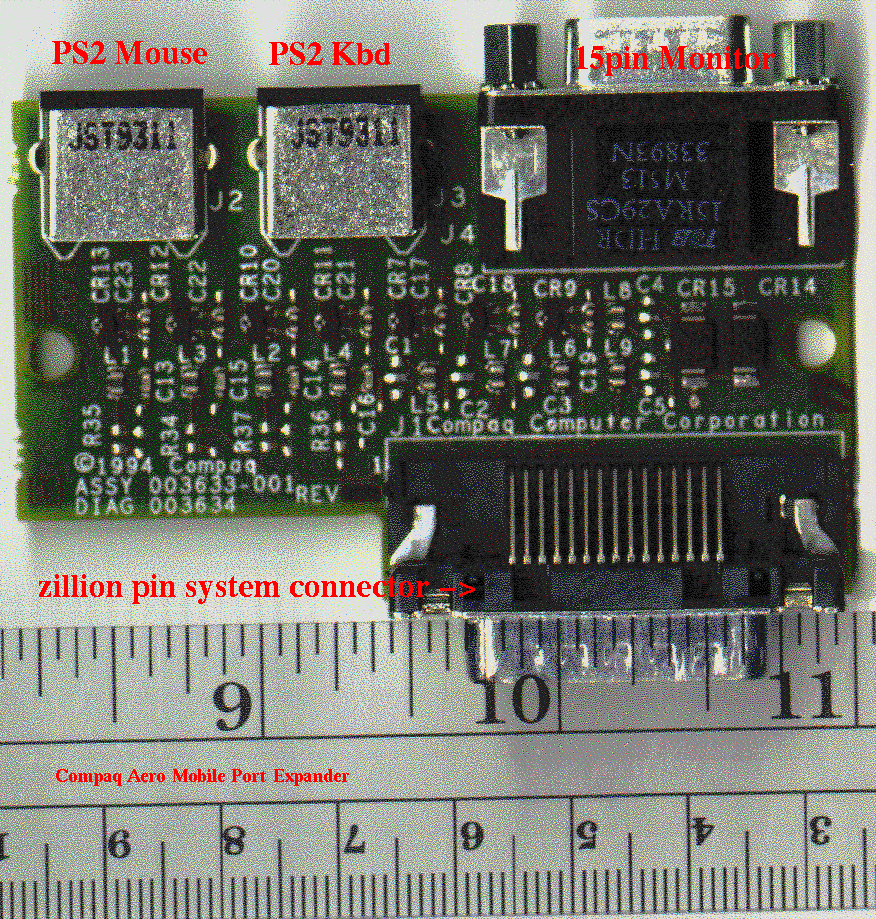
Compaq Contura Aero Frequently Asked Questions
Compaq Contura Aero Frequently Asked Questions
67100
79 Rue Descartes
79 Rue Descartes
France
Strasbourg
ALSACE
France
Collette Trenwith
89 Park End St
Ip29 5gx
Brockley Green
NA
Great Britain